.png)
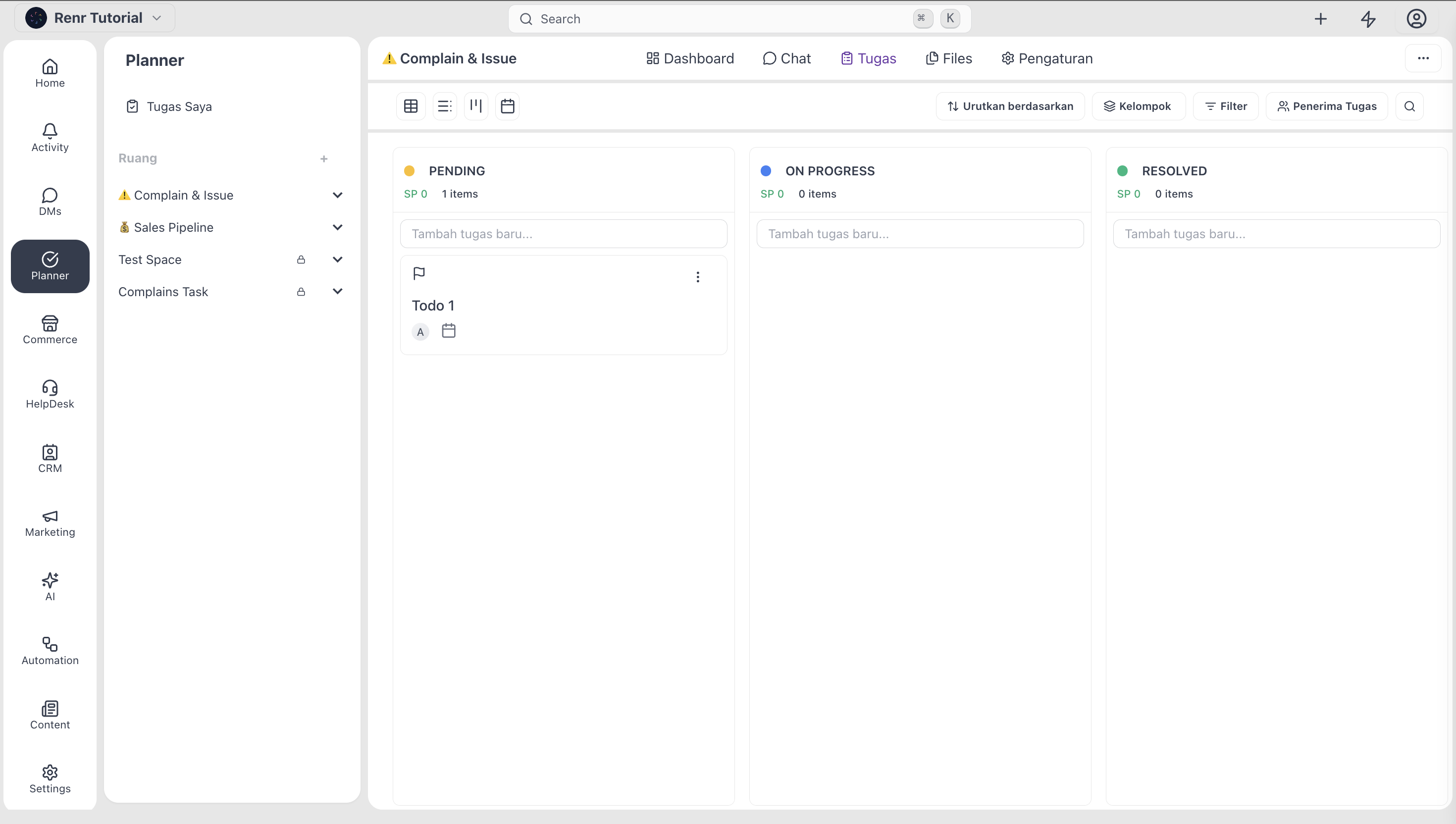
The Task tab is the main of a space. It's where every job, request, and item that someone on the team needs to deliver lives. The same set of tasks can be looked at five different ways—Board, List, Calendar, Table— depending on what question you're trying to answer. By the end of this guide, you'll know how to switch between views, search and filter the tasks on the tab, and create a new task from anywhere on it.
This article is about the Task tab itself—its views, its filter bar, and its add-task buttons. For everything you can do with an individual task (creating, editing properties, subtasks, links, comments, and attachments), see the Working with Tasks guide.
What you'll need
- Access to a Space.
- A role that lets you see tasks in that Space — see Set Up a Space for how task visibility works per role.
Open the Task tab
The Task tab sits in the middle of the Space tab bar.

Click the Task tab. The tab opens to whichever view your Space's owner or admin set as the default — typically Board for execution Spaces, Dashboard for review Spaces.
Switch between the for views
The view-switcher sits at the top of the Task tab. Click the view you want.

The same set of tasks reshapes to fit the view. No data is added or removed — you're just looking at it differently.
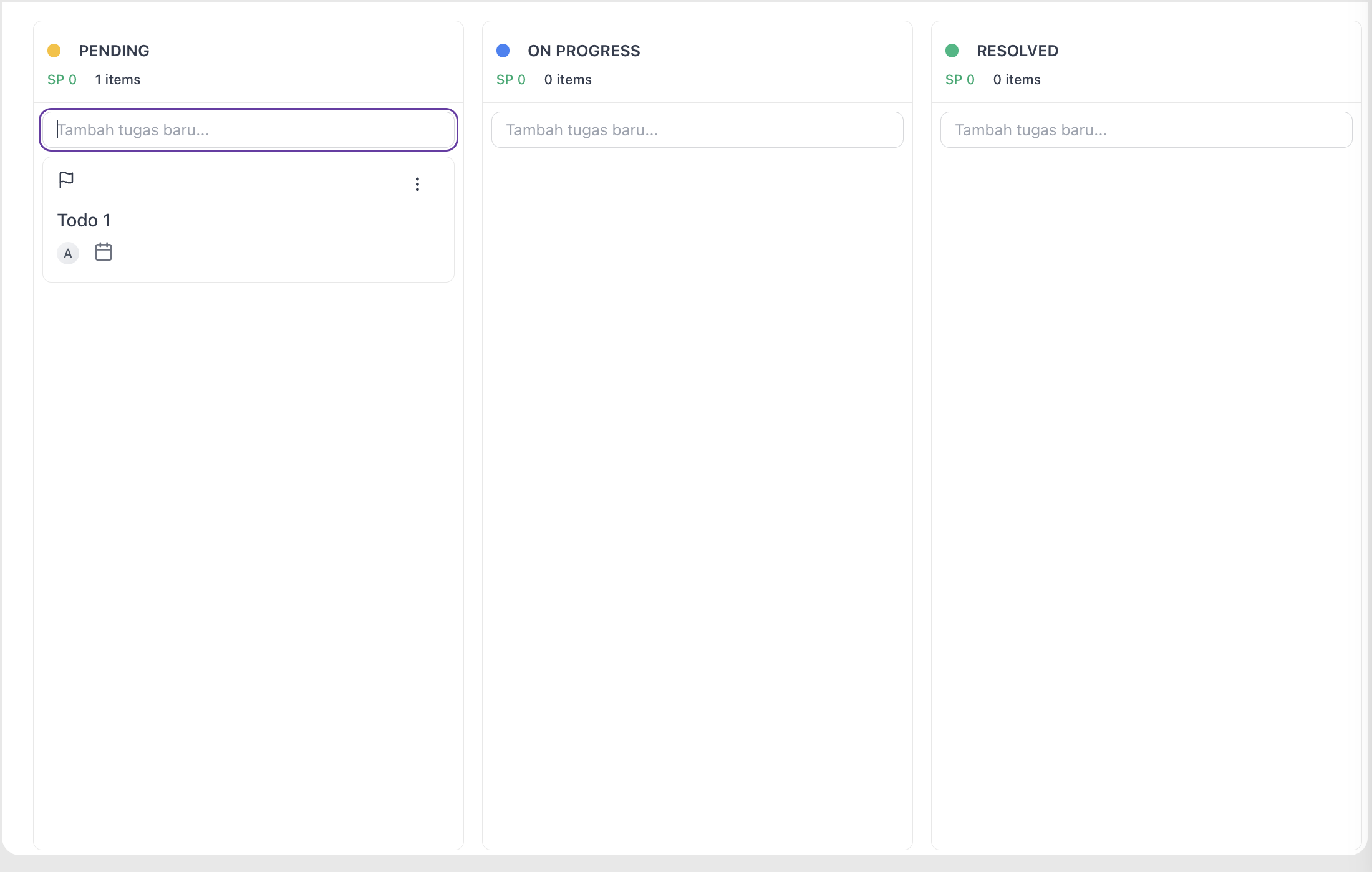
Board view
Tasks arranged in columns, one column per status. Drag a card from one column to another to change its status.
Use board for active execution — daily stand-ups, kanban-style flow, anywhere the team works in stages.
List view
Tasks shown as a sortable, filterable table — title, status, priority, assignee, due date, and any custom fields you've added.
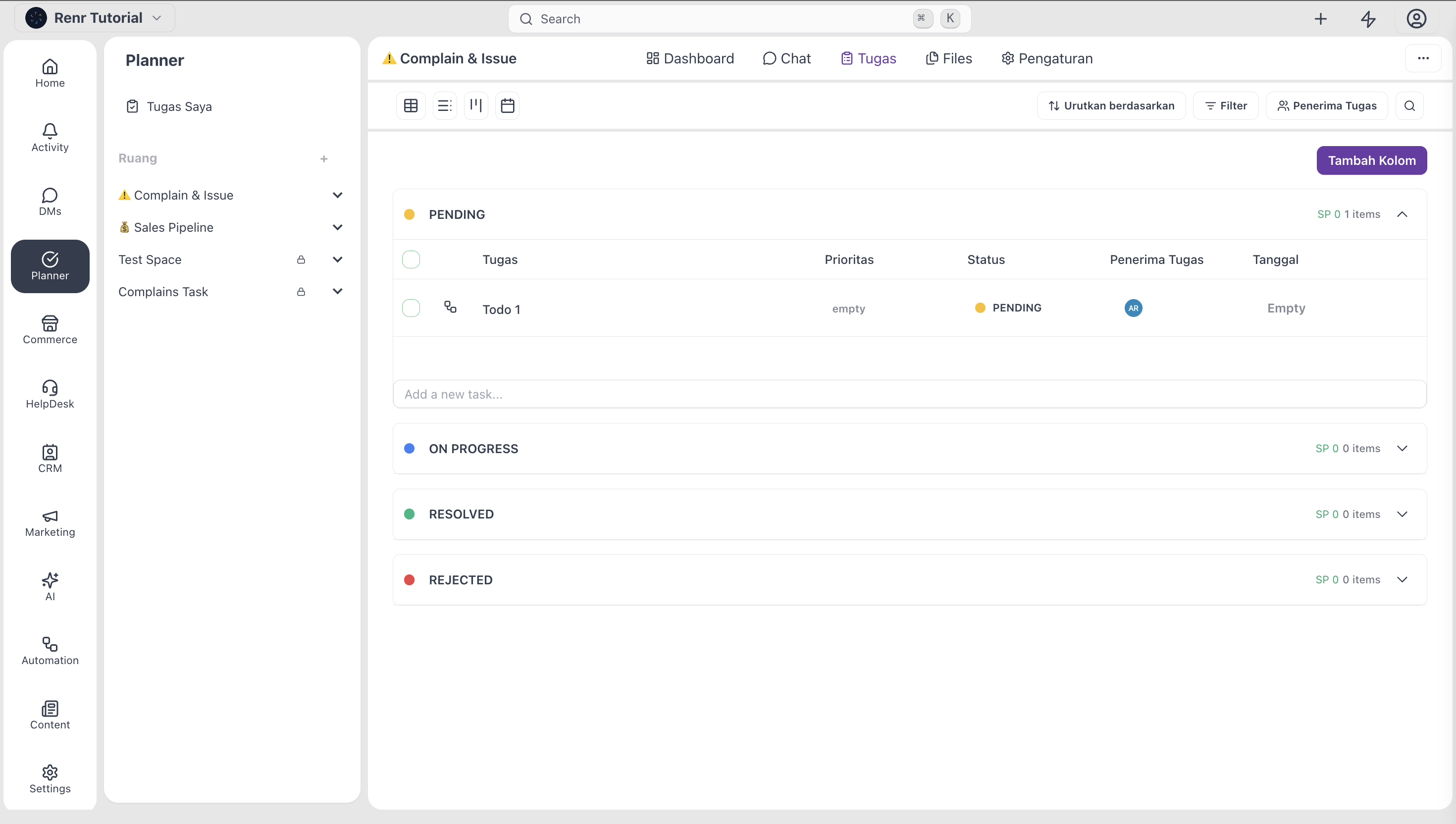
Use List for bulk operations, sorting by any column, and reviewing many tasks at once. List is the fastest way to update fields across many tasks without opening each one.
Table view
Tasks shown as a sortable, filterable table — title, status, priority, assignee, due date, and any custom fields you've added.
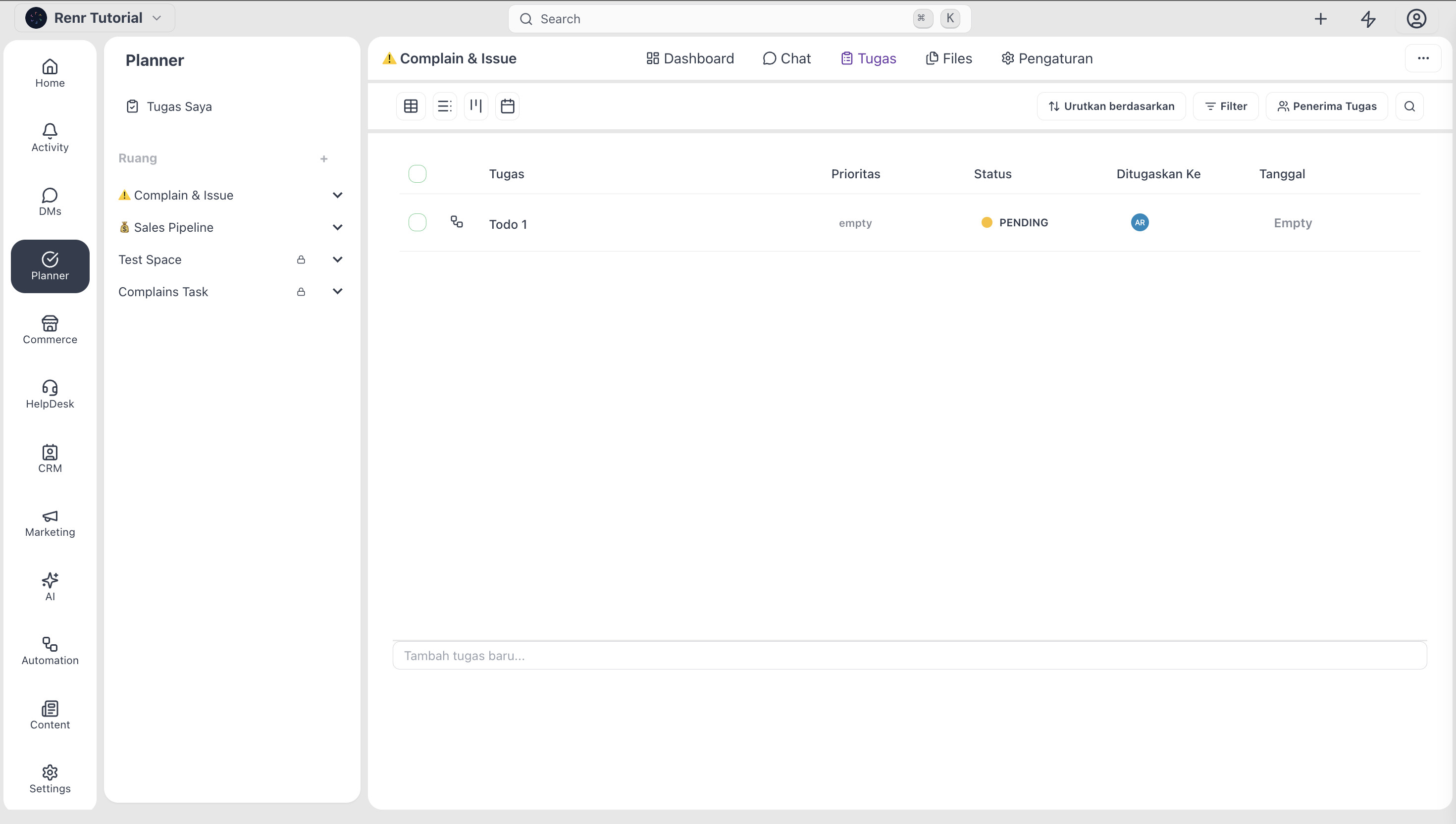
Use Tables for bulk operations, sorting by any column, and reviewing many tasks at once. Table is the fastest way to update fields across many tasks without opening each one.
Calendar view
Tasks placed on a month grid by their due date (or start–due range). Multi-day tasks render as bars.
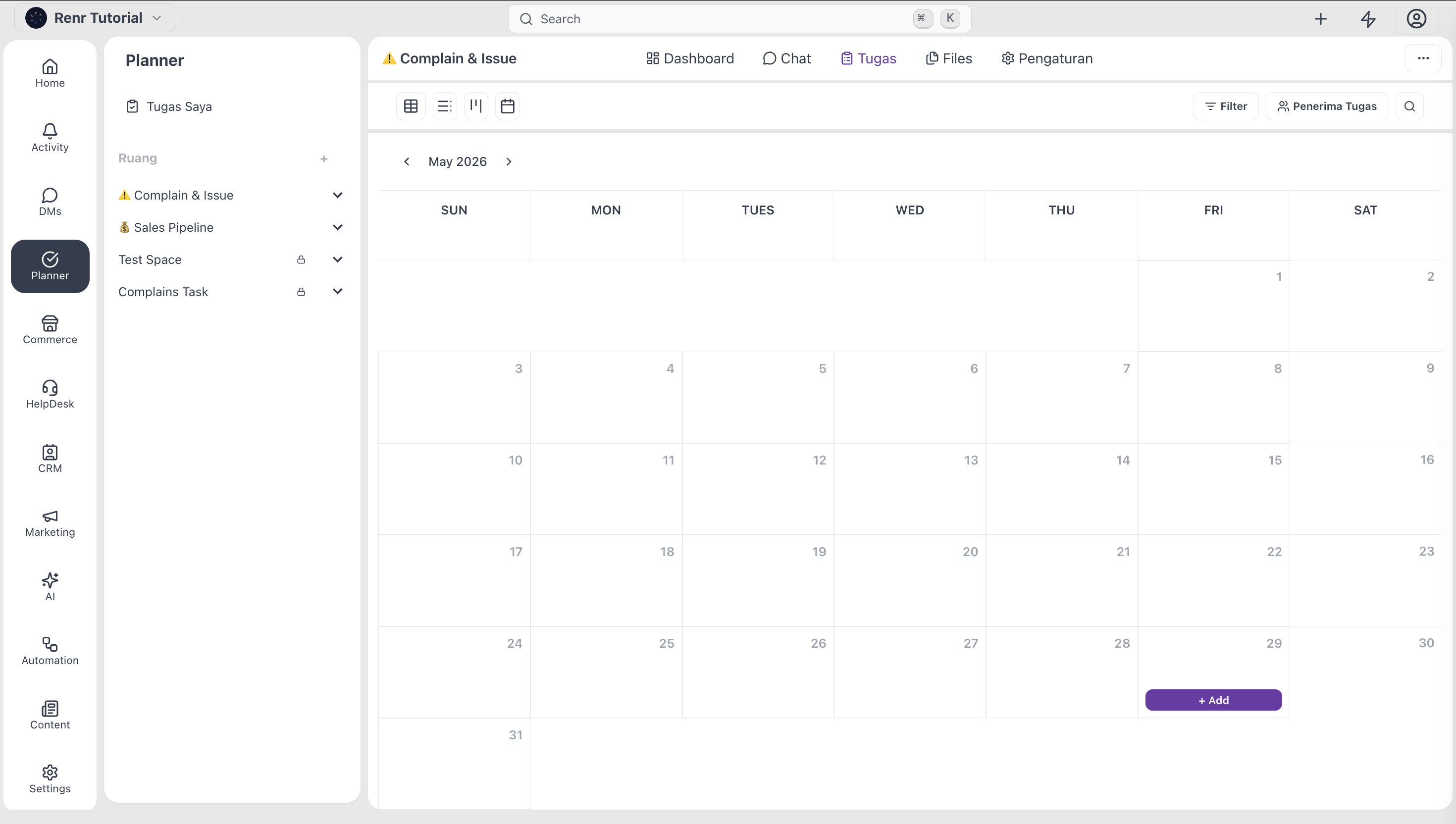
Use Calendar to plan a week or month and to spot overcommitment — too many tasks landing on one day means something has to slip.
Search and filter
Above the views sits the search and filter bar. Use it to narrow the tasks shown without leaving the view.

- Search — type into the search box to find tasks by title or description. Results update as you type.
- Filter chips — click any chip (Status, Priority, Assignee, Tag, Due date) to add a filter. Multiple chips combine with AND.
- Sort by - click any sort to sort the data.
- Group by - click any group option to grouping the data.
- Clear filters — click the small × next to an active chip, or Clear all to reset.
Add a task
Two ways to create a task from the Task tab:
- Click the button + to add a task at the top of the tab to open the Quick Create modal anywhere.
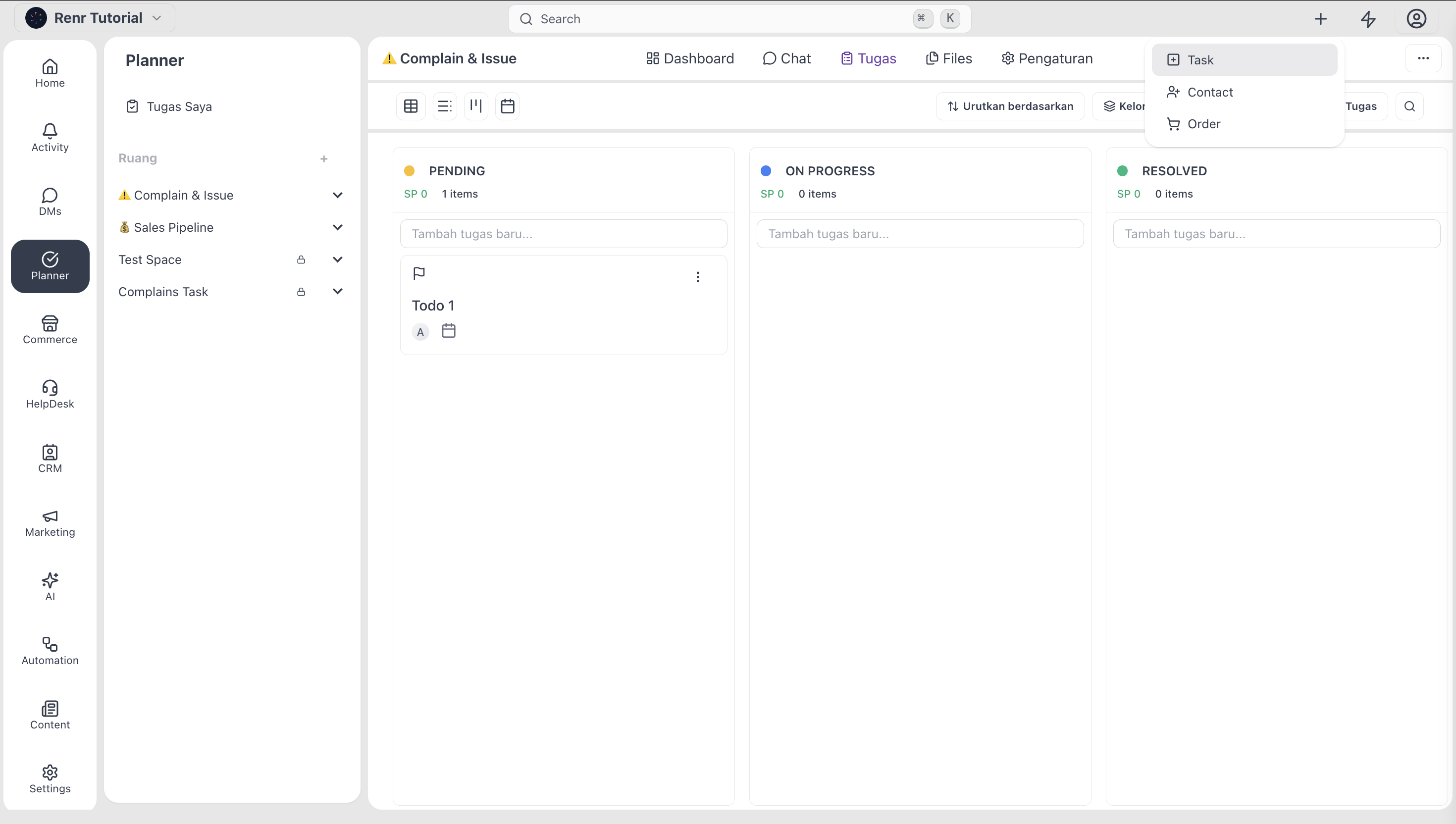
- Type a title and enter it at the top of any board column — with form by status column.