.png)
Renr menampilkan setiap tanggal dan waktu — tenggat tugas, stempel waktu obrolan, laporan — dalam zona waktu bisnis Anda. Jika waktu tersebut terlihat meleset beberapa jam, kemungkinan ruang kerja Anda diatur ke zona yang salah. Panduan ini menunjukkan cara mengubahnya hanya dalam beberapa klik.
Catatan: Zona waktu adalah pengaturan tingkat bisnis. Mengubahnya akan memperbarui cara tanggal dan waktu ditampilkan bagi semua orang di ruang kerja, bukan hanya bagi Anda.
Sebelum memulai
- Anda memerlukan akses ke Pengaturan bisnis Anda (peran owner atau admin).
- Ketahui zona waktu yang Anda inginkan — misalnya Asia/Jakarta untuk Waktu Indonesia Barat (WIB).
Mengubah zona waktu Anda
- Dari ruang kerja Anda, buka menu Pengaturan.
- Buka tab Umum.
- Gulir ke kartu Lokalisasi.
- Klik kolom Zona Waktu dan mulai ketik kota atau wilayah Anda — misalnya Jakarta. Pilih zona yang sesuai (seperti Asia/Jakarta) dari daftar.
- Klik Simpan Perubahan.
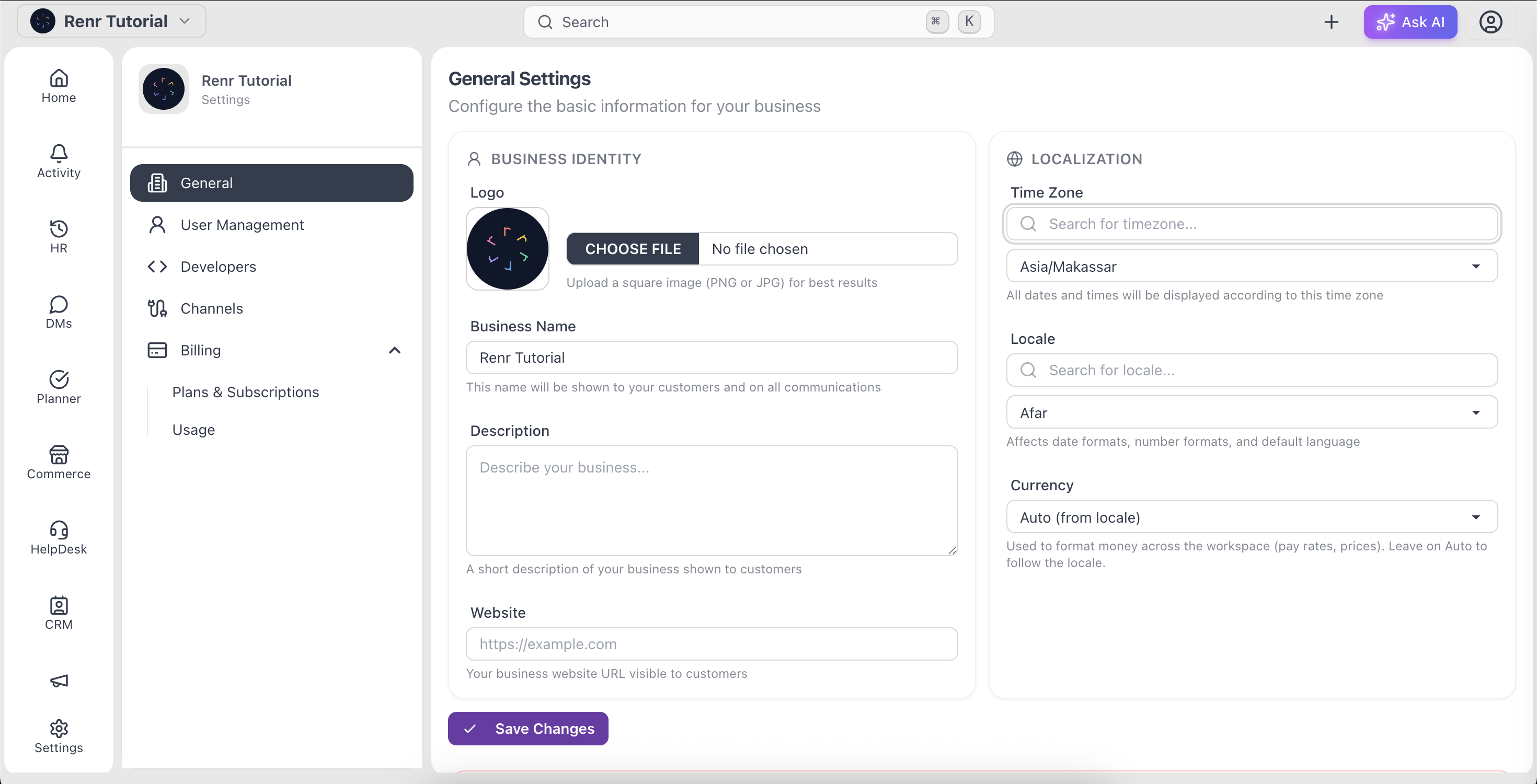
Tip: Kolom Zona Waktu dapat dicari. Ketik nama kota (Jakarta, Singapura, London) daripada menggulir seluruh daftar.
Yang berubah setelah Anda menyimpan
Semua tanggal dan waktu di seluruh ruang kerja Anda kini ditampilkan dalam zona yang Anda pilih — termasuk tenggat tugas planner, stempel waktu pesan obrolan, dan laporan. Tepat di bawah Zona Waktu, Anda juga akan menemukan pengaturan Lokal, yang mengontrol pemformatan tanggal dan angka; sesuaikan juga jika Anda ingin formatnya cocok dengan wilayah Anda.