.png)
Renr shows every date and time — task due dates, chat timestamps, reports — in your business time zone. If those times look off by a few hours, your workspace is probably set to the wrong zone. This guide shows you how to change it in a few clicks.
Note: Time zone is a business-level setting. Changing it updates how dates and times appear for everyone in the workspace, not just for you.
Before you start
- You need access to your business Settings (owner or admin role).
- Know which time zone you want — for example Asia/Jakarta for Western Indonesia Time (WIB).
Change your time zone
- From your workspace, open the Settings menu.
- Go to the General tab.
- Scroll to the Localization card.
- Click the Time Zone field and start typing your city or region — for example Jakarta. Pick the matching zone (such as Asia/Jakarta) from the list.
- Click Save Changes.
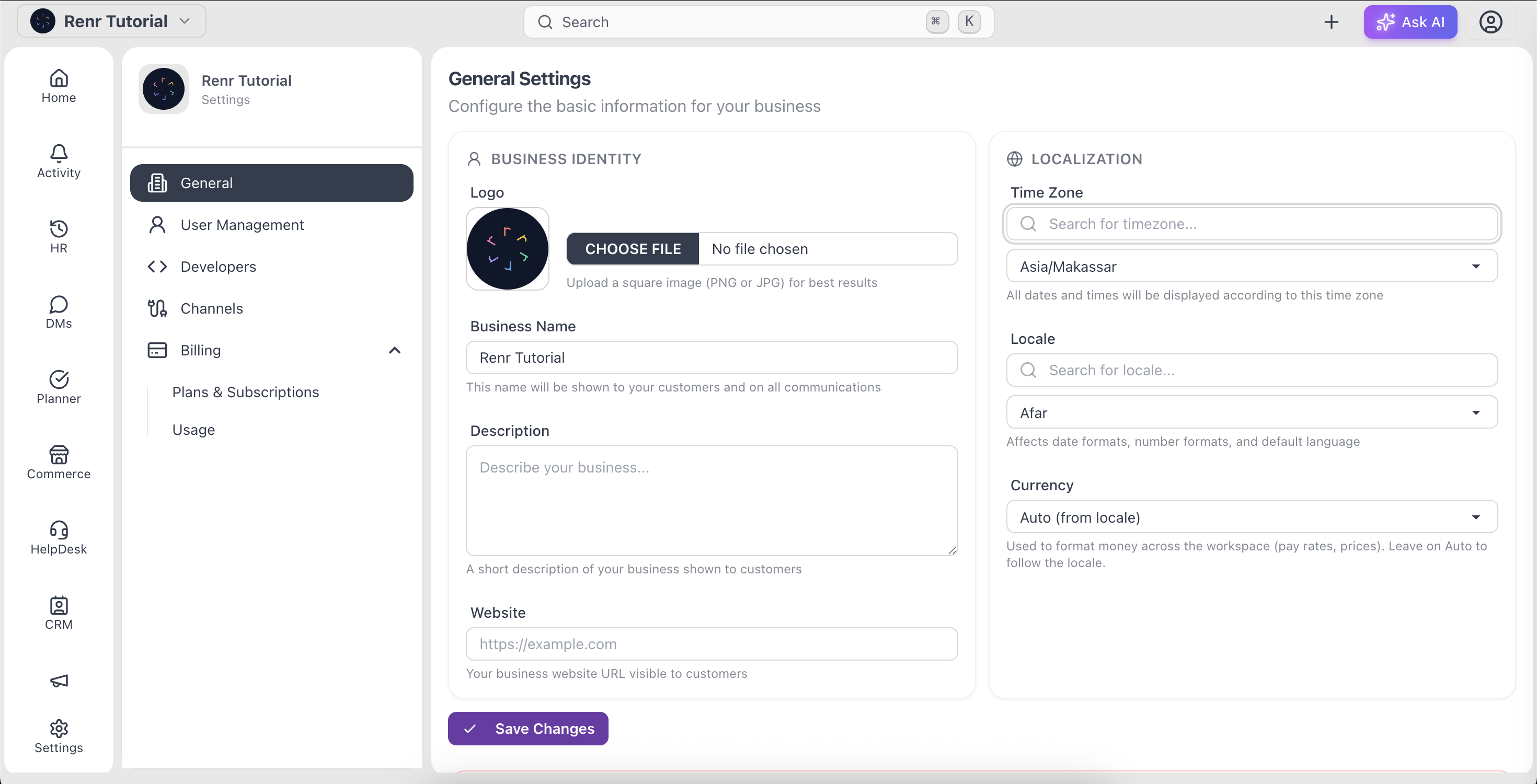
Tip: The Time Zone field is searchable. Type a city (Jakarta, Singapore, London) instead of scrolling the full list.
What changes after you save
All dates and times across your workspace now display in the zone you picked — including planner task due dates, chat message timestamps, and reports. Right below Time Zone you'll also find the Locale setting, which controls date and number formatting; adjust it too if you want formats to match your region.