.png)
Point of Sale (PoS) dirancang untuk berjualan tatap muka. PoS menyatukan katalog produk, keranjang berjalan, dan pembayaran dalam satu layar yang cepat — sehingga Anda dapat mencatat penjualan dalam hitungan detik tanpa menyusun pesanan kolom demi kolom.
Buka Point of Sale
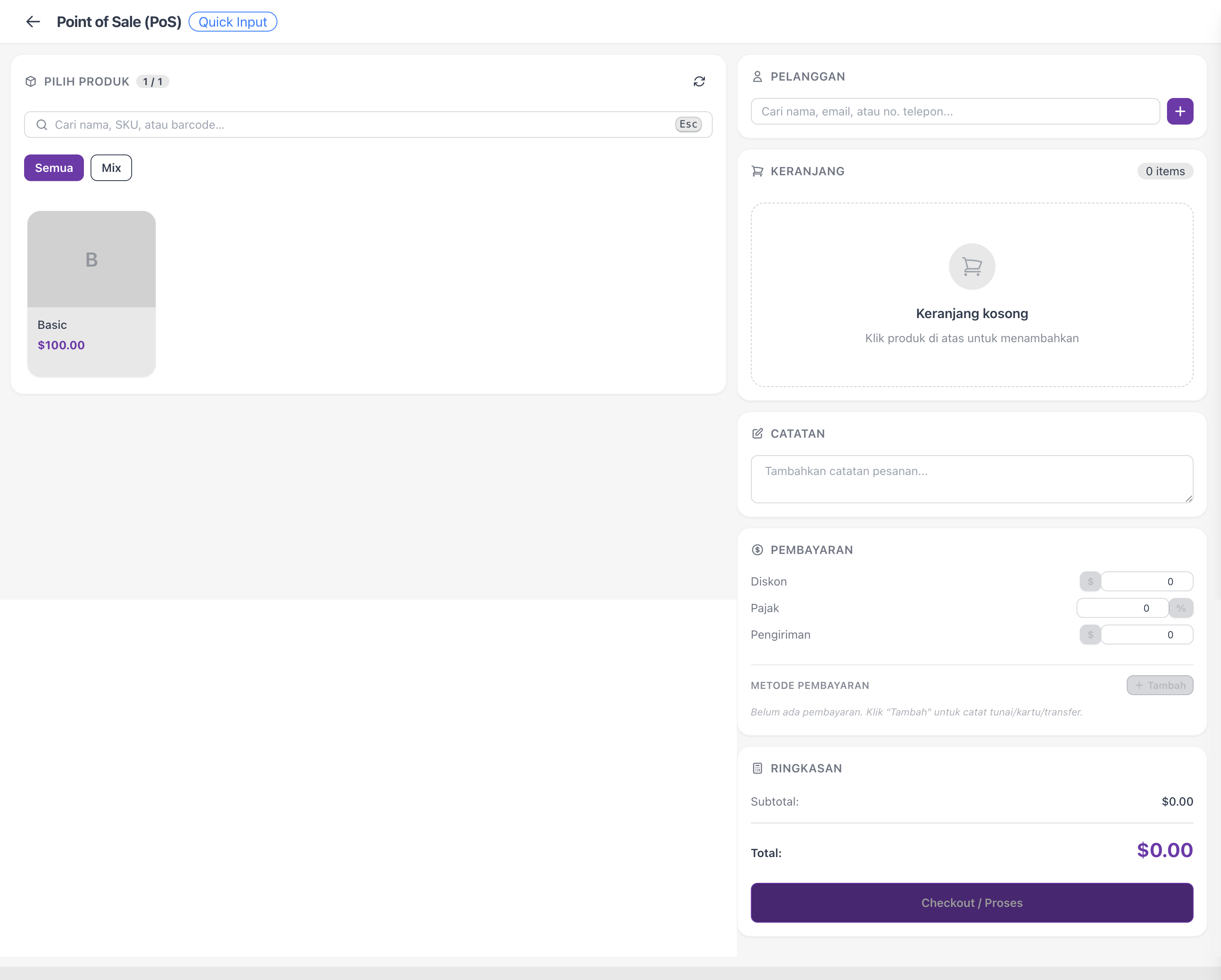
Buka Pesanan di bagian Perdagangan, lalu klik Mode PoS. Layar PoS terbuka dengan kategori Anda di sisi samping dan produk siap untuk diketuk.
Susun keranjang
- Pilih sebuah kategori untuk mempersempit kisi produk, atau gunakan pencarian.
- Ketuk produk untuk menambahkannya ke keranjang. Ketuk lagi untuk menambah jumlah, atau sesuaikan di keranjang.
- Hapus apa pun yang ditambahkan secara keliru dengan ikon hapus di keranjang.
Tambahkan pelanggan
Cari pelanggan yang sudah ada, atau buat baru secara langsung jika mereka belum terdaftar. Menambahkan pelanggan akan mencatat penjualan pada riwayat mereka — berguna untuk tindak lanjut dan pembelian berulang. Anda juga dapat membiarkan penjualan langsung tanpa nama pelanggan.
Terima pembayaran dan selesaikan penjualan
- Pilih metode pembayaran yang digunakan pelanggan.
- Konfirmasi totalnya.
- Selesaikan penjualan. Pesanan dibuat dan ditandai lunas dalam satu langkah.
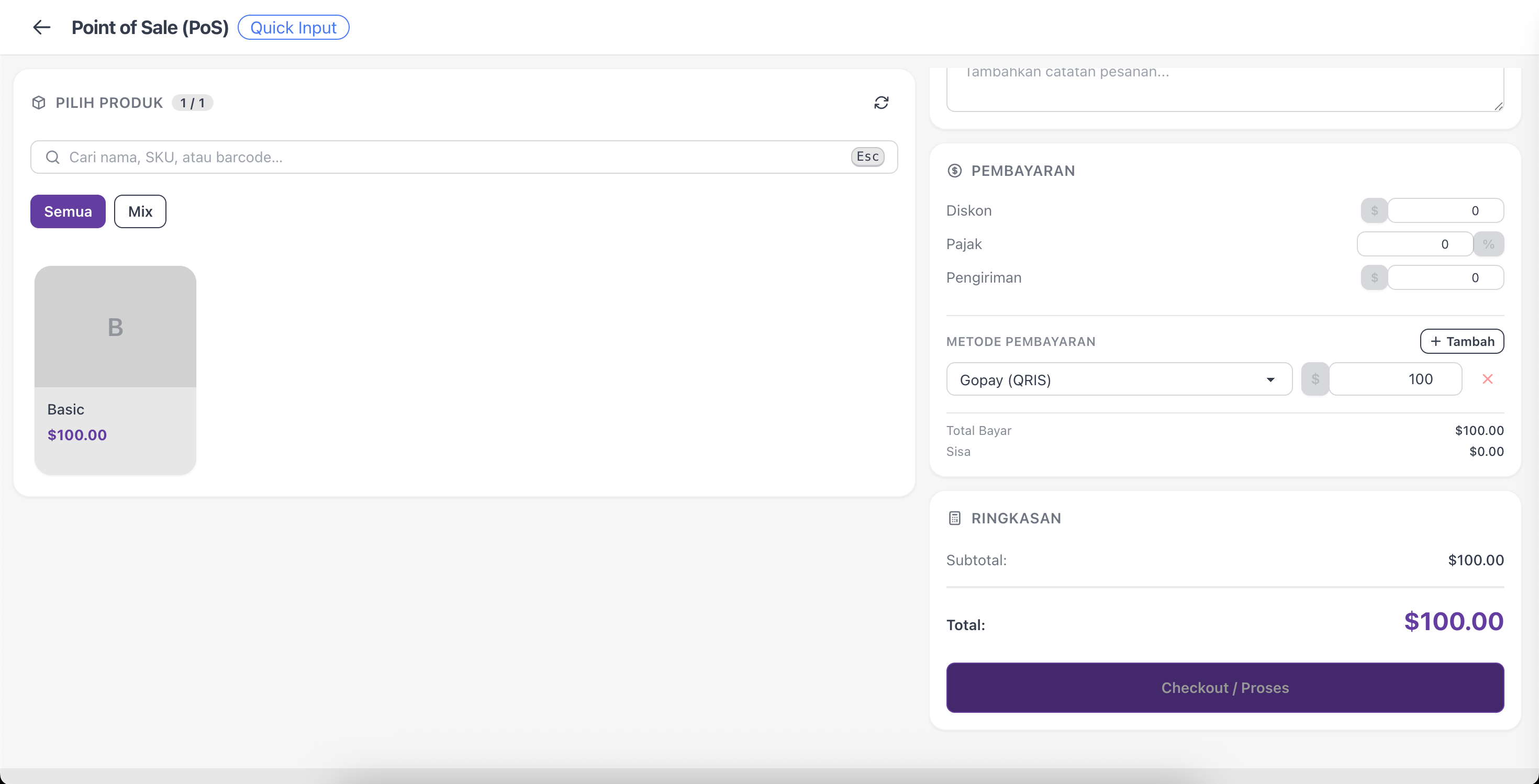
Catatan: Siapkan metode pembayaran terlebih dahulu untuk menerima pembayaran dan menyelesaikan penjualan.
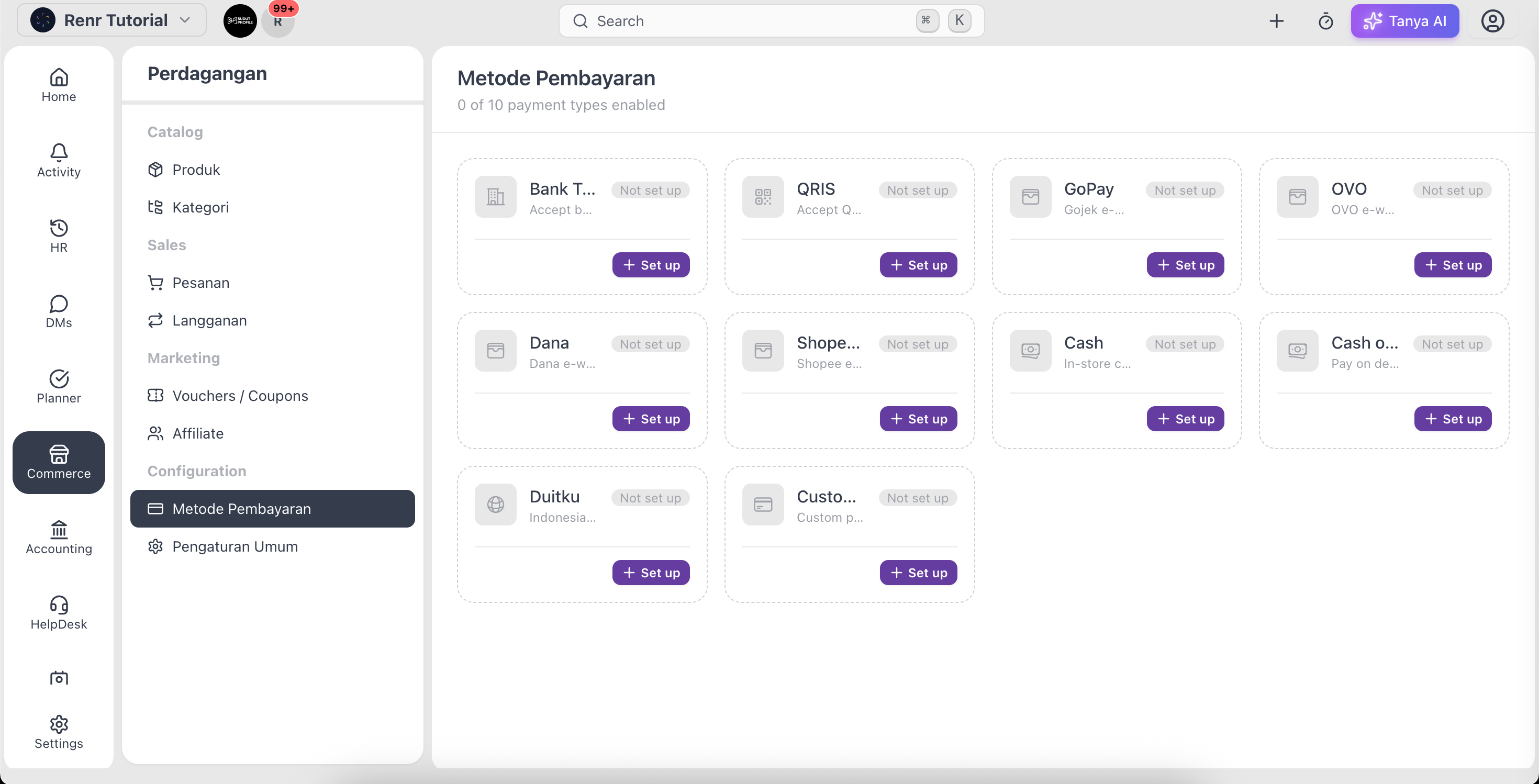
Tip: Opsi pembayaran yang Anda lihat di sini berasal dari metode pembayaran yang telah Anda konfigurasikan. Untuk menambah atau mengubahnya, lihat Menyiapkan metode pembayaran Anda.