.png)
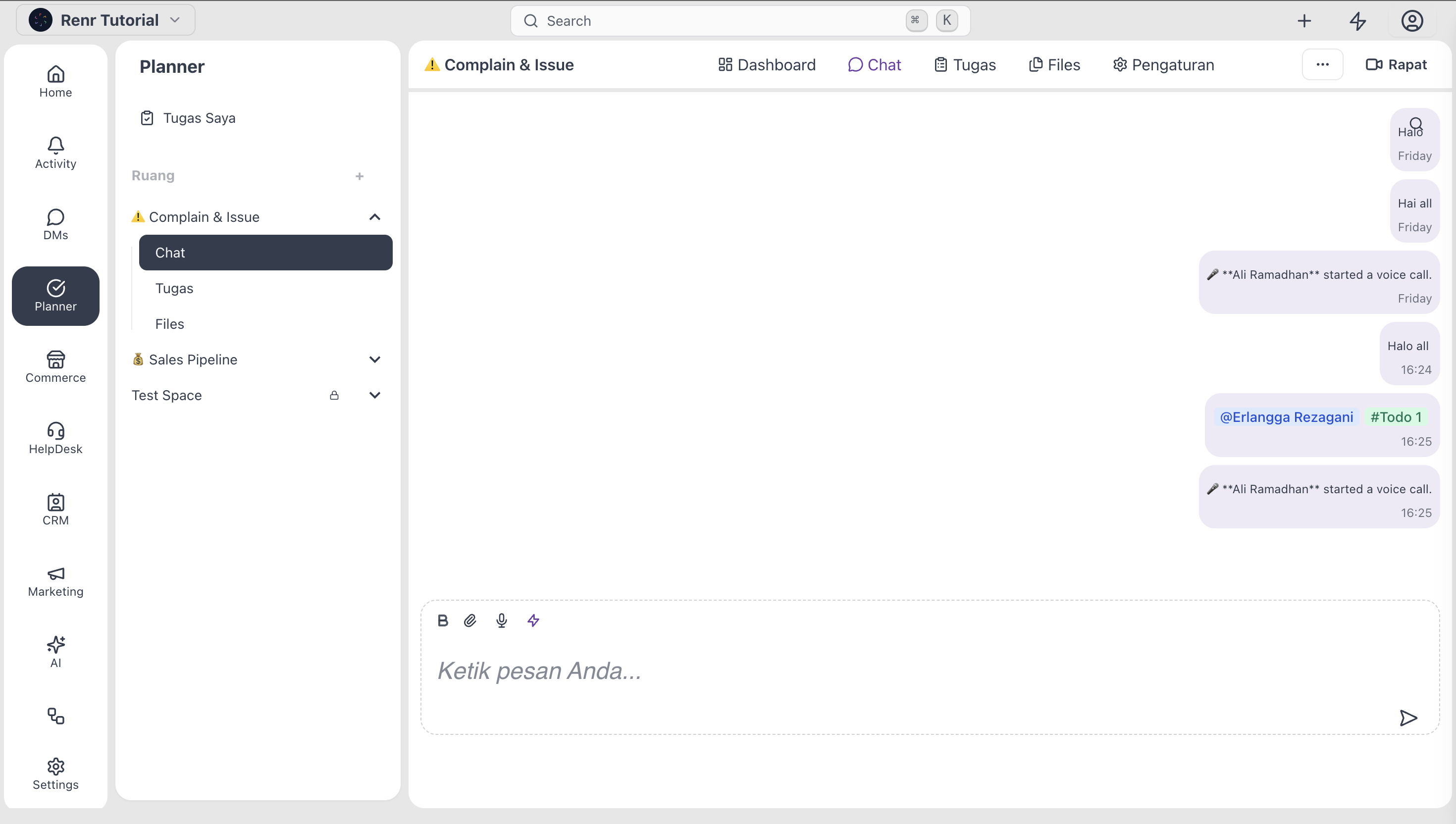
Every Space comes with its own chat room. It's where your team talks about what's happening in the space—quick questions, decisions, and links shared in passing—without leaving the space context. By the end of this guide, you'll know how to send messages, mention teammates, react, share files, and turn a chat message into a task.
What you'll need
- Access to a space (any role can read and post in Chat).
- An active session — chat is real-time, so closing the tab pauses delivery until you reopen it.
Open the Chat tab
The Chat tab is the second tab in every space and, in many workspaces, the default landing tab when you open a space.

Click the Chat tab. You see the latest messages, the message composer at the bottom, and a side rail listing Space members in some layouts.
Send a message
The composer lives at the bottom of the Chat panel.
- Click in the composer.
- Type your message.
- Press Enter to send, or Shift + Enter to add a line break.
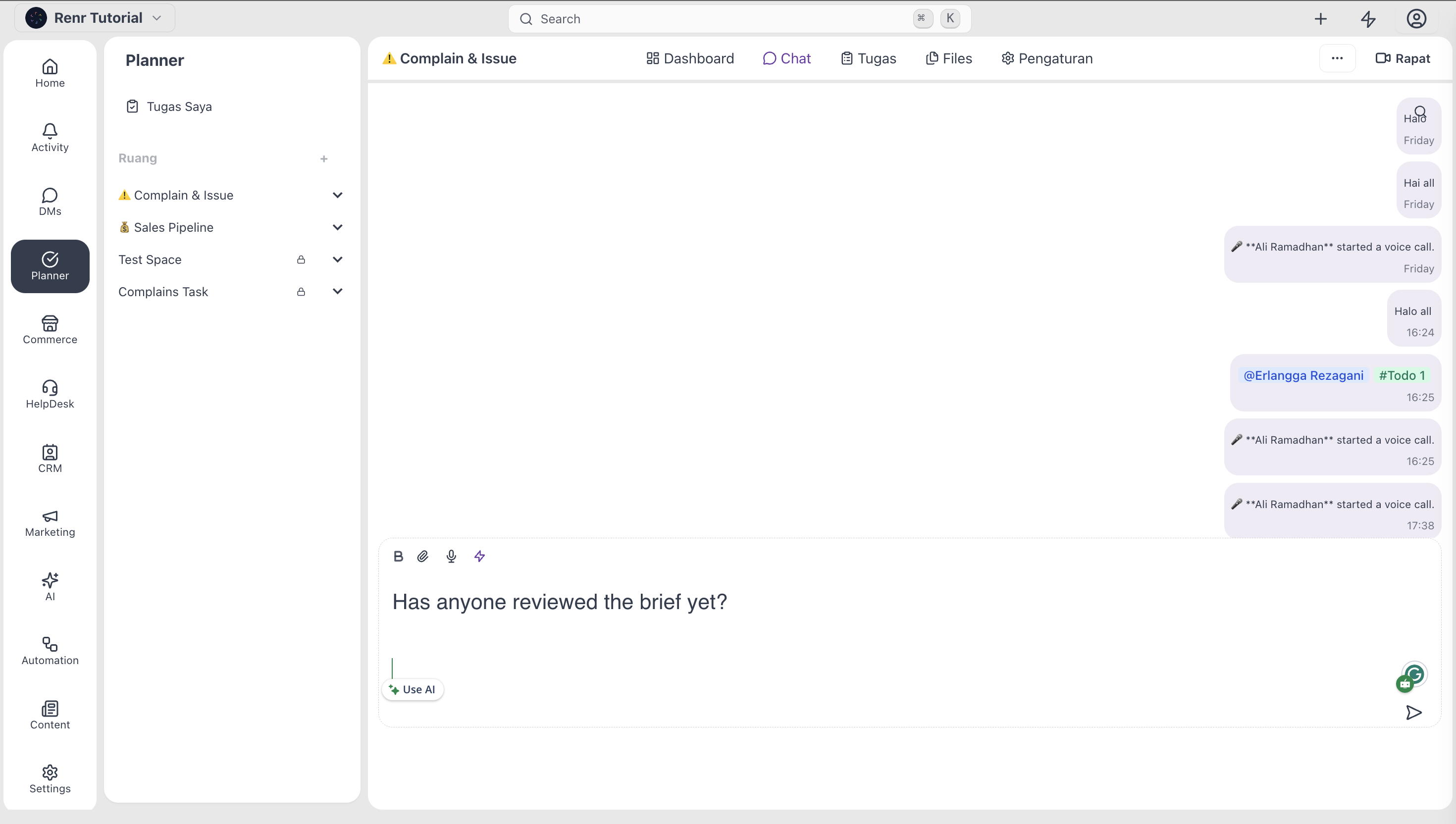
Your message appears immediately for you and for every Space member who has Chat open. There is no separate "send" button to forget — Enter sends.
Mention a teammate
Use @mentions to call attention to a specific person.
- Type @ in the composer.
- A dropdown appears with Space members. Start typing the name to filter.
- Click the person — or press Enter — to insert the mention.
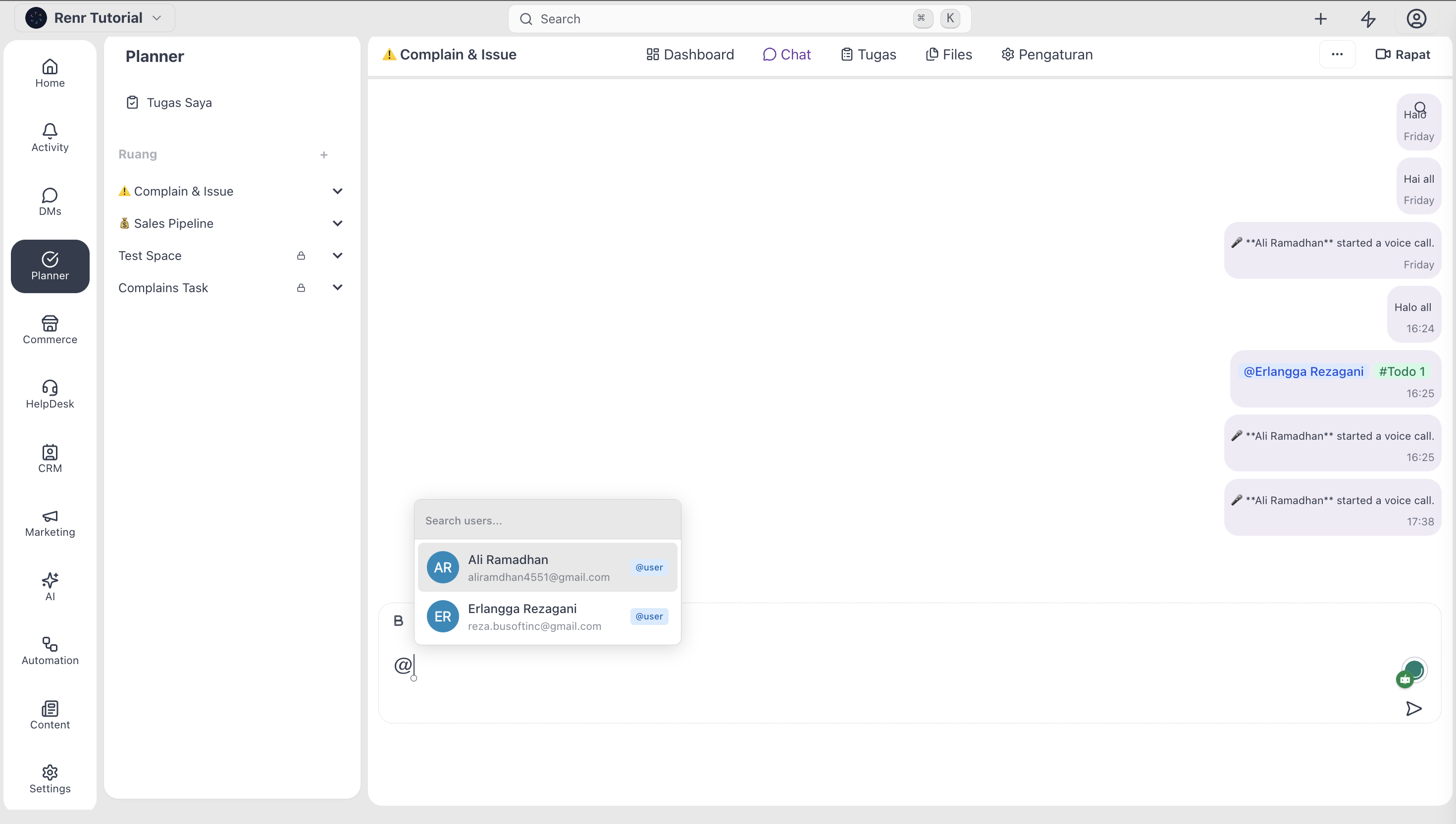
The mentioned person sees a notification in their inbox and, depending on their notification settings, an email or push.
Mention a task
Use # mentions to call attention to a specific person.
- Type # in the composer.
- A dropdown appears with space tasks. Start typing the name to filter.
- Click the task — or press Enter — to insert the mention.
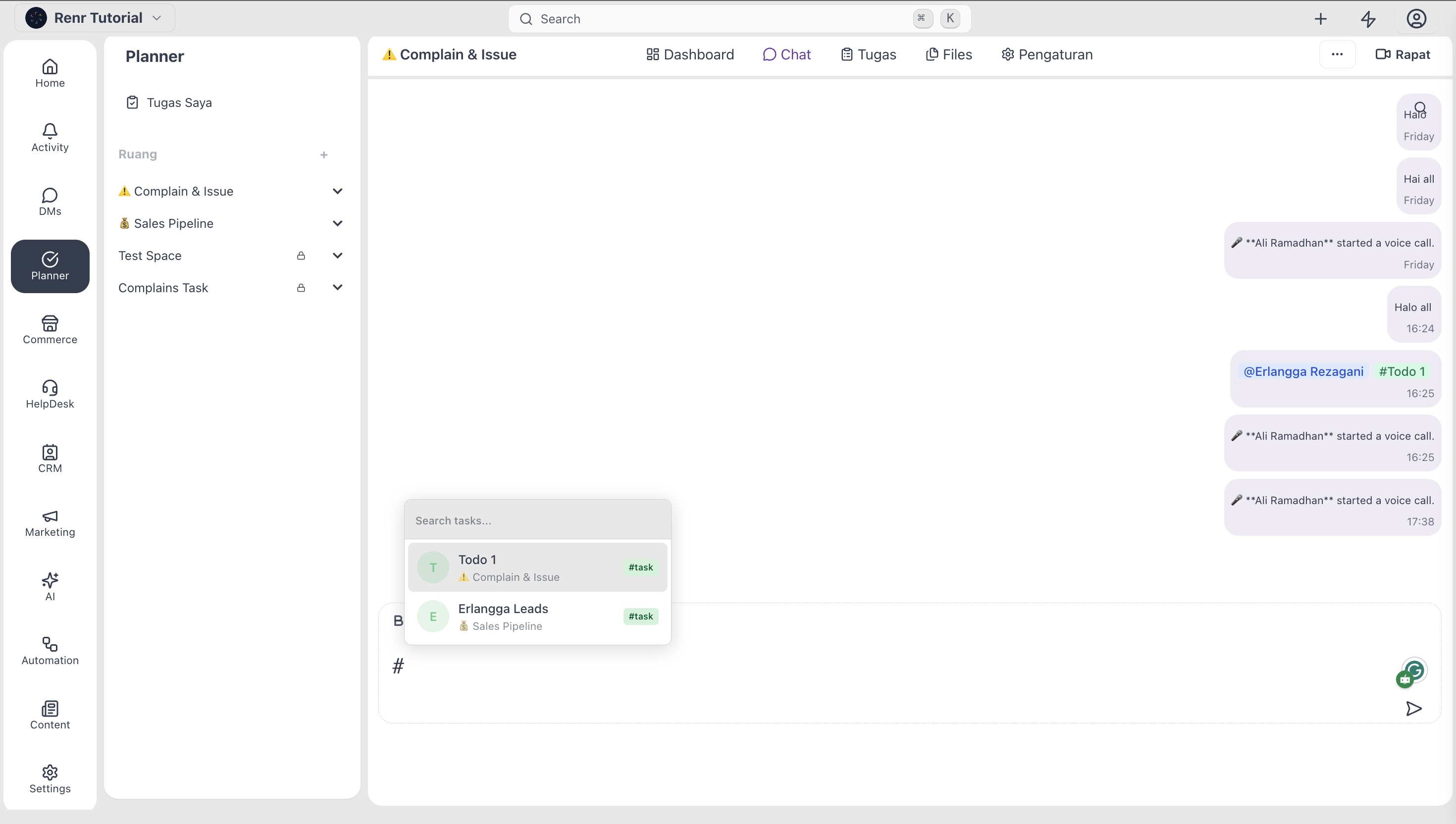
The mentioned task sees a task in their inbox.
React to a message
A reaction is the lightweight way to acknowledge a message without typing.
- Hover over a message — a small action toolbar appears.
- Click the emoji icon.
- Pick a reaction. Common ones (✅, 👍, ❤️, 👀) sit at the top of the picker.
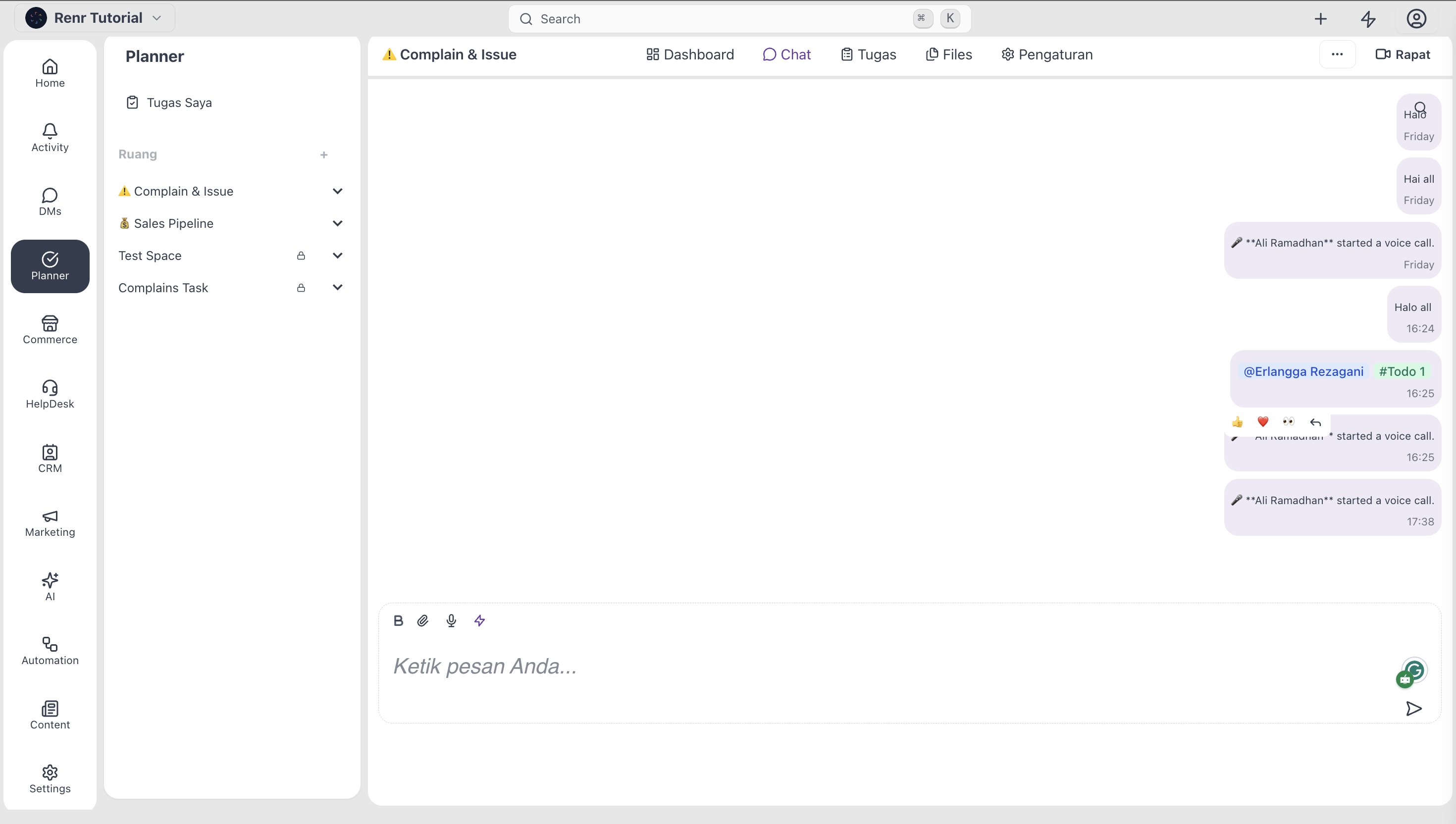
Reactions stack—if three people thumbs-up the same message, you see "👍 3".
Share a file
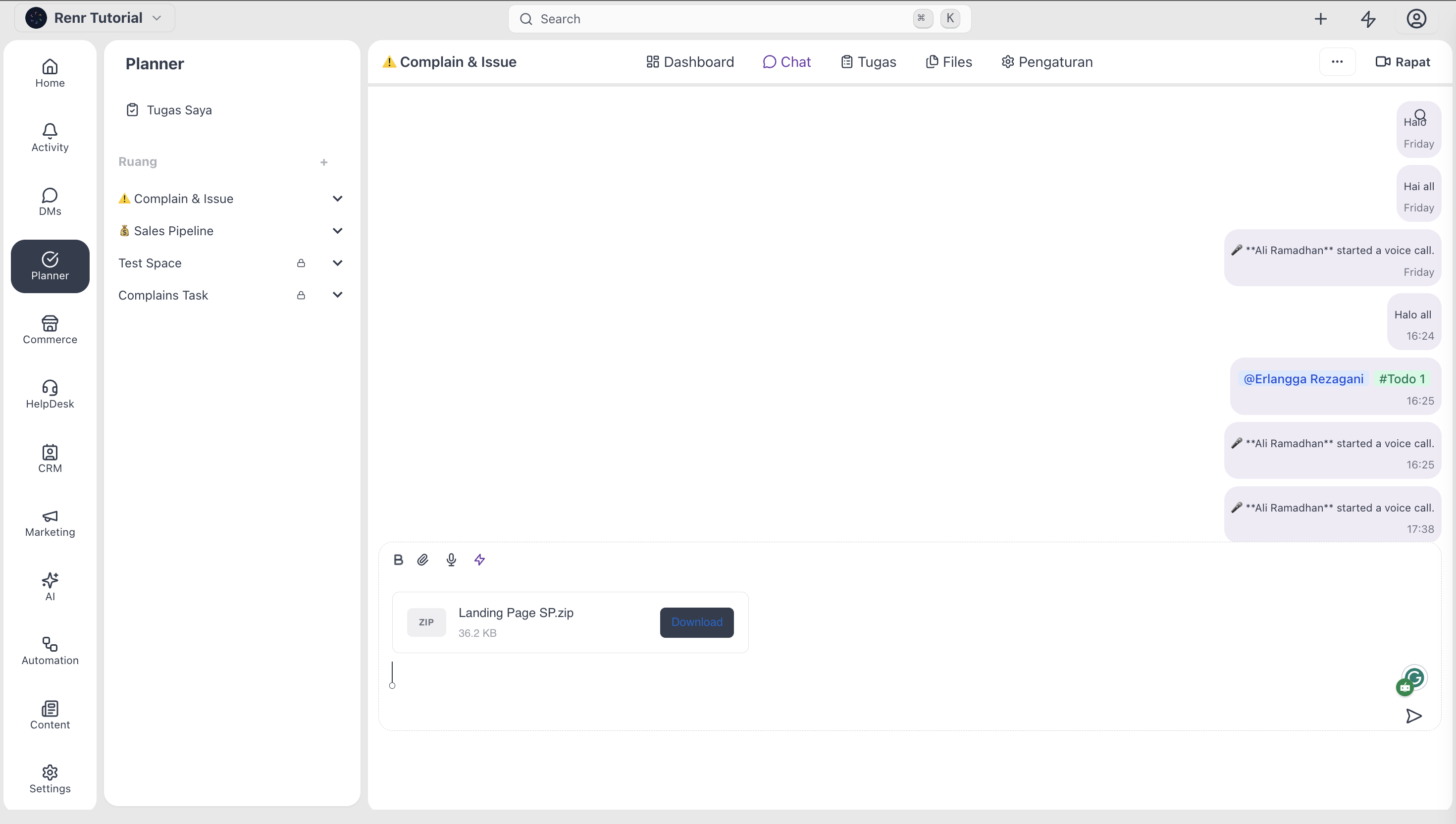
You can drop files directly into Chat without opening the Files tab.
- Drag a file from your desktop onto the chat panel—or click the paperclip icon in the composer.
- Add an optional message describing what you're sharing.
- Press Enter.
The file appears as a preview card with a thumbnail, file name, and download button. Files shared in Chat are also discoverable in the Files tab.