.png)
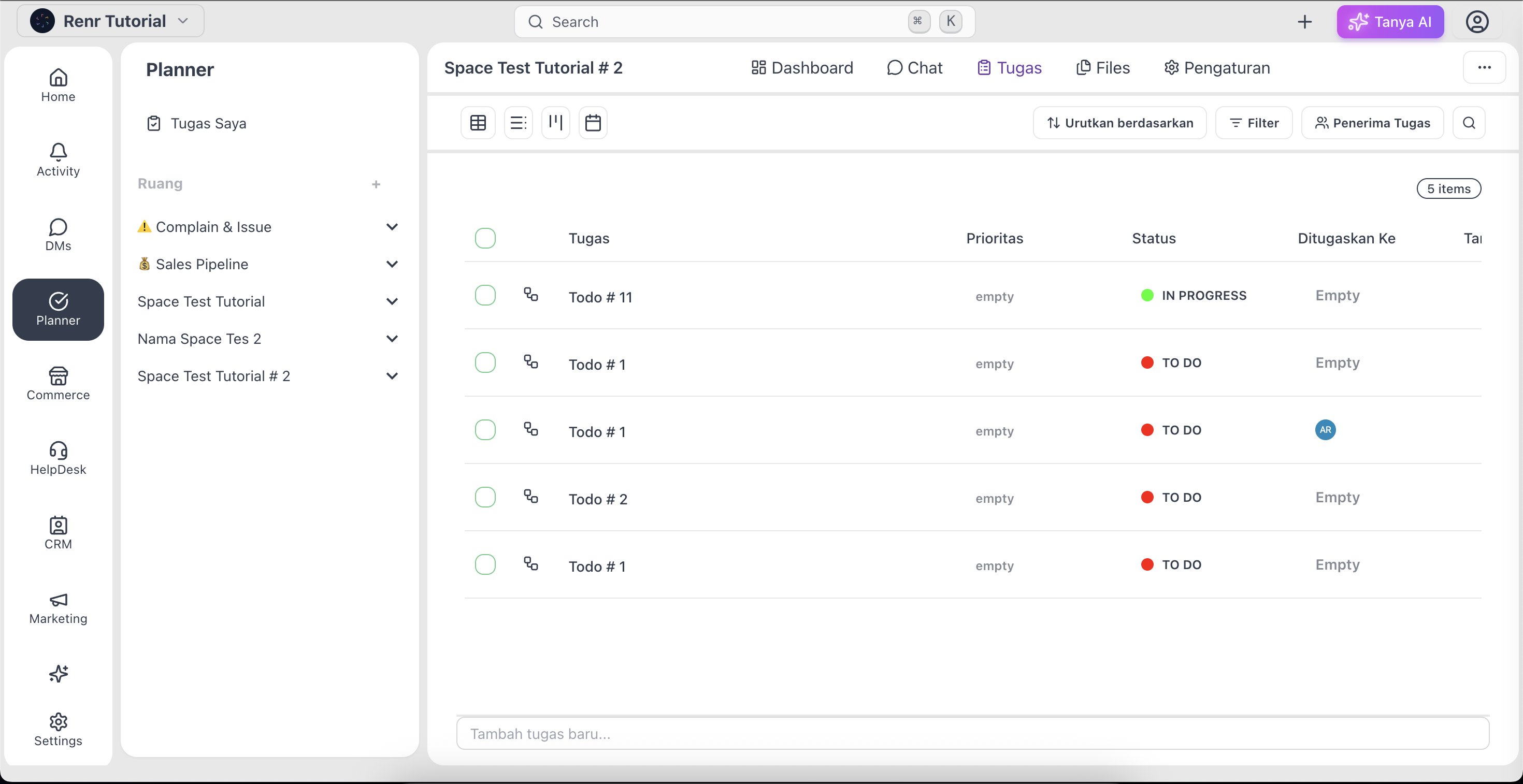
The Table View displays all tasks within a space in a structured spreadsheet-style layout, making it easier to organize, sort, filter, and manage task information efficiently.
What you'll need
- Access to a Space — see Create a Space if you don't have one yet.
- A role that can create tasks (every role—Owner, Admin, Manager, and Member—can create tasks).
- The Task tab opens on table view.
Open Tab view
Click the Task tab in the space tab bar, then click Table in the view switcher at the top.

Click the input field at the bottom of the list table to create a new task.
Scroll to the bottom of the table. The last row is an inline "+ Add a new task" row.
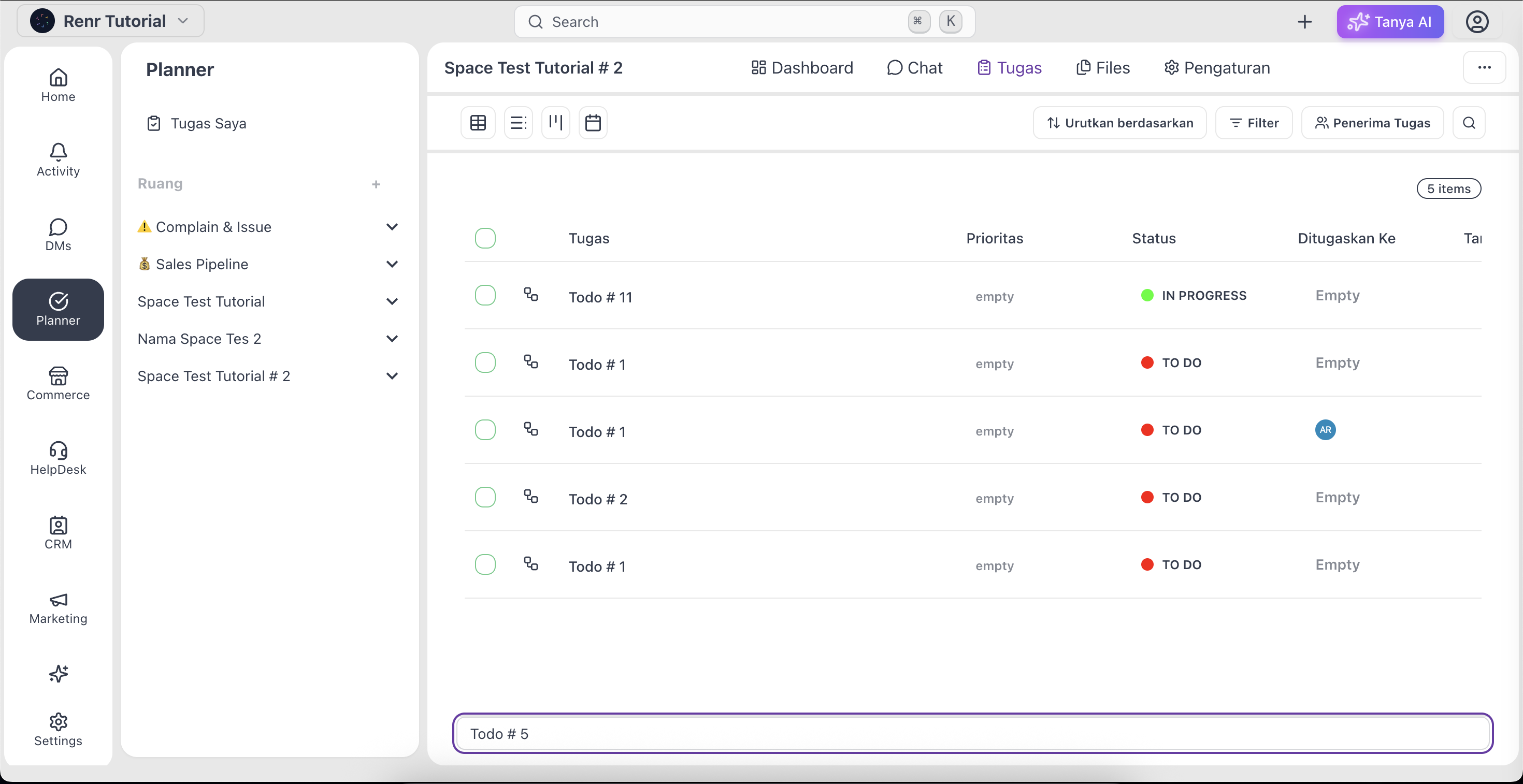
Type a title and press Enter.
The task is created in that column with no description, assignee, or due date. You can fill those in later by clicking the new card to show the detail page.
The new task appears immediately:
- As a card at the top of the column you clicked.
- In the picked space—as a card on a board, a row on a list and table, or a bar on a calendar (if start or due dates are set).
- For every assignee—in their My Tasks page.