.png)
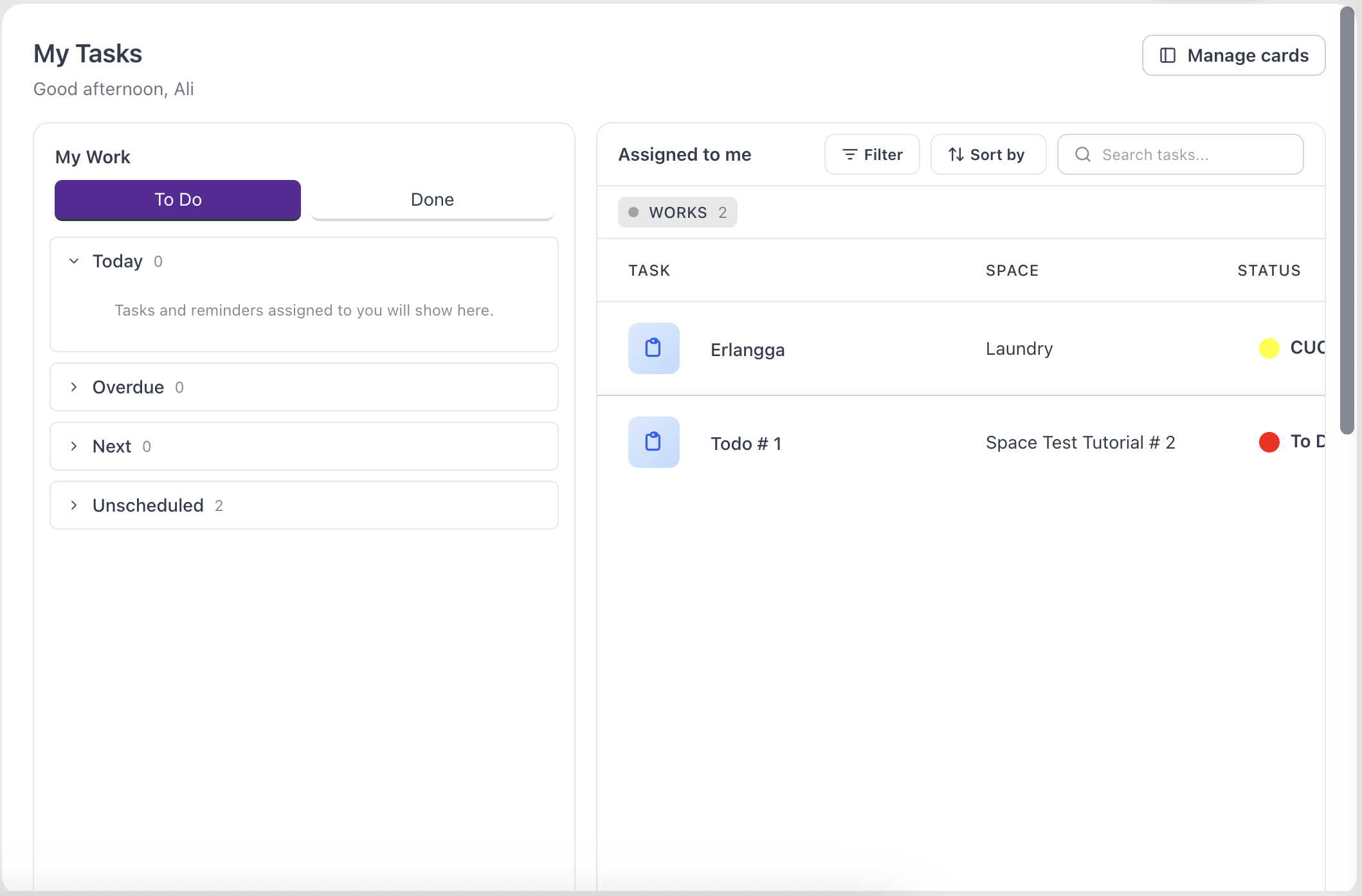
My Tasks is your personal command center. Instead of opening each Space to hunt for what's assigned to you, it pulls all of your tasks into one screen — organised by day, listed for quick edits, and laid out on a calendar. This guide shows you how to open My Tasks, arrange it to suit you, and work through your day.
What you'll need
- At least one task assigned to you in any Space. See Create a task if you need one.
Open My Tasks
Click My Task in the left sidebar. The My Tasks page opens with a greeting and everything currently assigned to you.
Arrange your view
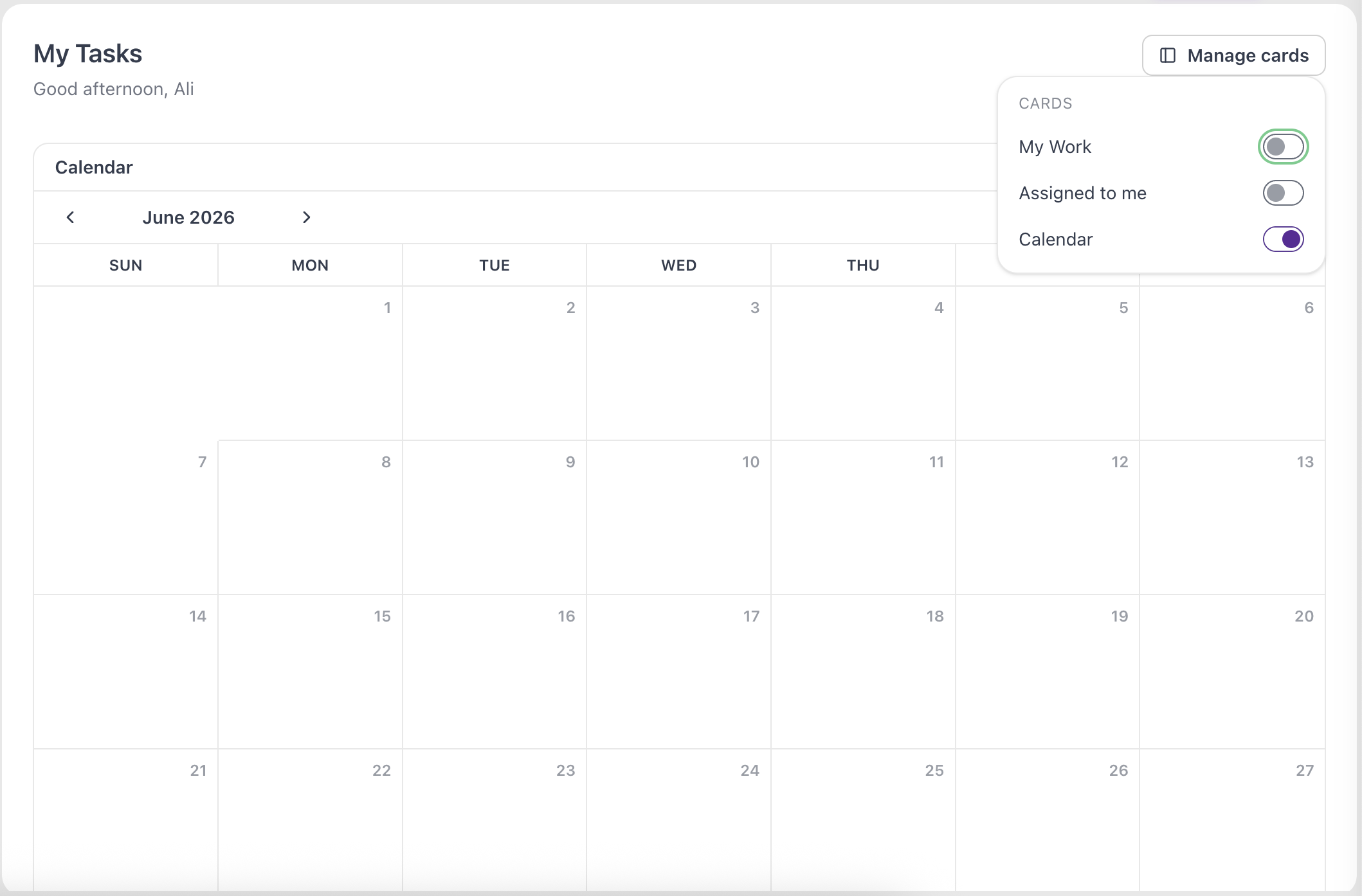
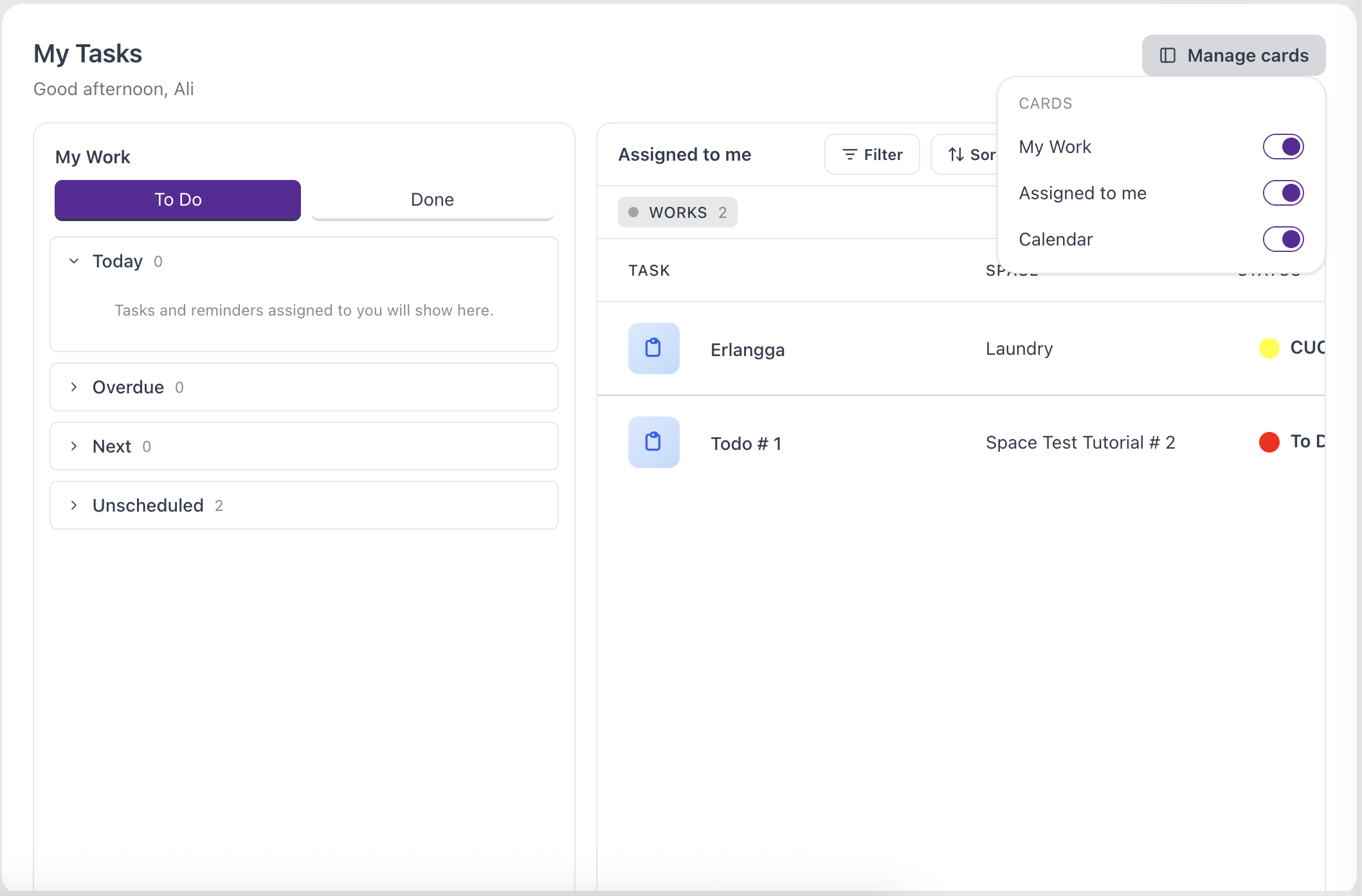
My Tasks is made up of three cards — My Work, Assigned to me, and Calendar. Click Manage cards and use the checkboxes to show or hide each one, so you see only what matters to you.
Work through your day with My Work
The My Work card has two tabs:
- To Do — your open tasks, grouped into collapsible sections:
- Today — tasks due today.
- Overdue — tasks past their due date that aren't finished.
- Next — tasks coming up soon.
- Unscheduled — tasks with no date set.
- Done — tasks you've completed.
Each section shows a count, and expands when you click it. Click any task to open its detail page.
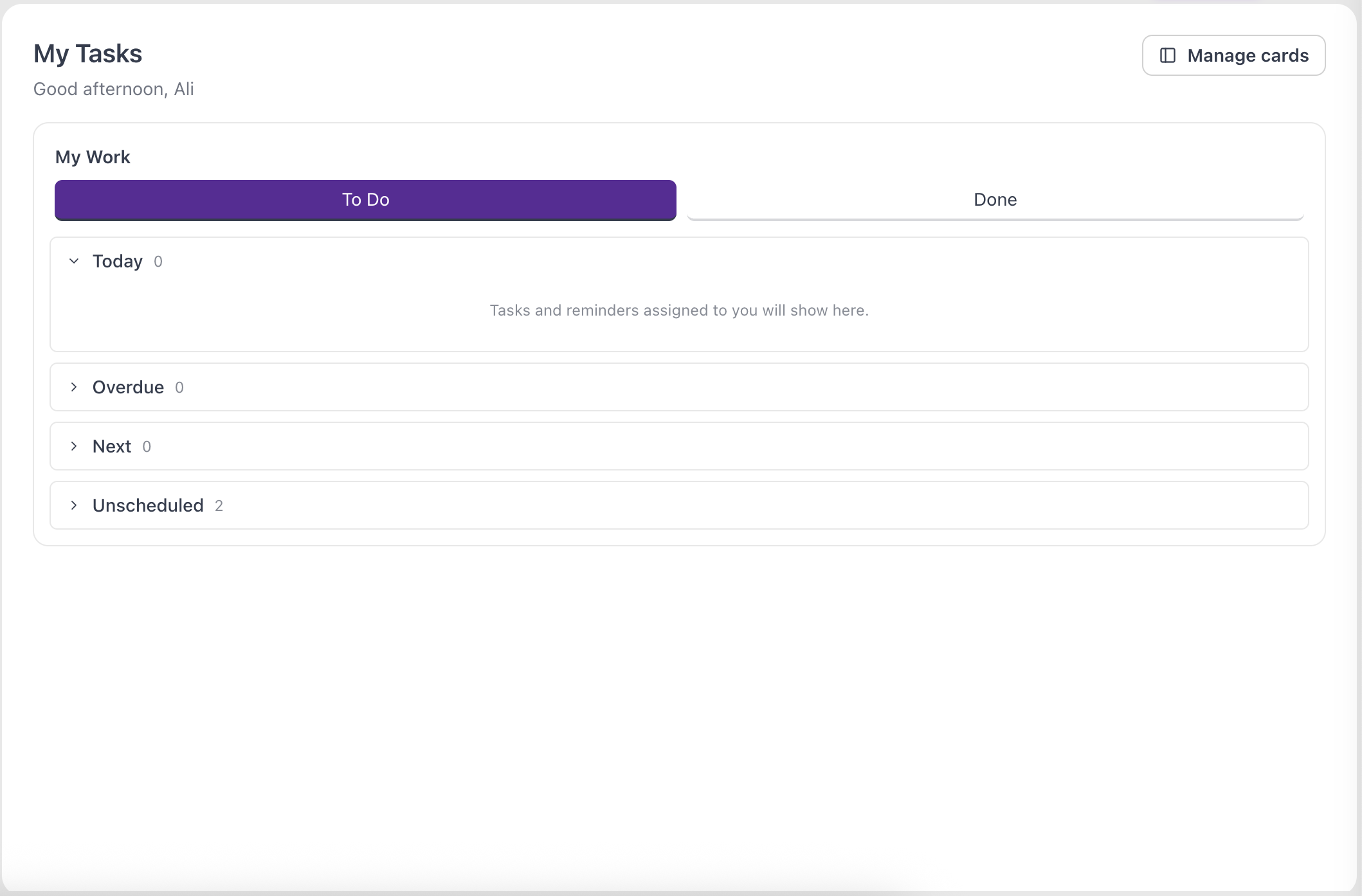
Tip: Start your day in Overdue and Today. Clearing those two sections first keeps nothing from slipping through the cracks.
Find and update assigned tasks
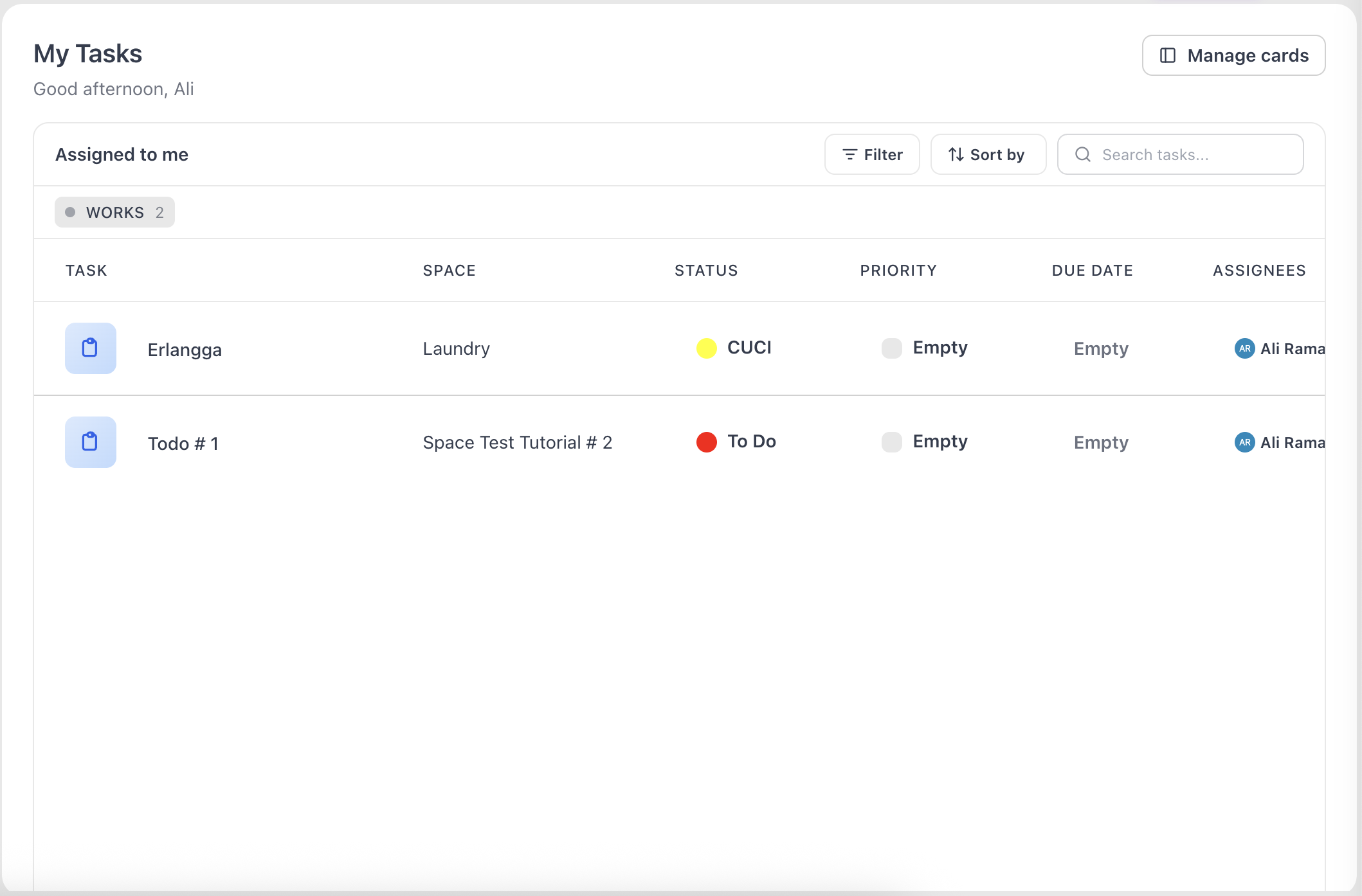
The Assigned to me card lists everything assigned to you in a table with columns for Task, Space, Status, Priority, Due Date, and Assignees. You can:
- Type in the Search tasks… box to find a task by title.
- Use the filter and sort controls to narrow the list — for example, by status, priority, Space, or due date.
- Edit a task inline without leaving the page: change its Status or Priority from the dropdowns, set a Due Date, or update Assignees.
See deadlines on the Calendar
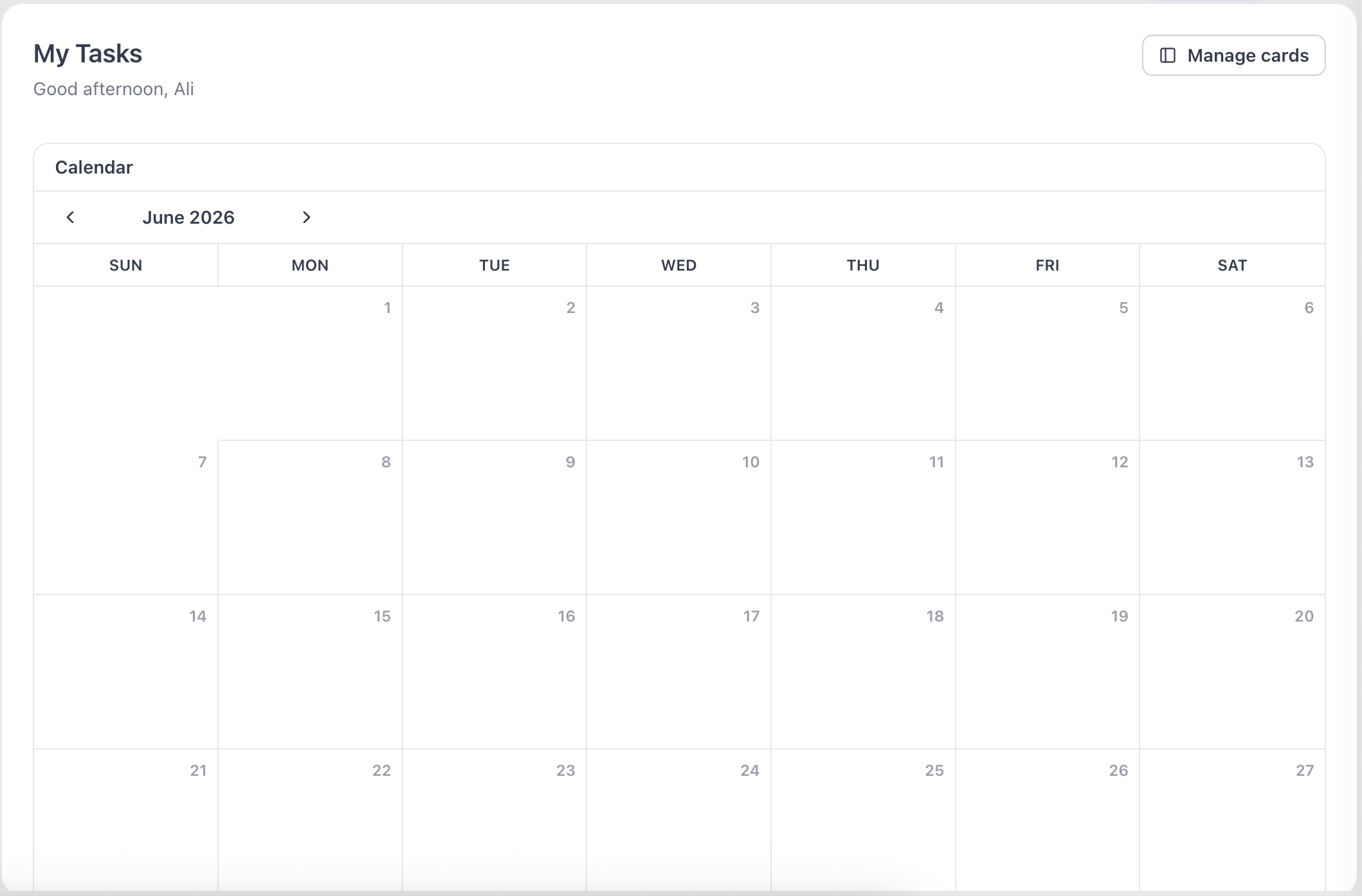
The Calendar card shows your tasks on a monthly grid. Tasks with a start or due date appear as coloured bars on their days, so you can see your week at a glance. Use the arrows in the card header to move between months, and click any task bar to open its detail page.
Tip: If the list feels long, filter Assigned to me by Space or status to focus on one project at a time, then switch back when you're done.