.png)
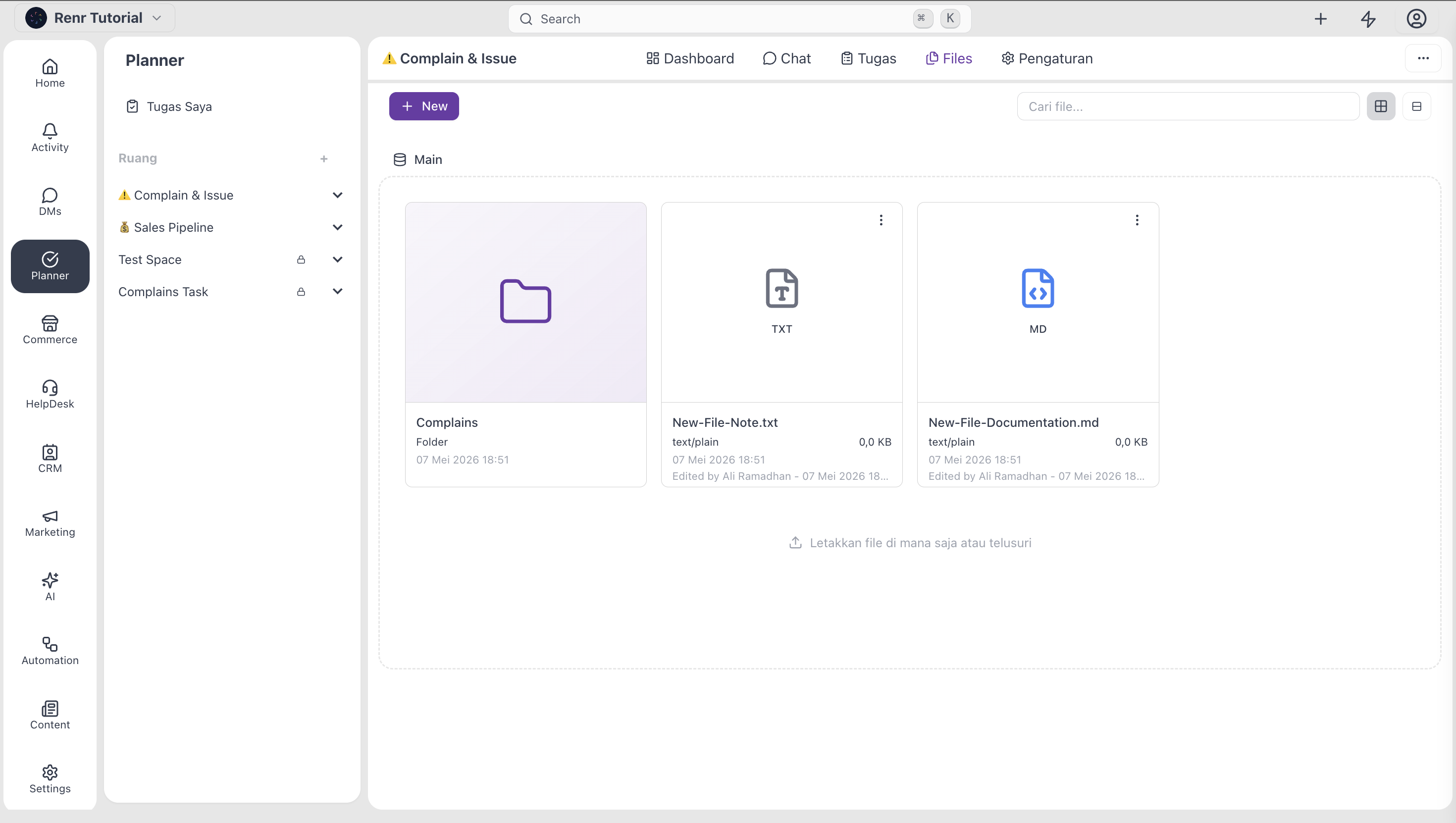
The Files tab is the space's shared file area. Upload documents, images, briefs, contracts, or any other file the team needs in one place—organized into folders, accessible to every Space member, and discoverable alongside the work they support. By the end of this guide, you'll know how to upload, organize, share, preview, and clean up files in a Space.
What you'll need
- Access to a Space
- Open the Files tab
The Files tab sits near the right end of the Space tab bar.

Click the Files tab. You see the folder tree on the left and the contents of the currently selected folder on the right.
Upload files
Two ways to add files: drag-drop and the upload button.
Drag and drop
The fastest way for any number of files.
- Open the folder where the files should land.
- Drag the files from your desktop onto the file area.
- Release. The files upload and appear in the grid as soon as they finish.
Large files upload in chunks—you can keep working in the space while uploads finish in the background.
Upload button
Useful when you can't drag (mobile, browser quirks, or you prefer clicking).
- Click the Upload button at the top right of the file area.
- Pick one or more files from the file picker.
- Click Open.
Organise with folders
Folders work like a regular file system — nest them as deep as you need.
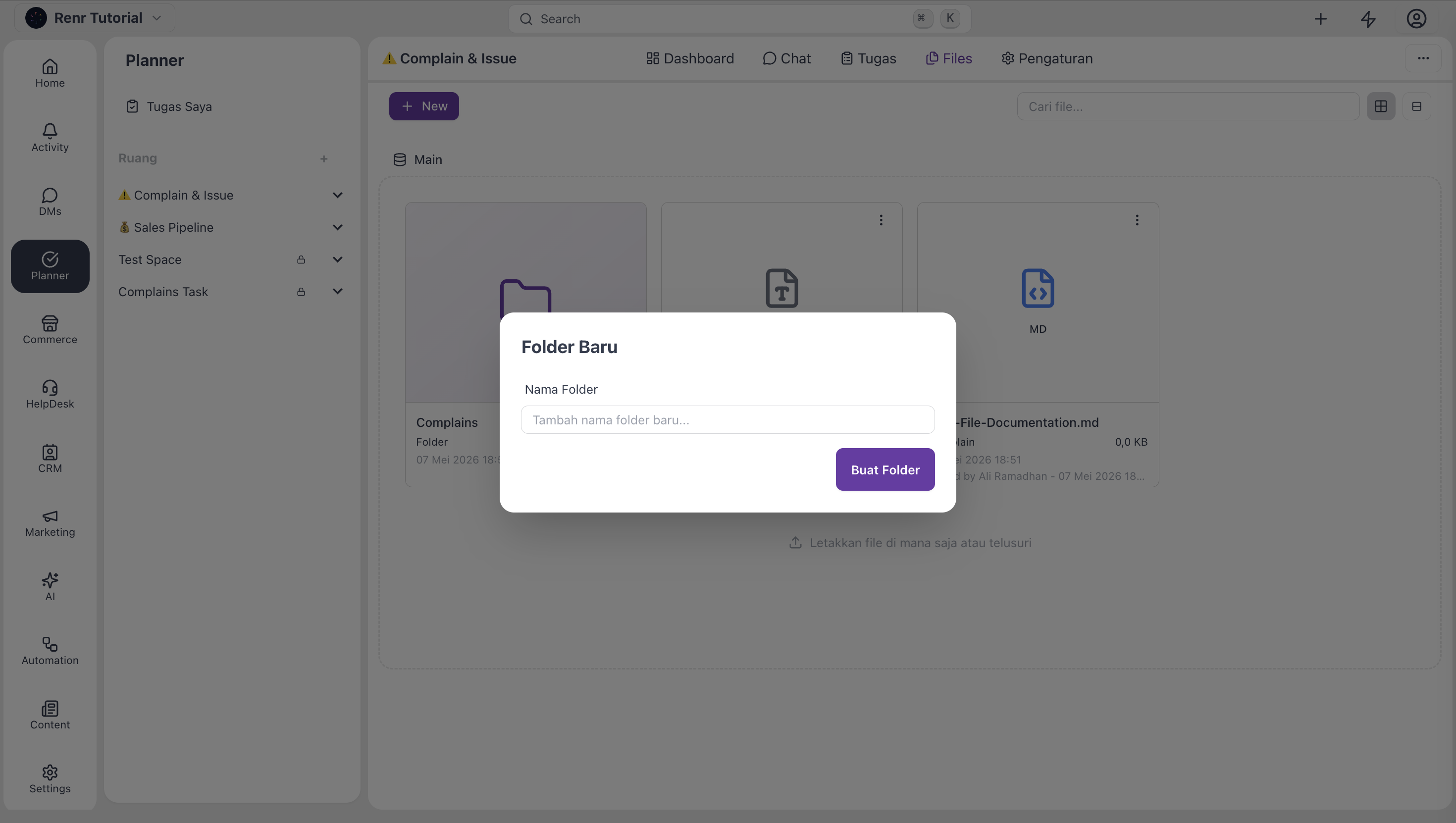
- Create a folder
- In the folder tree, click the + New folder button.
- Type a name and press Enter.
Move a file or folder
Drag the file or folder from its current location onto the destination folder in the tree.
Rename
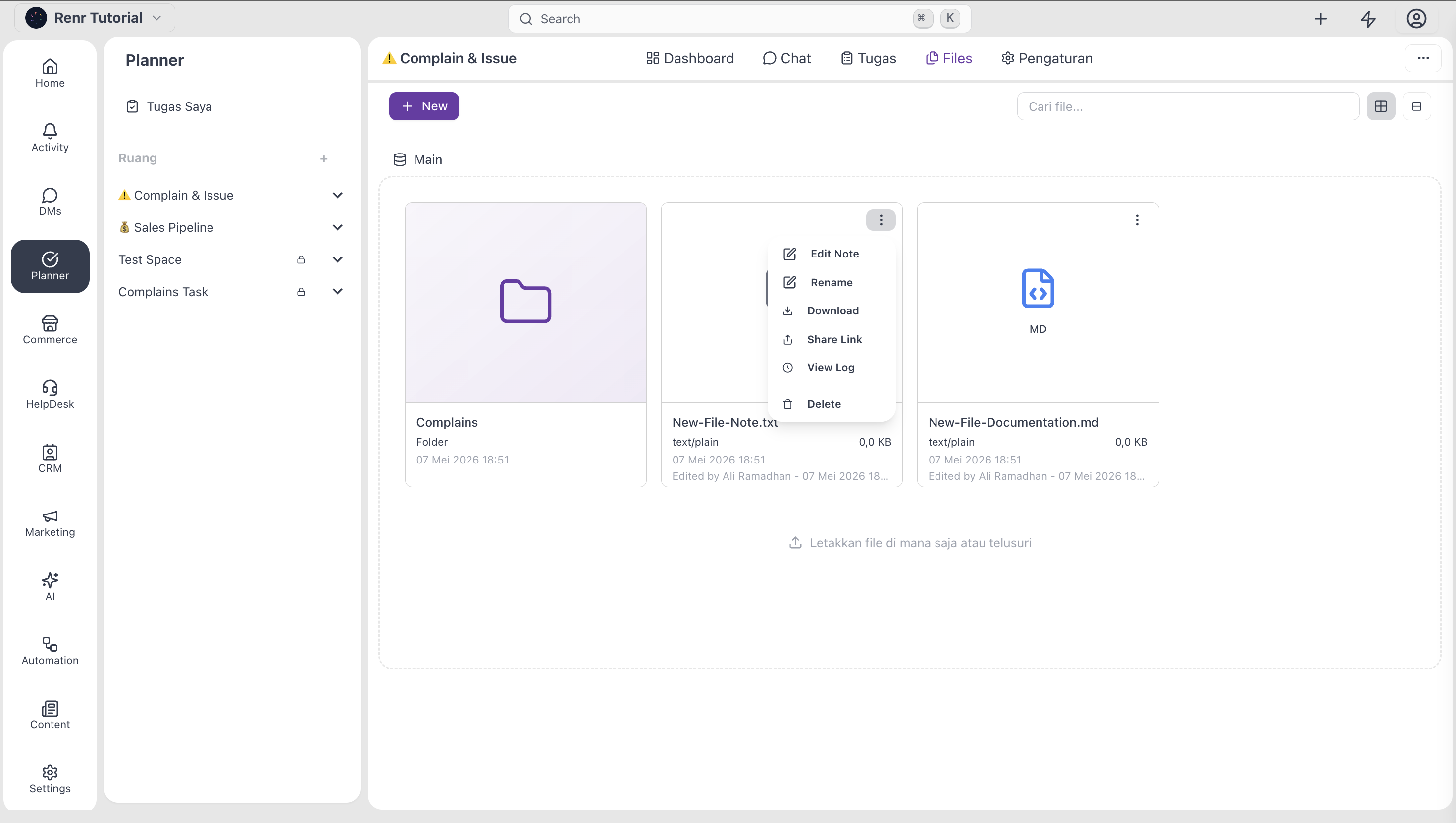
Right-click the file or folder and choose Rename, or click its name in the grid to edit inline.
Delete
Right-click and choose Delete, or select the file and press the Delete key. Deleted files move to a trash that can be restored for a limited window before permanent removal.
Preview a file
Click any file in the grid to open the preview pane on the right.
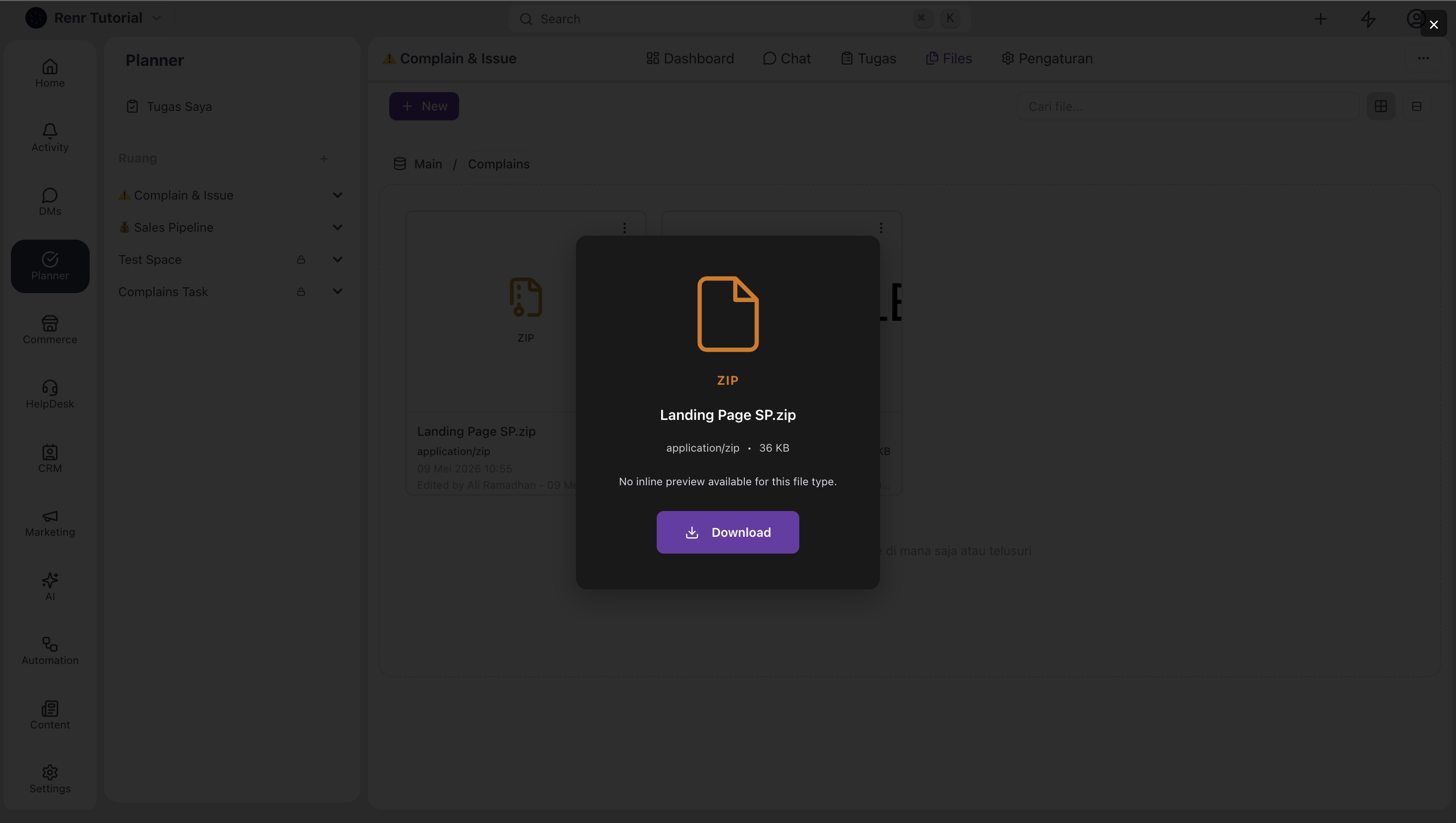
Common formats — PDFs, images, common Office formats — render inline without downloading. Anything else shows a "Download to view" prompt.
Share a file
Files inside a Space are already accessible to every Space member. To share with someone outside the space, generate a share link.
- Click the file to open the action button.
- Click Share link button.
- Pick the link's permissions — view-only or downloadable.
- Copy the link and send it through your channel of choice (chat, email, message).
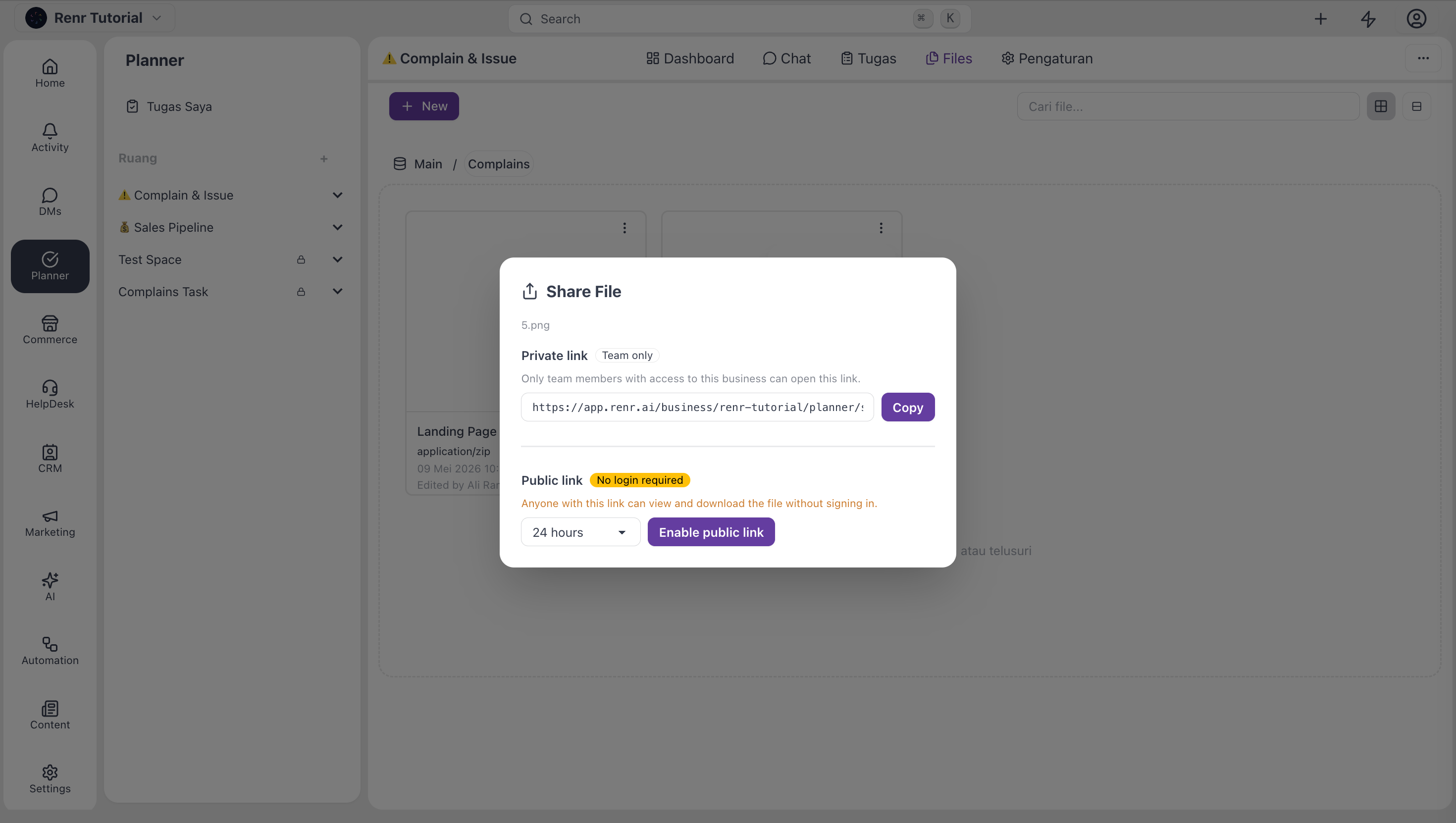
The link works without a login if you set it to "Anyone with the link". You can revoke a share link at any time from the same dialog.
When to use Files vs task attachments
Use Files for assets the whole team needs over the life of the Space—brand guides, briefs, master contracts, and reference material.
Use task attachments for files that belong to a single task—a draft, a screenshot supporting a bug report, or a deliverable for one piece of work.