.png)
Signing out ends your Renr session and returns you to the login screen. Because Renr uses single sign-out, logging out also ends your session with our secure sign-in provider, so your account is fully signed off on this device. This article shows you how to log out, and how to end sessions on other devices you may have used.
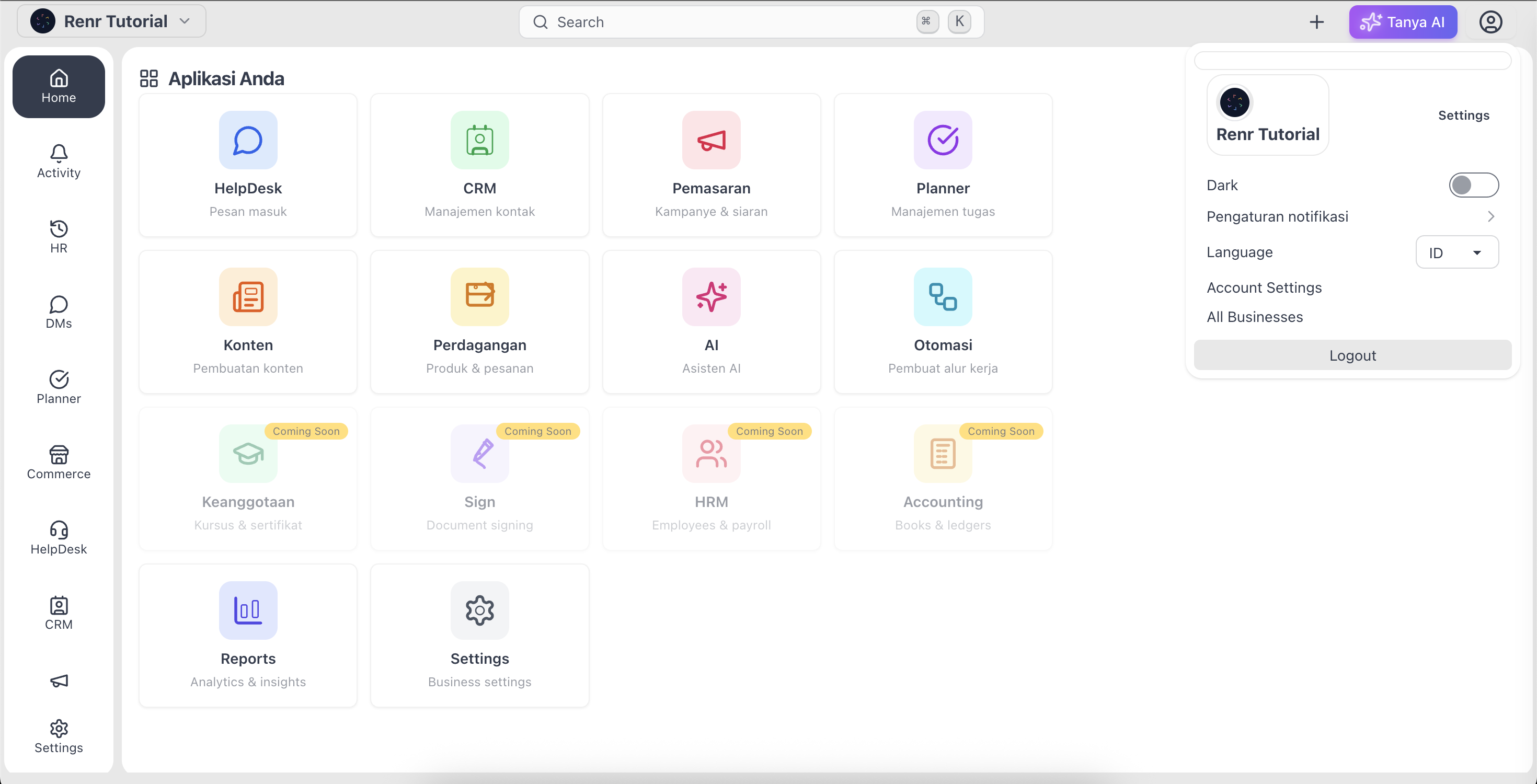
Log out of Renr
- In the top-right corner, click your profile avatar to open the account menu.
- At the bottom of the menu, click Logout.
- You will be signed out and returned to the login screen.
Note: Logging out signs you out of every business you have open in Renr, not just the one you are currently viewing. You will need to sign in again the next time you want to use Renr.
Sign out of other devices
If you have signed in on a shared or unfamiliar device, you can end that session remotely from your account settings.
- Open the account menu and click Account Settings.
- Go to Device activity.
- Find the device in the list. Each entry shows the device, location, and when it was last active. Your current device is marked Current session.
- Click Sign out next to the device you want to end, then confirm.
Tip: You cannot sign out of the device you are using right now from this list. To end your current session, use the Logout button in the account menu instead.
Sign out of all devices at once
If you have lost a device or want a clean slate, you can end every active session in one step.
- Open Account Settings and go to Device activity.
- Under Sign out from all devices, click Sign out all.
- Confirm when prompted. This ends all of your sessions, including this one, and signs you out immediately.
Note: After signing out of all devices you will need to sign in again on every device, including this one.