.png)
A location is a place your stock can live — a warehouse you own, a supplier or customer site, or stock in transit. Every stock move flows from one location to another, so setting up your warehouses first keeps your receipts, transfers, and deliveries accurate.
Add a warehouse
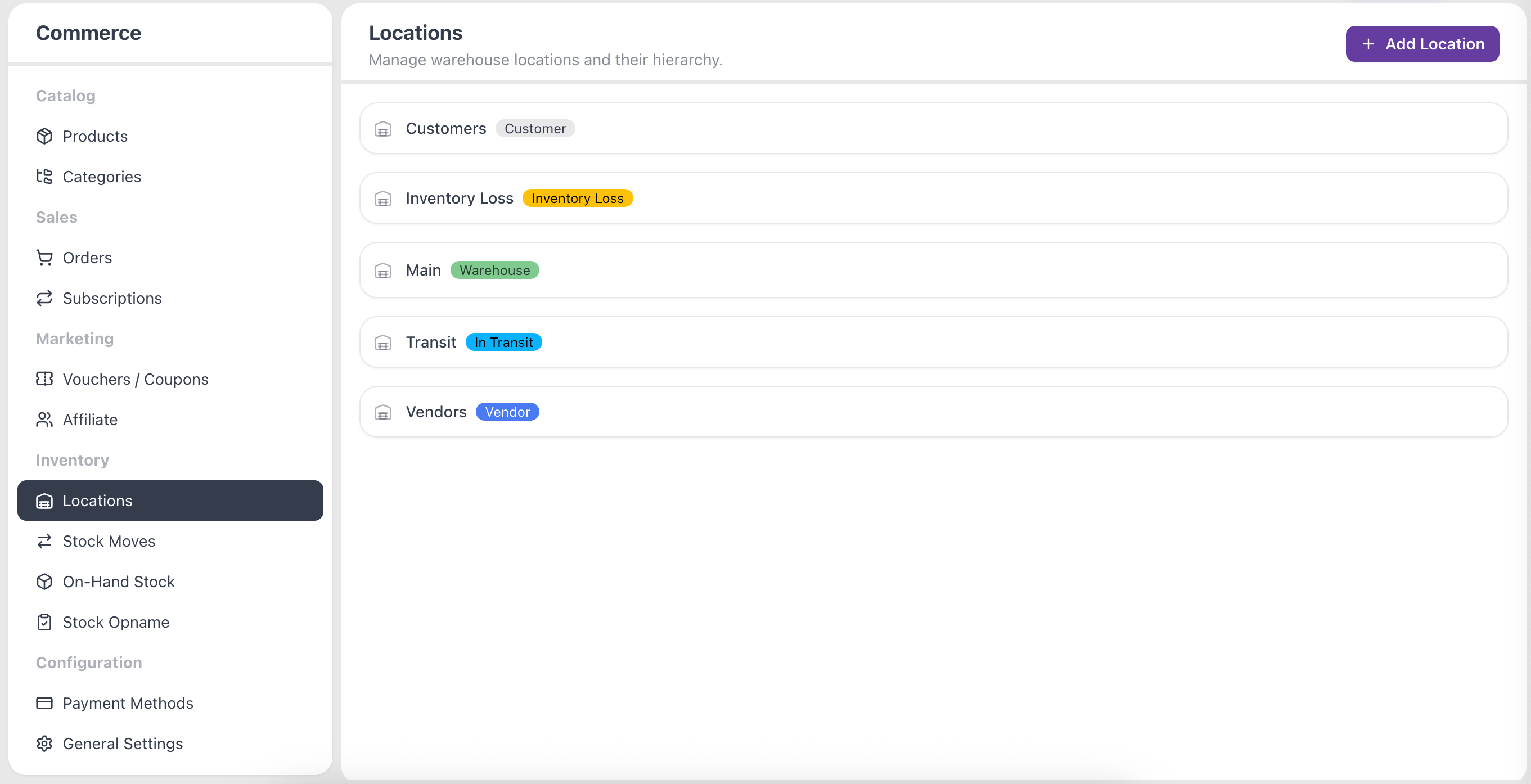
- Open the Locations page.
- Click Add Location.
- Enter a Name (required) — for example, "Main Warehouse".
- Optionally fill in the Address, City, State / Province, Country, and Postal Code.
- Click Create. Your warehouse appears in the list with a Warehouse badge.
To change a warehouse later, hover over it in the list and click the edit icon. You can edit and remove the warehouses you create.
Location types
Each location in the list carries a badge that tells you what it is for:
- Warehouse — a location you own and manage. These are the ones you add and edit.
- Vendor and Customer — virtual locations tied to a partner, so stock you receive from a supplier or send to a customer routes through the right place.
- In Transit — stock that has left one location but has not yet arrived at the next.
- Inventory Loss — where adjustments and write-offs are booked.
Renr creates and maintains the Vendor, Customer, In Transit, and Inventory Loss locations for you — you only need to set up your own warehouses.
Partner virtual locations
When a stock move is linked to a Contact or Company, that partner gets its own virtual location automatically. This keeps each partner's receipts and deliveries separate from your warehouse stock, so your on-hand counts stay accurate.
Check stock on hand
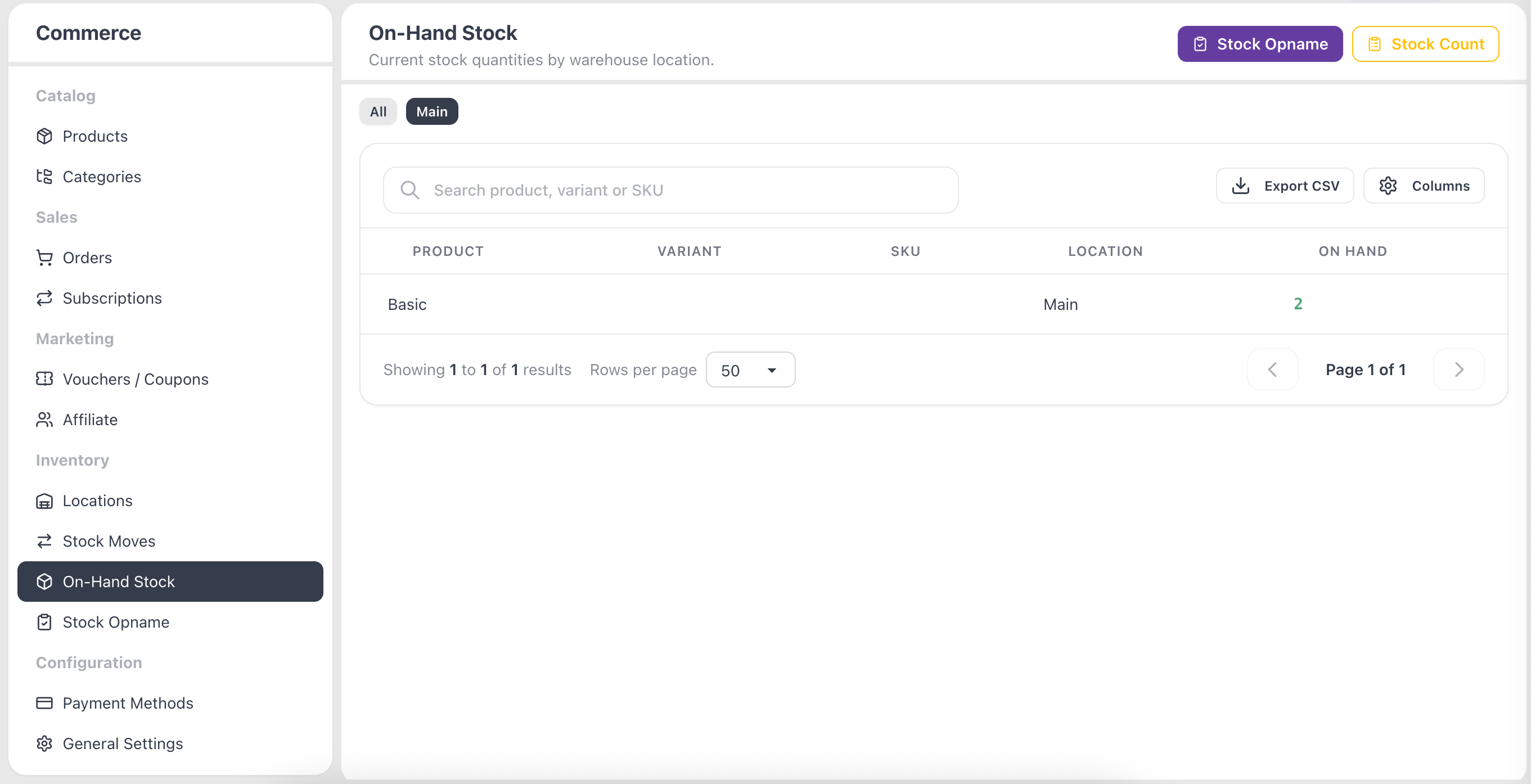
Open the On-Hand Stock report to see current quantities by warehouse location. Each row shows the Product, Variant, SKU, and Qty On Hand.
Tip: Set up your warehouses before you start recording stock moves. Every receipt, transfer, and delivery picks its From and To from this list.