.png)
Payment methods are the ways your customers can pay — bank transfer, QRIS, e-wallets, cash, and more. This guide shows you how to add a method, configure its details, and enable it so it appears at checkout and when you record payments.
Open Payment Methods
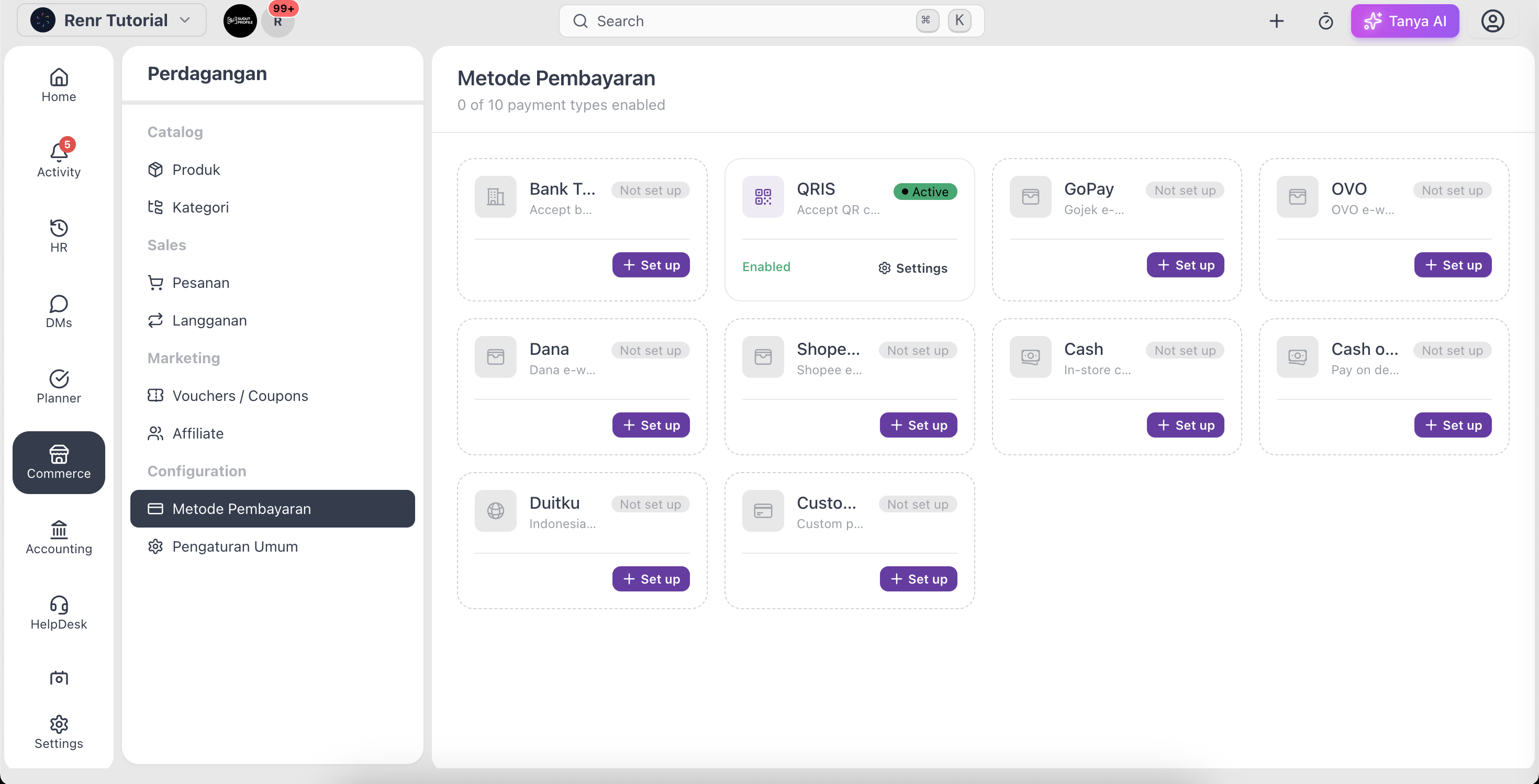
Click Payment Methods in the Commerce section of the left sidebar. Each method type appears as a card showing whether it's enabled and configured.
Add a payment method
- Click New Payment Method.
- Choose the type — for example Bank Transfer, QRIS, GoPay, OVO, Dana, ShopeePay, Cash, or Cash on Delivery.
- Fill in the fields for that type, such as the account name and number for a bank transfer.
- Give it a clear name and optional description customers will see, then save.
Set up QRIS
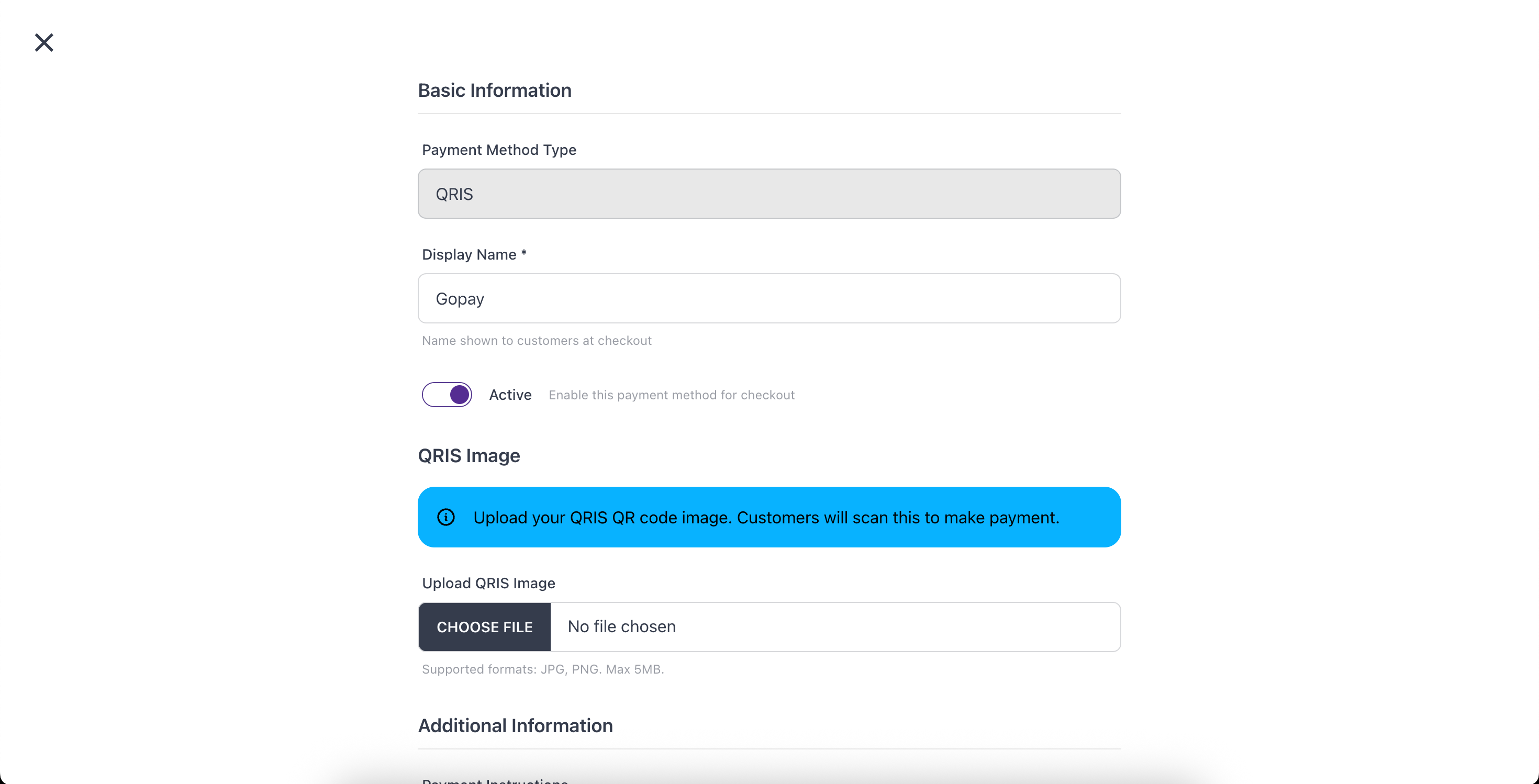
For a QRIS method, click Upload QRIS Image and add your QR code. Customers scan it at checkout to pay. You can replace or remove the image at any time.
Enable and order your methods
Use each card's toggle to turn a method on or off. Only enabled methods appear at checkout. Drag the cards to set the order customers see them in — put your most-used method first.
Tip: Double-check account numbers and the QRIS image before enabling a method — these go straight to customers, so an error here means a missed or misdirected payment.