.png)
Subscriptions bill a customer automatically on a repeating schedule, generating a new order each cycle so you don't have to. This guide shows you how to create a subscription, then pause, resume, or cancel it as things change.
Looking for the new list UI (standard table, business currency, localization)? See Understanding the improved Subscriptions page.
Before you start
A subscription needs a subscription-enabled product. You can turn this on for a product on its detail page — see Add and manage products.
Open Subscriptions
Click Subscriptions in the Commerce section of the left sidebar. You'll see each subscription with its status — Active, Paused, or Cancelled — its frequency, next order date, and totals in your business currency.
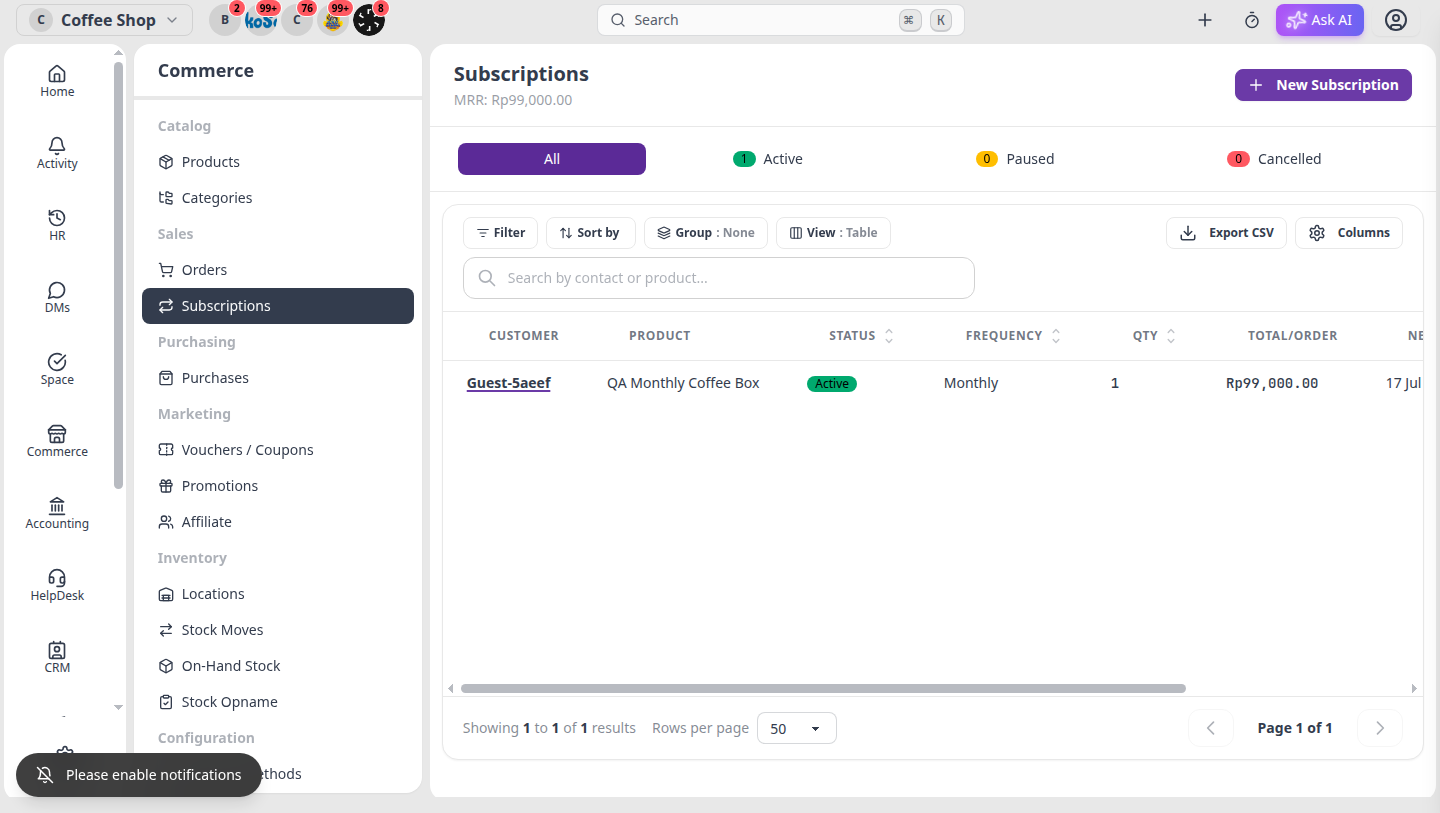
Create a subscription
- Click New Subscription.
- Choose the customer and the subscription product.
- Set the frequency — daily, weekly, monthly, or yearly — and the quantity.
- Optionally set a start date and notes, then save.
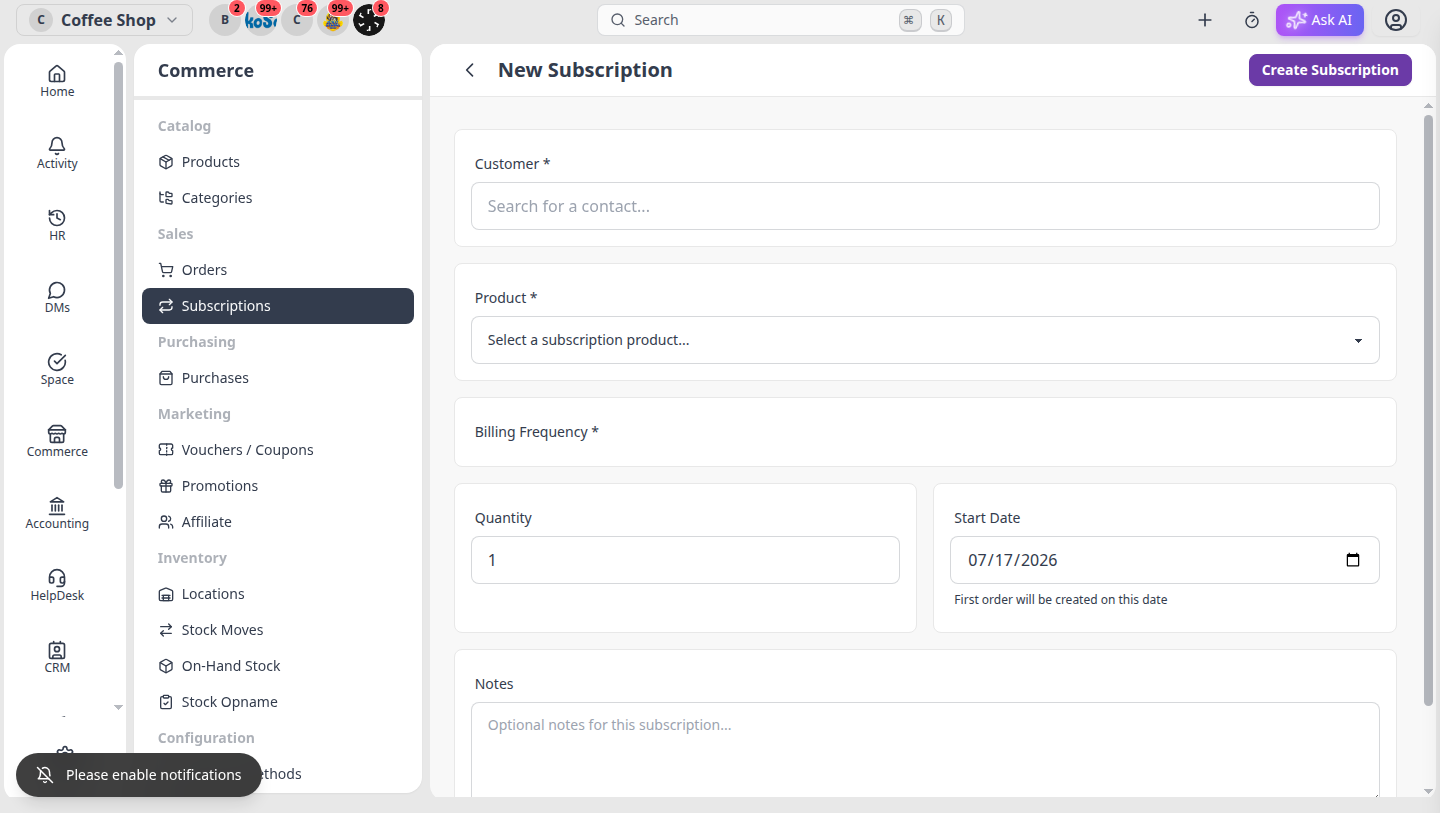
From now on, an order is generated automatically each cycle on schedule.
Pause, resume, or cancel
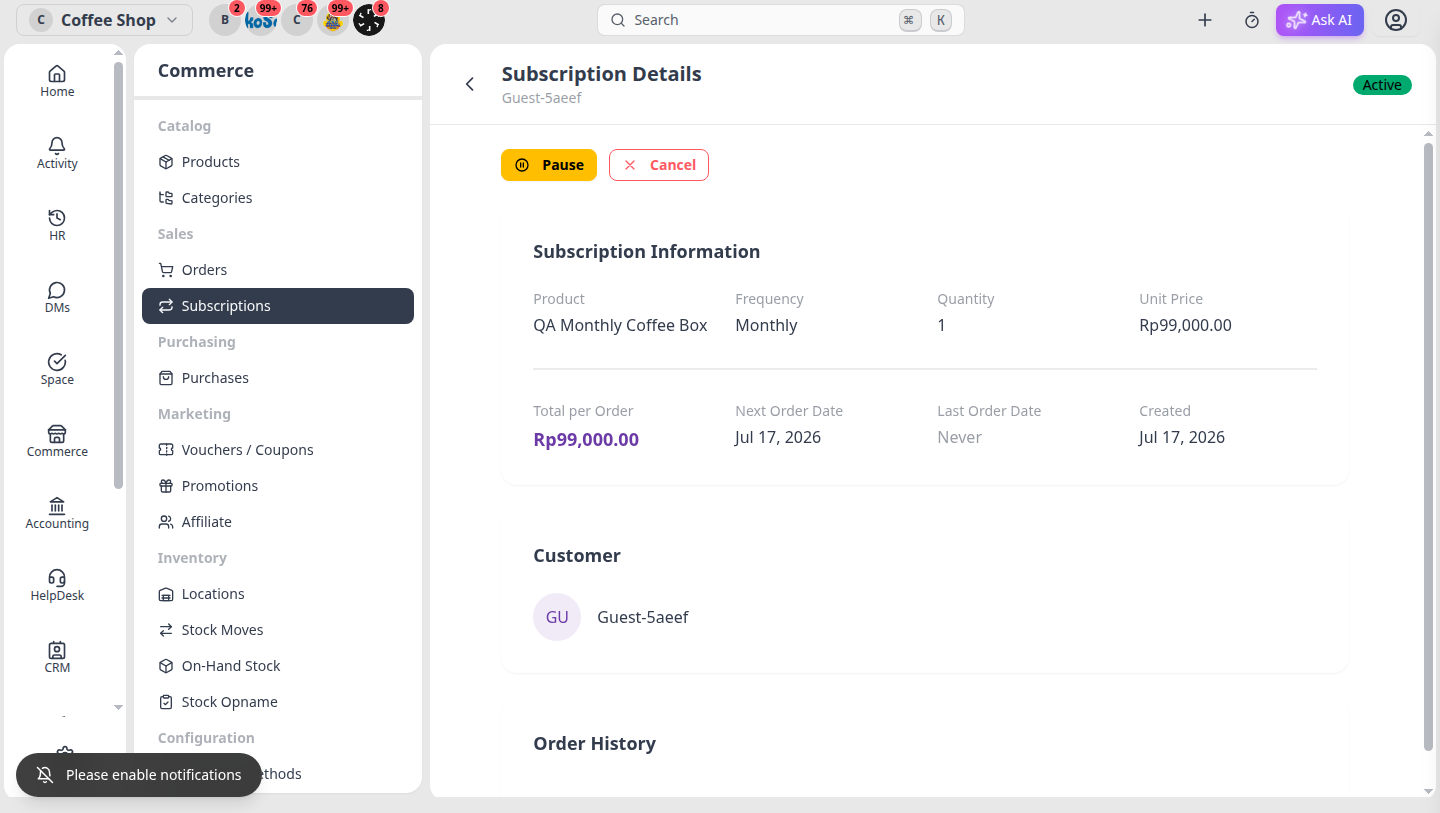
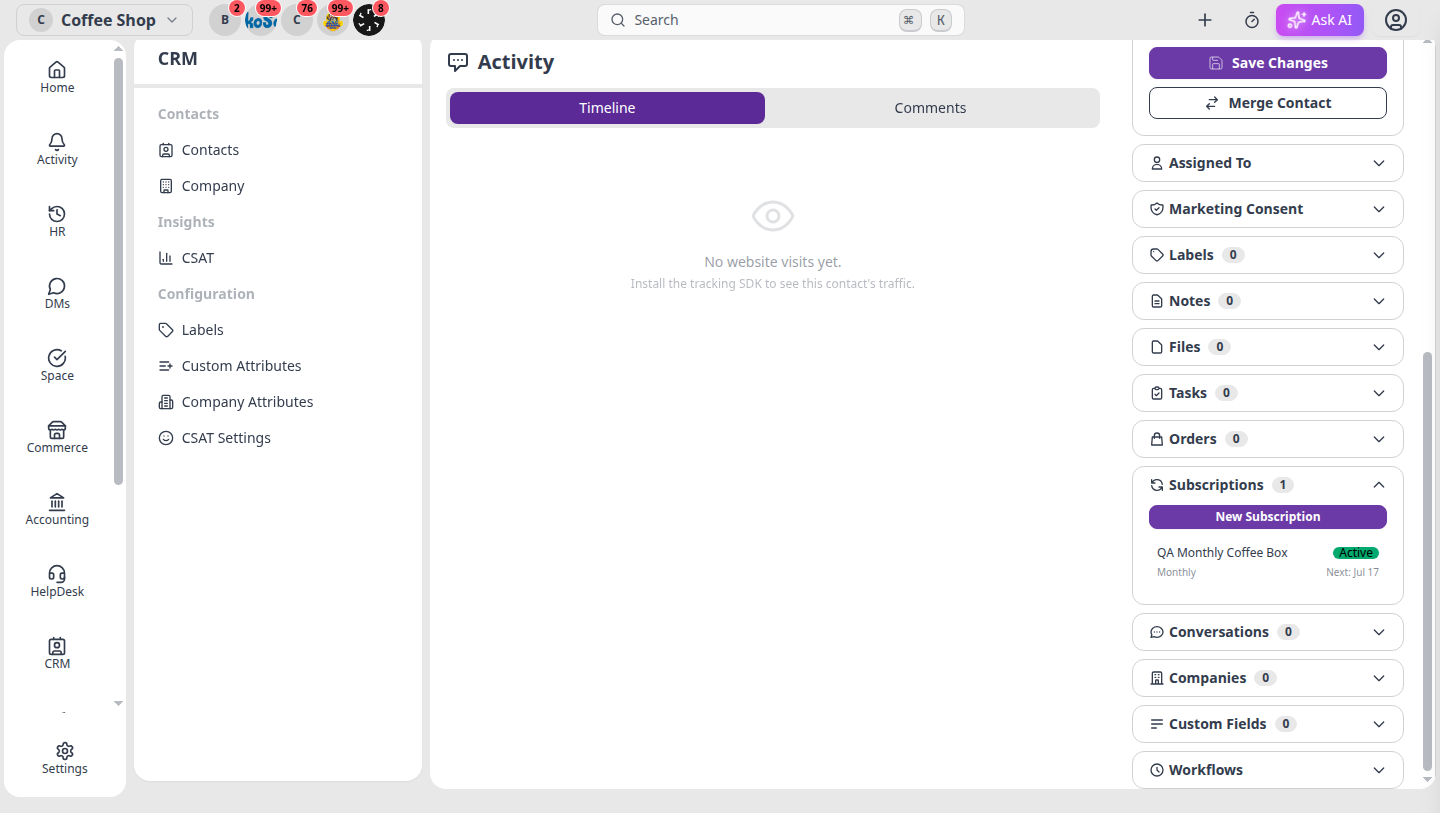
Open any subscription to Pause or Cancel it. You can also manage subscriptions from the contact’s Subscriptions accordion in CRM.