.png)
A stock opname is a physical stock count — you count what is actually on your shelves and compare it to what the system expects. The Stock Opname page walks you through counting one warehouse at a time and posts any differences as stock adjustments, so your on-hand figures stay trustworthy.
Start a count
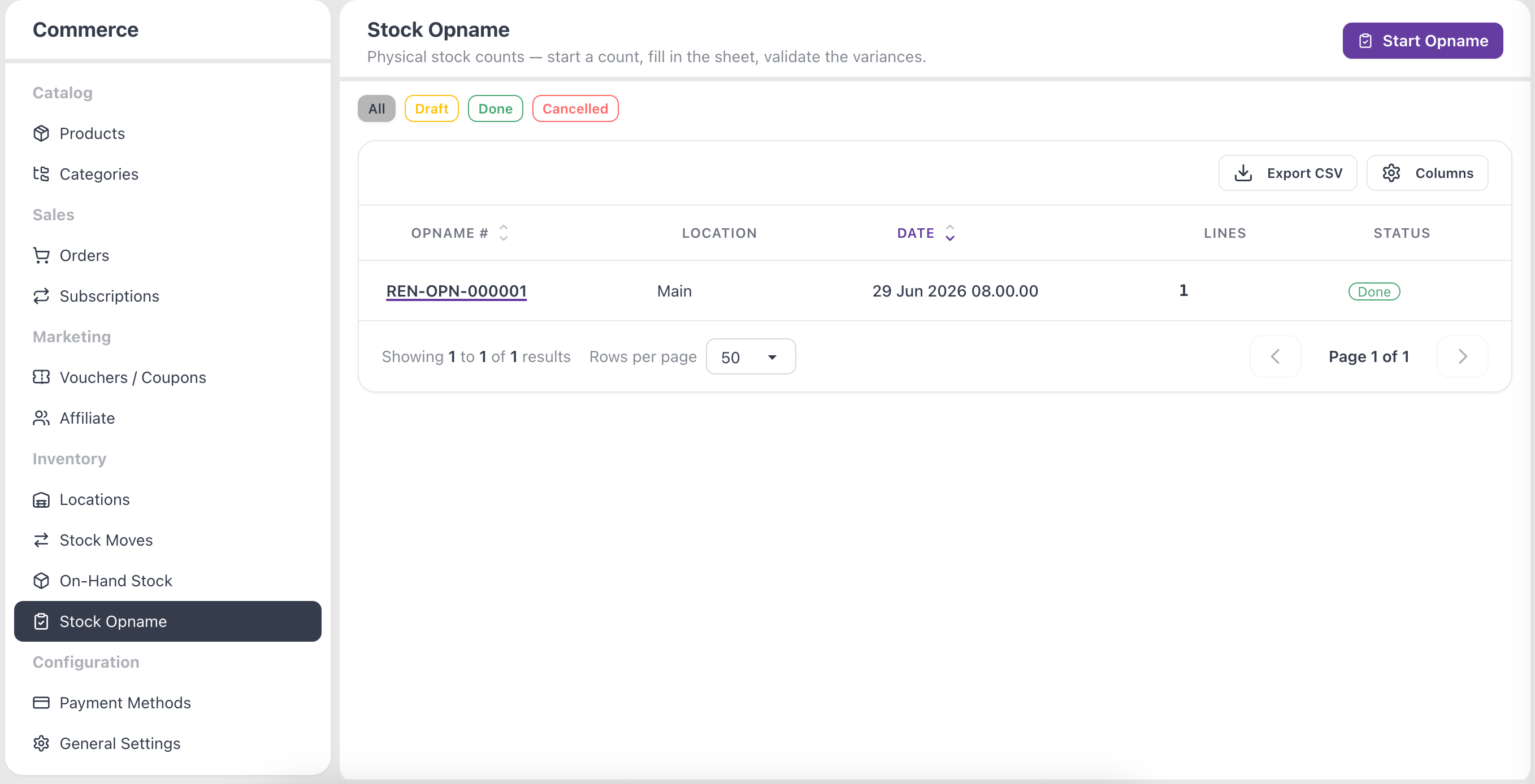
- Open the Stock Opname page.
- Use Select location… to pick the warehouse you want to count.
- Click Start Opname. Renr lists every item currently on hand at that location so you can count them all at once.
Enter your counts
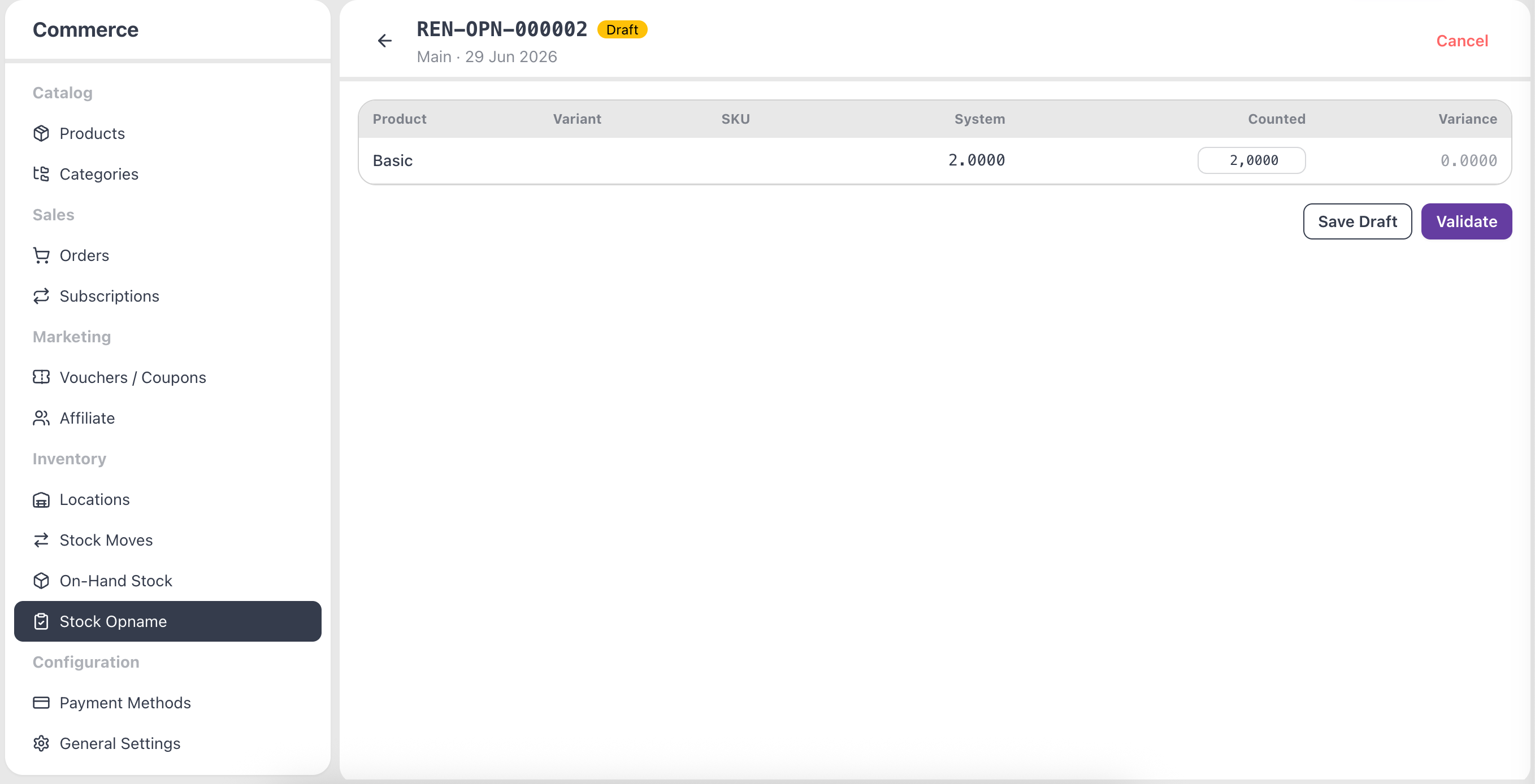
- For each item, type what you physically counted in the Counted column.
- Compare it with the System quantity — the Variance column shows the difference automatically.
- Click Save Draft at any time to come back and finish later.
You can add a short note, such as "Year-end count 2026", to record why the count was done.
Validate the count
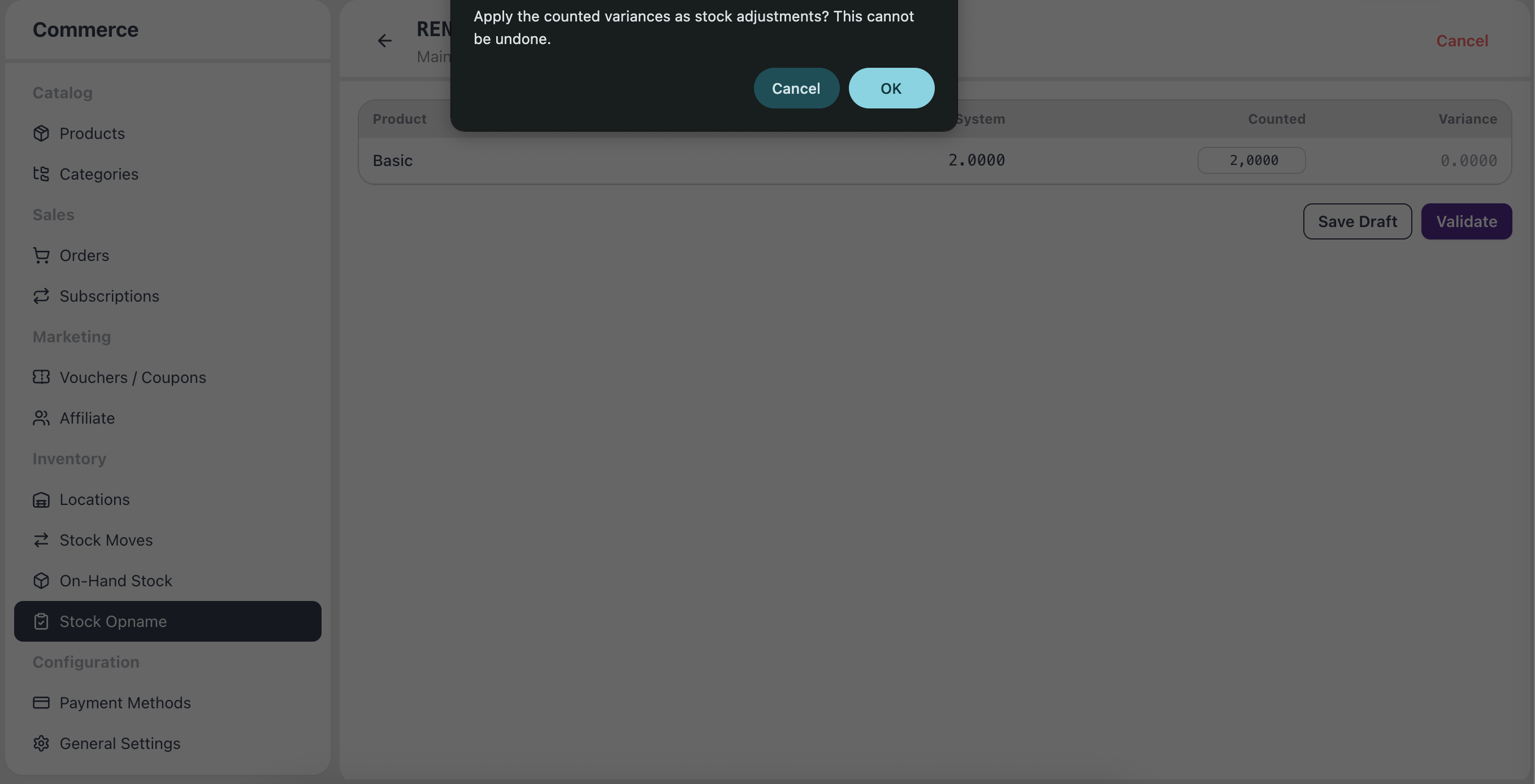
When you have counted everything and the variances look right, click Validate. Renr applies the counted variances as stock adjustments and updates your on-hand levels.
Note: Validating a count posts the adjustments and cannot be undone. Double-check your numbers first. To stop without saving, click Cancel — the counts you entered are discarded.
Tips
- Count one warehouse at a time so the sheet stays manageable.
- Try to count when no stock is moving in or out, so the System figures don't shift mid-count.