.png)
Your business logo appears across the app and in the communications your customers see — from email headers to link previews. This guide shows you where to update it and what kind of image works best, so your branding stays consistent everywhere.
Before you start
- You need a role that can edit business settings (Owner or Admin).
- Have your logo file ready as a PNG or JPG. A square image (around 400x400px) gives the best results.
Change your logo
- From the main menu, open Settings.
- Select the General tab.
- Scroll to the Business Identity section and find the Logo field.
- Click the Logo file field to open your device's file picker, then choose your image.
- Click Save Changes to apply your new logo.
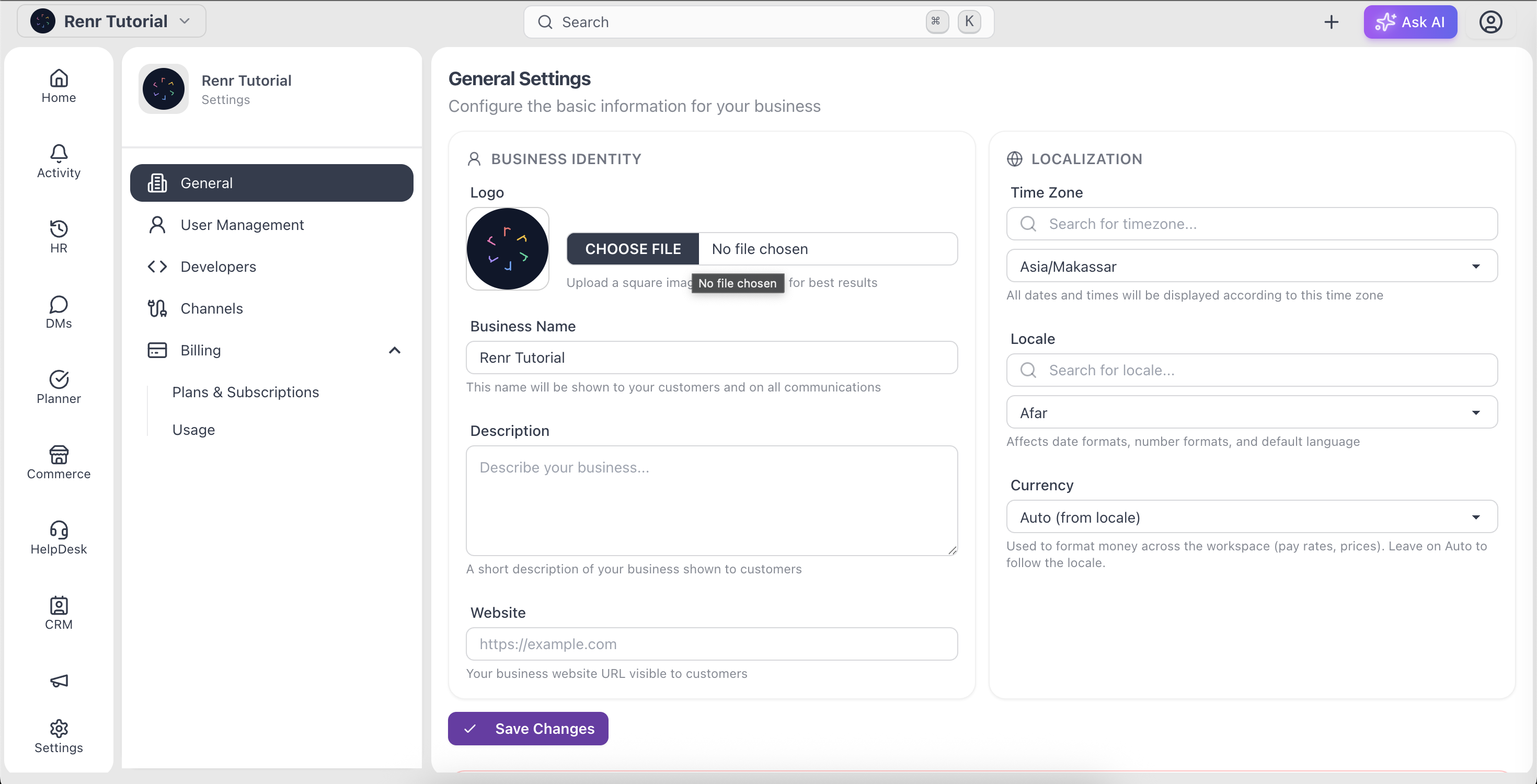
Tip: Use a square image around 400x400px in PNG or JPG. Square images display cleanly in avatars, email headers, and link previews without being cropped.
Note: Your business uses a single logo everywhere — there is no separate logo for light/dark mode, favicon, or email. Updating it here updates it across the whole app.