.png)
The Board View organizes tasks into columns based on their status, allowing you to quickly monitor work progress and easily drag and move task cards through each stage of the workflow.
When you create a task directly from board view, the status is the one thing you don't have to pick—clicking "Add a new task" field at the top of a column makes that column's status the task's status automatically. This guide walks through the fastest way to drop a new Task into the right column.
What you'll need
- Access to a Space — see Create a Space if you don't have one yet.
- A role that can create tasks (every role—Owner, Admin, Manager, and Member—can create tasks).
- The Task tab opens on kanban view.
Open Tab view
Click the Task tab in the space tab bar, then click Board in the view switcher at the top.

Click the "Add a new task" field at the top of the column.
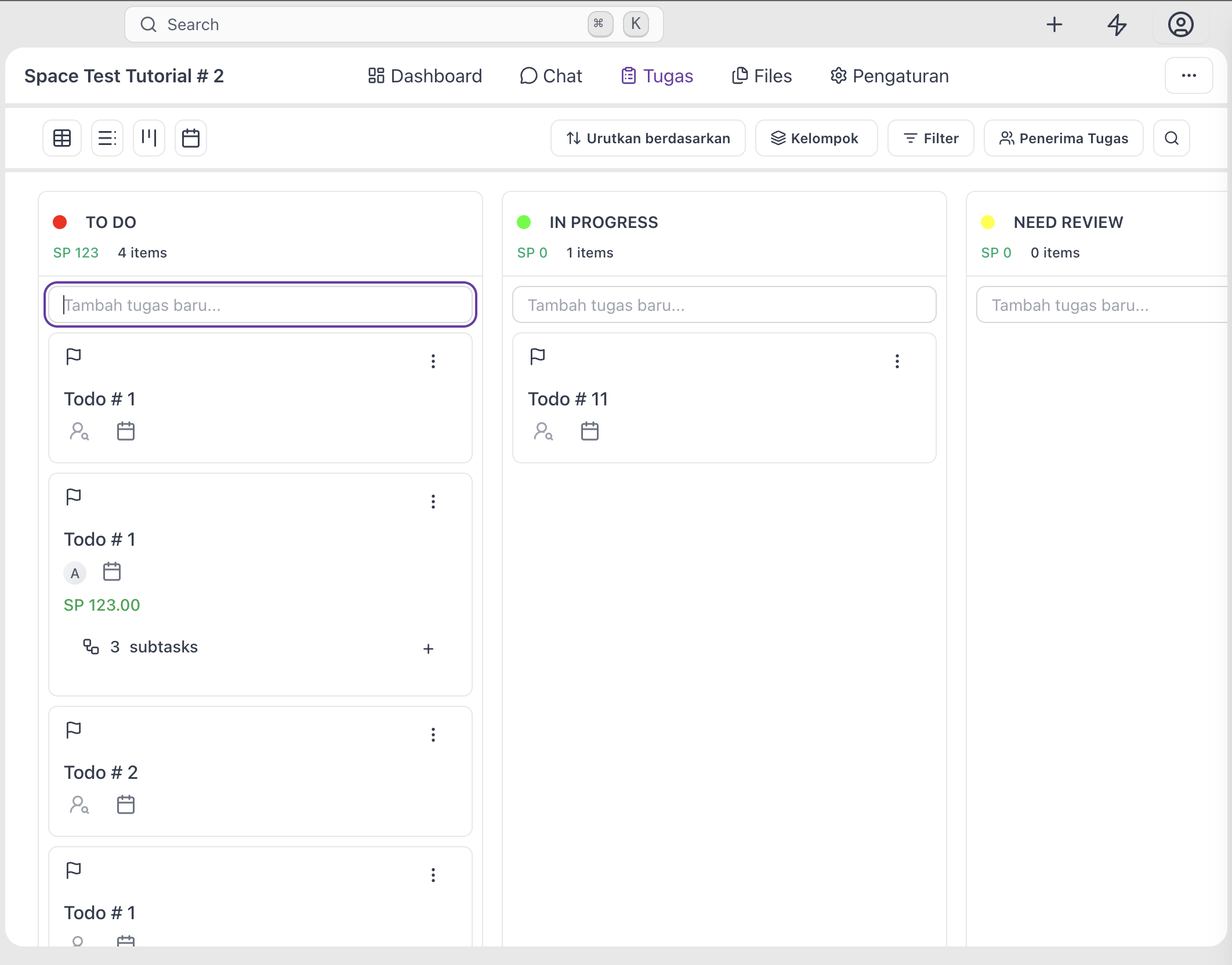
Type a title and press Enter.
The task is created in that column with no description, assignee, or due date. You can fill those in later by clicking the new card to show detail page.
The new task appears immediately:
- As a card at the top of the column you clicked.
- In the picked space—as a card on a board, a row on a list and table, or a bar on a calendar (if start or due dates are set).
- For every assignee—in their My Tasks page.