.png)
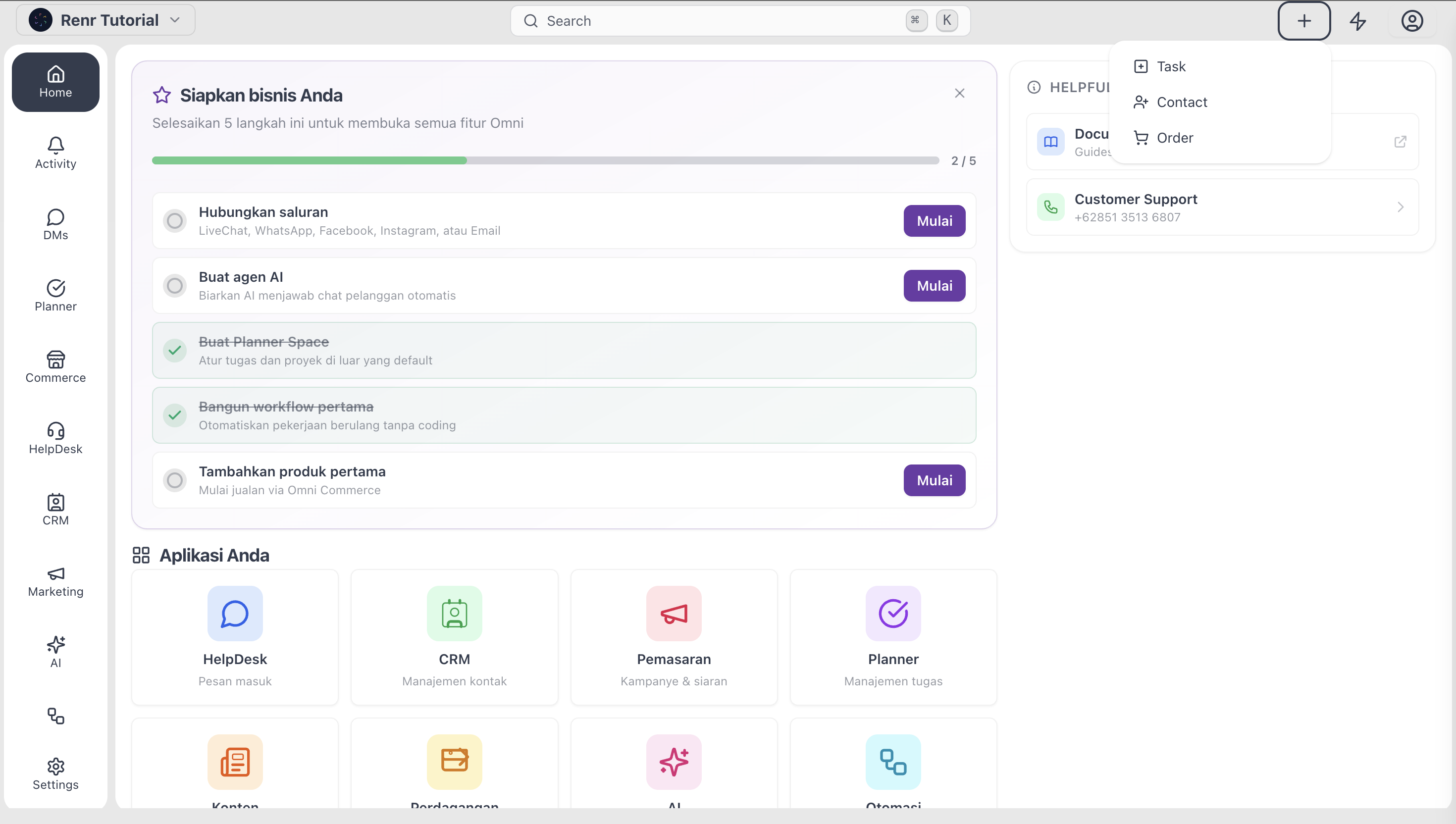
Sometimes a Task lands in your lap while you're somewhere else entirely — reading a CRM Contact, reviewing a Commerce Order, or scanning your dashboards. Quick Create lets you drop that Task straight into the right Space without leaving the page you're on.
This guide shows you the global + button in the top navigation bar, the minimum fields you need to fill in, and what happens after you click Create.
What you'll need
- A RENR account.
- Access to at least one Space you can post Tasks into — see Create a Space if you don't have one yet.
- A role that can create Tasks in that Space (every role — Owner, Admin, Manager, Member — can create Tasks).
Open Quick Create from the top bar
The global + button sits at the right of the top navigation bar and is visible on every page in every module — CRM, Commerce, Planner, My Tasks, your dashboards, settings, anywhere.
Click the +, then pick New Task from the menu. The Quick Create modal opens on top of whatever page you were on. Your page stays exactly where you left it, so you can finish the Task and pick up where you stopped.
This is the only entry point that works from outside Planner.
- Pick the Space
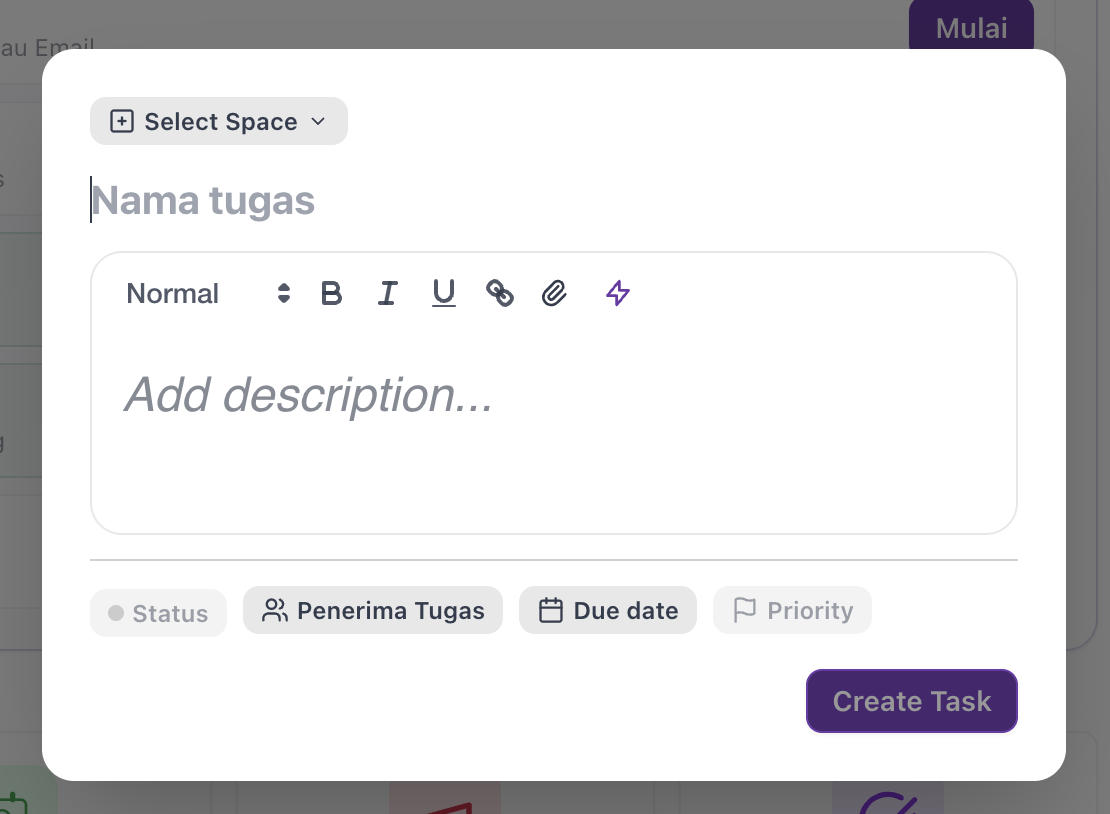
When you open Quick Create from outside a Space, the Space pill at the top of the modal is empty — there's nothing for the modal to inherit from. Click the pill and pick which Space the Task should live in.
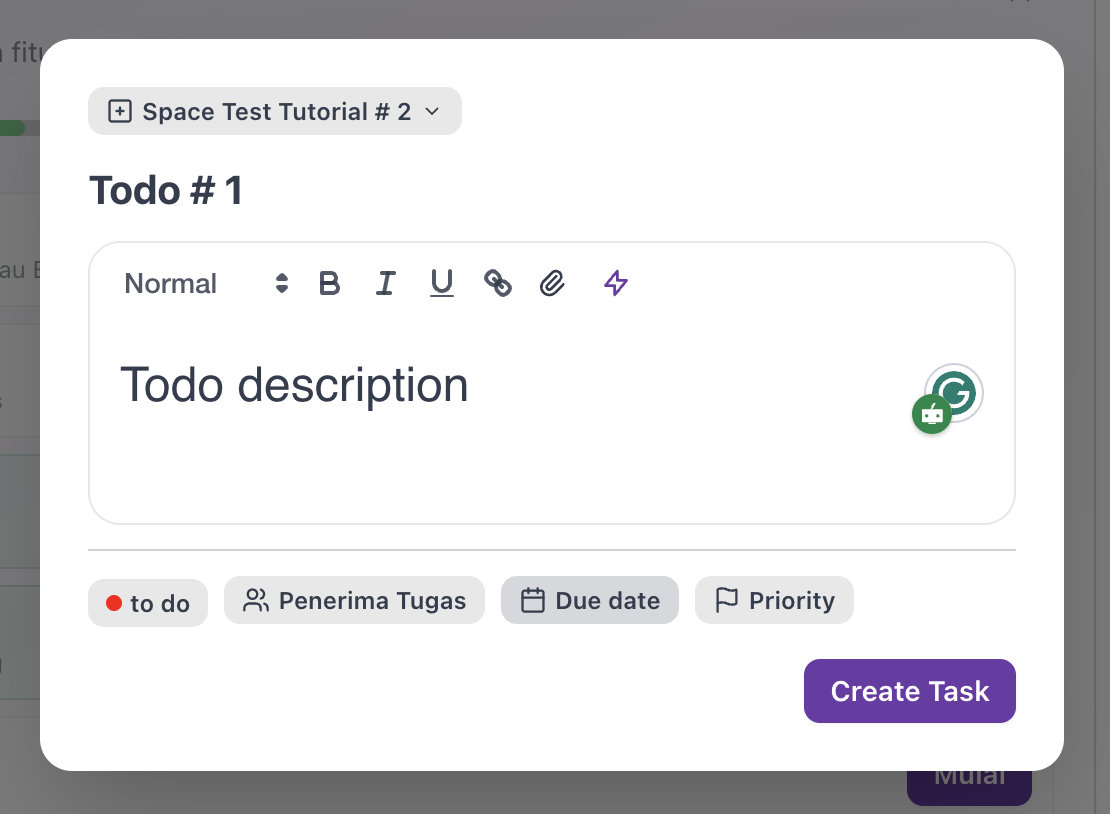
The Space you pick determines which Statuses, Priorities, Tags, and Custom Fields are available for the Task — so pick it first, before you start filling in the other pills.
- Type the Title
Click in the large Title field and type a short, specific name for the Task.
"A good Title says exactly what needs to be done: "Send Q2 invoice to Acme" beats "Invoice". "
- Set the Status
Click the Status pill and pick from the Statuses defined for the Space you just picked — the default set is To Do, In Progress, Review, and Done.
"Because you opened Quick Create from outside a Space, there's no Board column to inherit a Status from, so you have to set one yourself. To Do is a safe default if you're not sure."
- Click Create
Click the Create button at the bottom right of the modal. Then the system will close the modal, and you stay on the page you were on.
The new task appears immediately:
- In the picked space—as a card on a board, a row on a list and table, or a bar on a calendar (if start or due dates are set).
- For every assignee in their My Tasks page (If assignes are set).