.png)
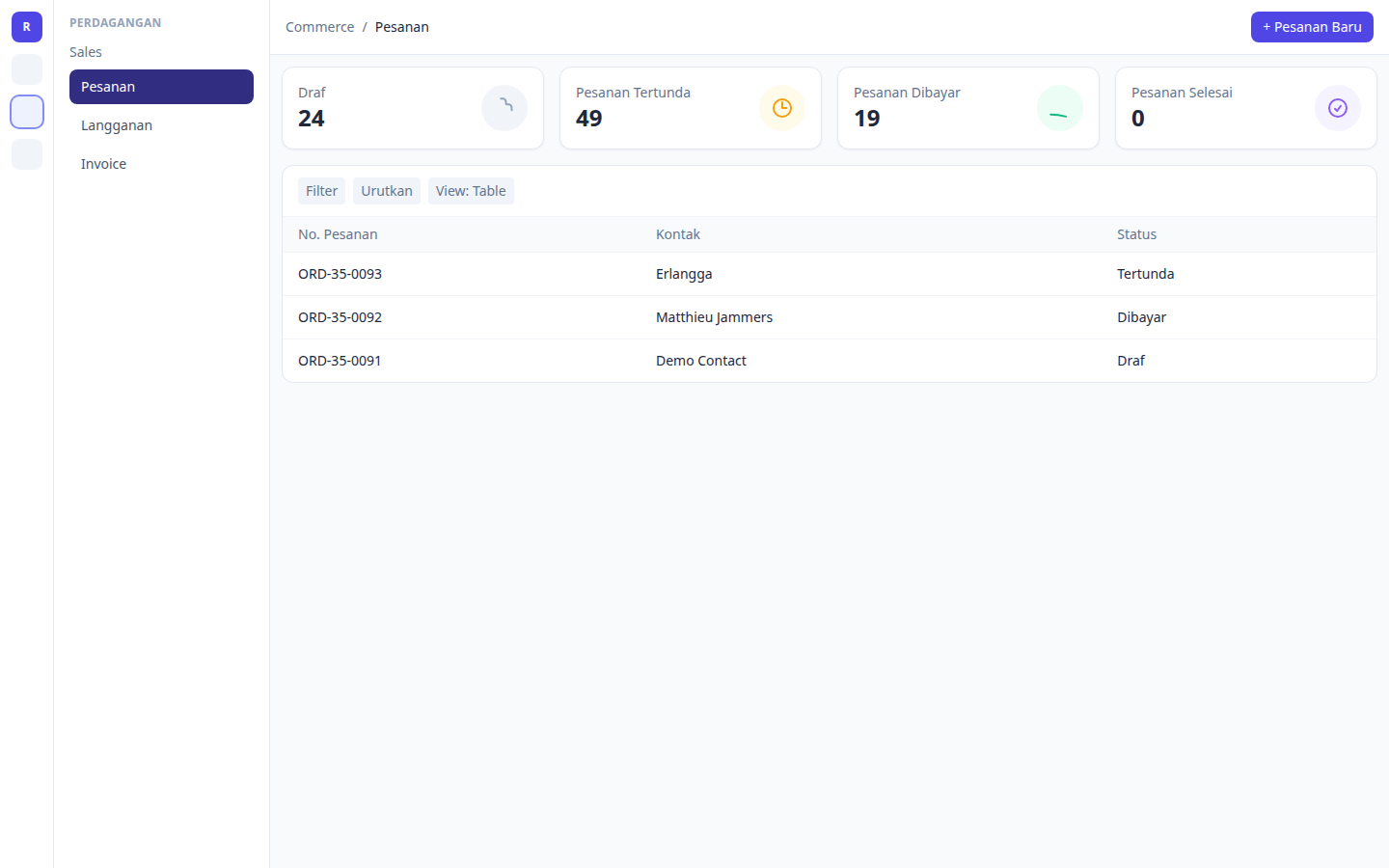
On Commerce → Orders, the four summary KPI cards now sit directly on the page background — the old gray panel behind them is gone — so order status counts are easier to scan. Counts still refresh automatically when orders change.

What changed?
Previously, Drafts / Pending / Paid / Completed sat inside a gray chrome box. That panel added clutter and did not match Products or Accountant invoices. Each KPI card is now a clean bordered tile on the page background.
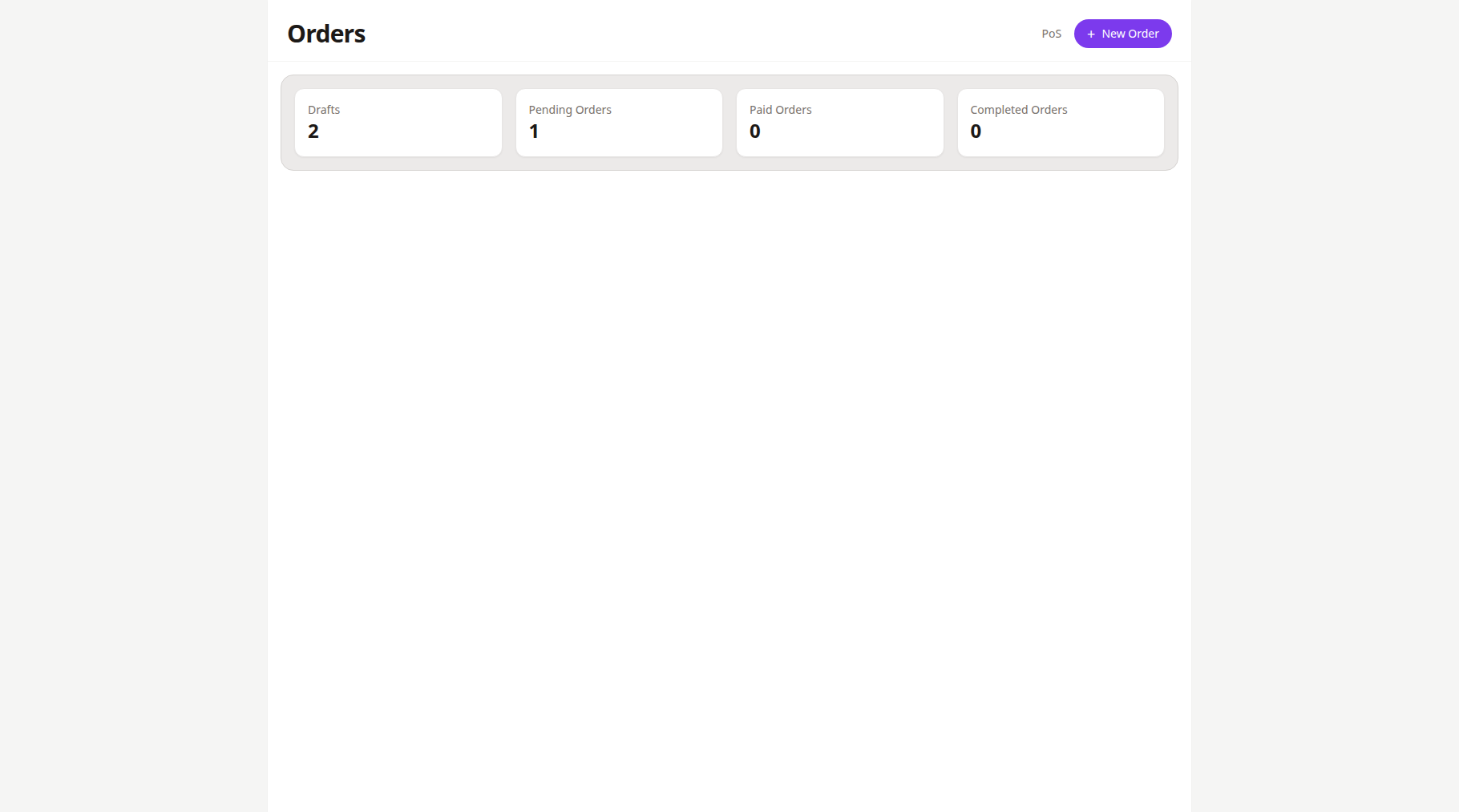
Before: KPI cards wrapped in a gray panel.
After: Flat KPI cards — same counts, clearer layout.
How to read the four cards
- Open Commerce → Orders.
- At the top, read Drafts, Pending Orders, Paid Orders, and Completed Orders.
- Create, update, cancel, or change an order status — the cards reload automatically.
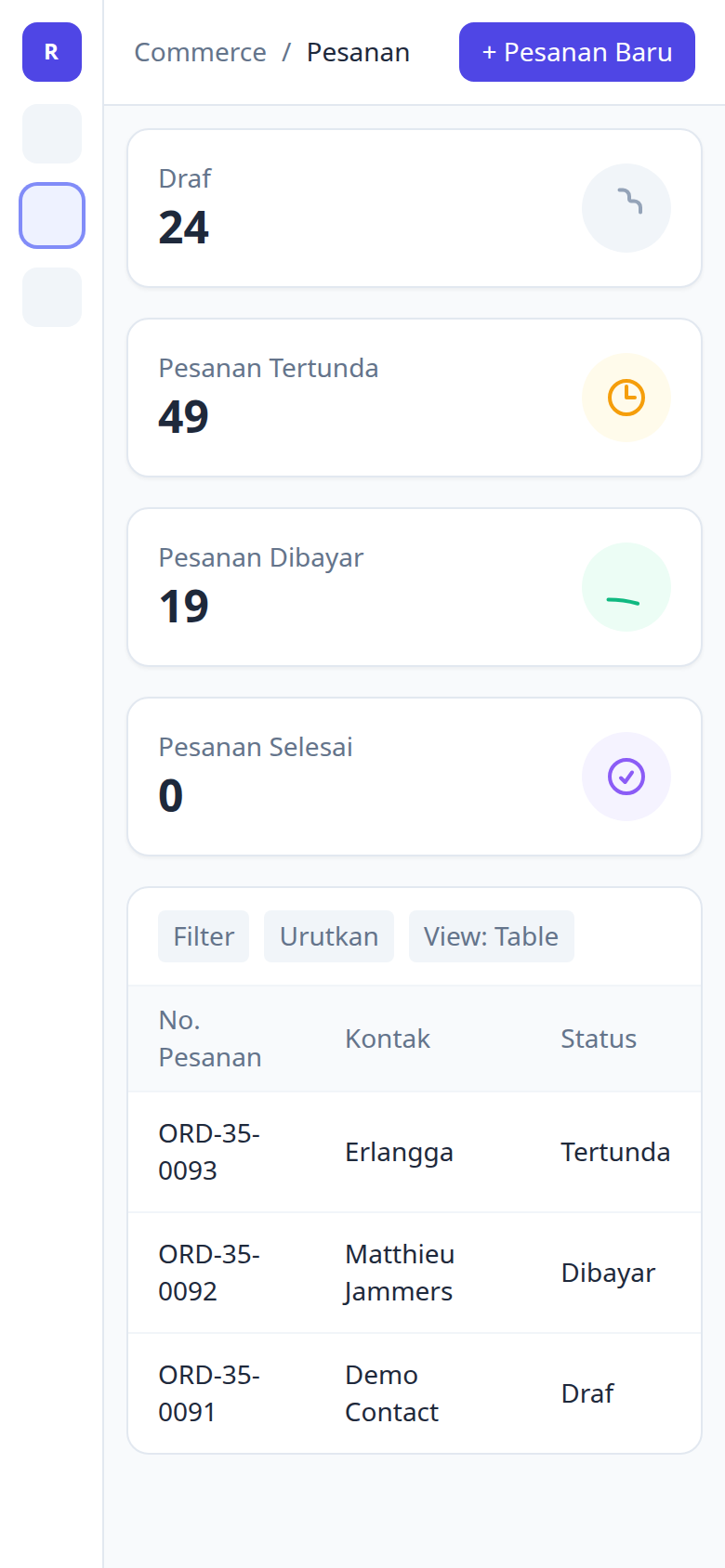
- On mobile, the same four cards stack vertically with the same flat style.
Tips
- Drafts — unfinished orders you can still edit.
- Pending — waiting for payment or next action.
- Paid — payment received.
- Completed — fulfilled / closed.
No new settings are required. After deploy, open Orders and the flatter summary row is ready.