.png)
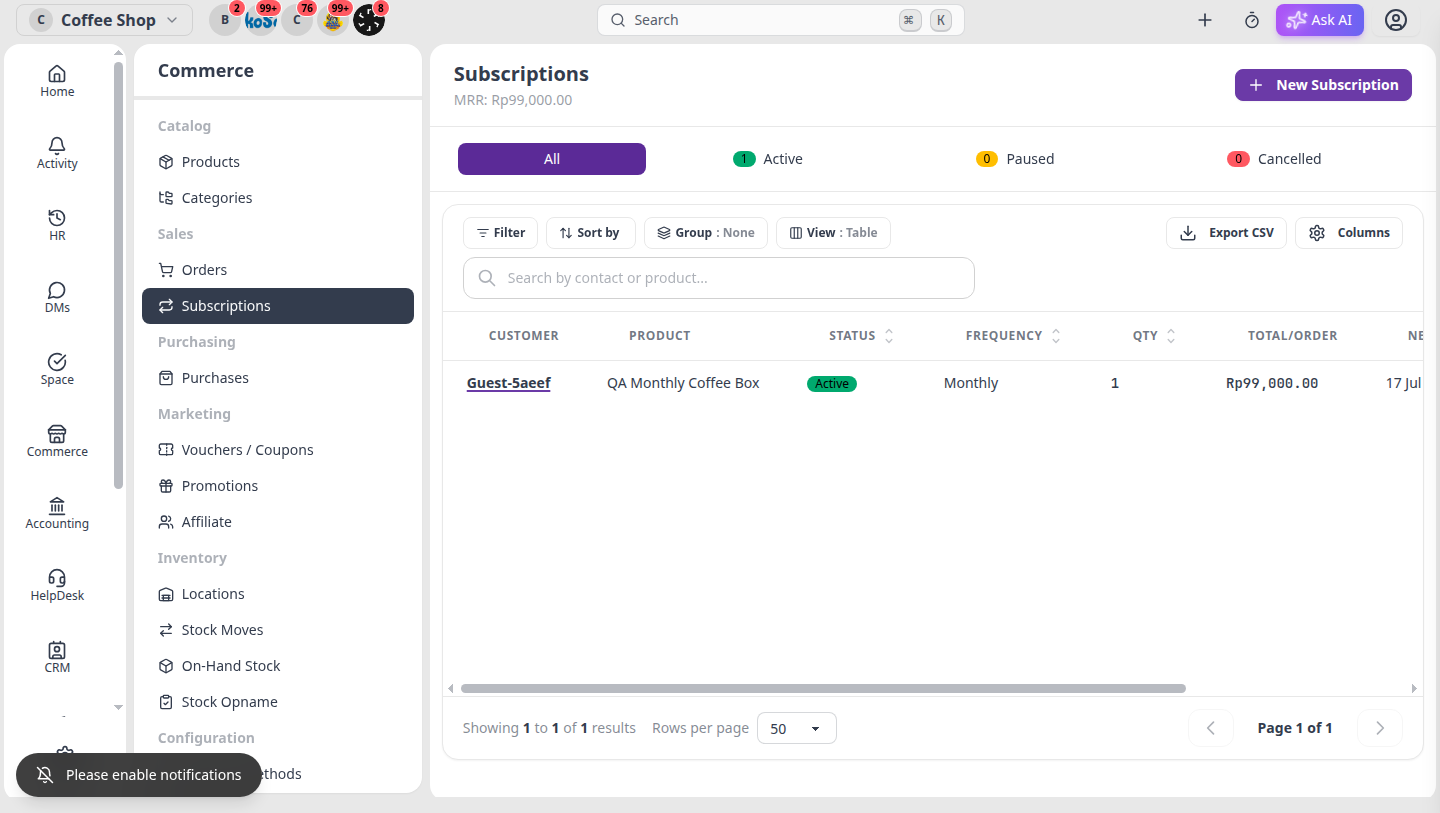
On Commerce → Subscriptions, the list now uses Omni’s standard data table, amounts follow your business currency, and labels are fully localized (EN/ID/FR).
What changed?
- Standard table — subscriptions use the same filter, search, sort, columns, and CSV export pattern as Orders/Products. You can also switch View between Table, Cards, and Kanban.
- Business currency — MRR, total per order, and the create-form summary use your business currency symbol (not the system default).
- Full localization — list headers, status tabs, detail sidebar, new form, toasts, and the CRM contact Subscriptions section are translated.
How to use the Subscriptions list
- Open Commerce → Subscriptions.
- Use status tabs All / Active / Paused / Cancelled for quick filters.
- Search by contact or product, adjust columns, or export CSV from the table toolbar.
- Use View to switch between Table, Cards, and Kanban.
- MRR in the header uses your business currency.
Create a new subscription
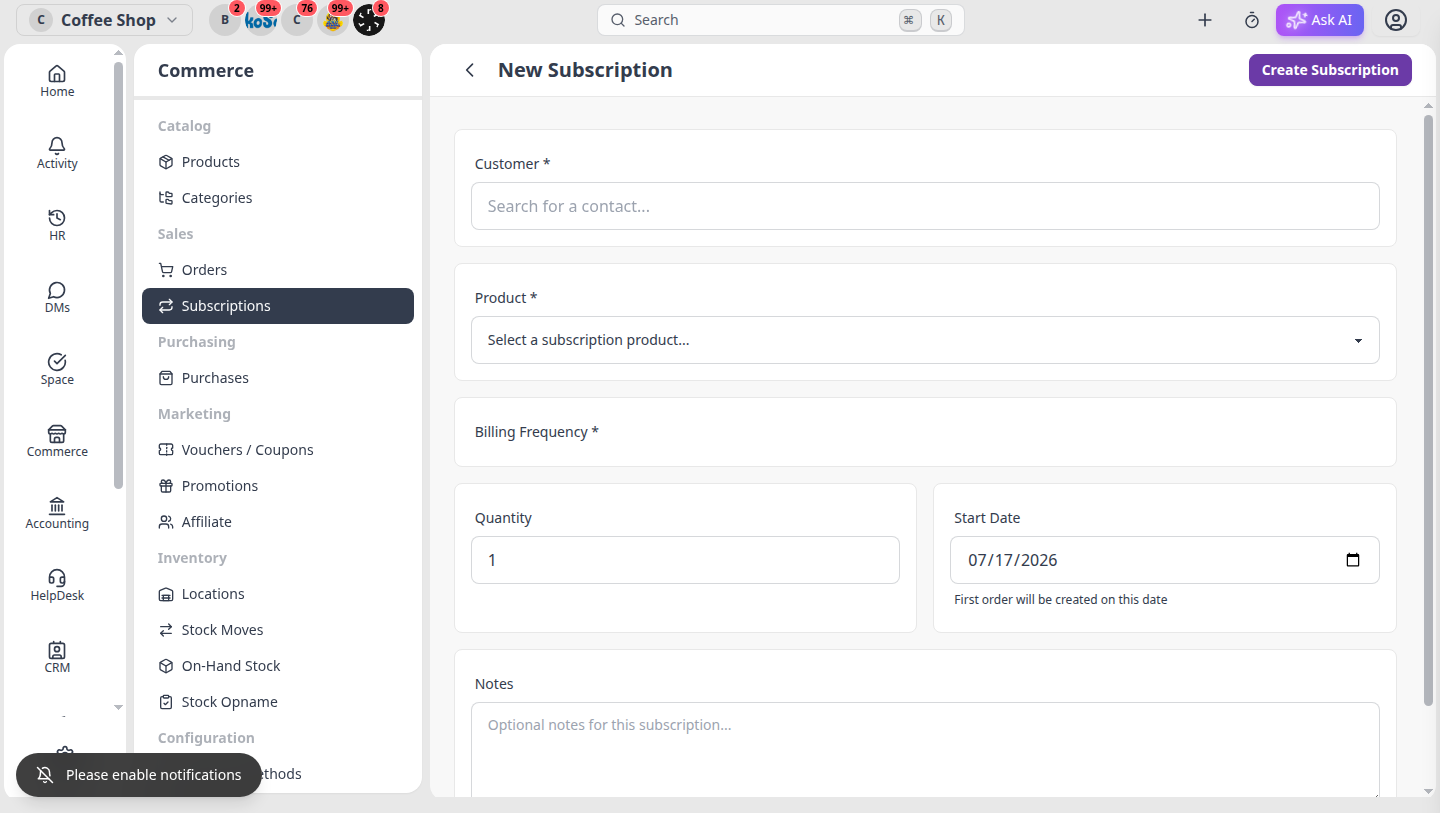
Click New Subscription, pick a customer & product, then check the summary — totals use your business currency.
Pause, resume, or cancel
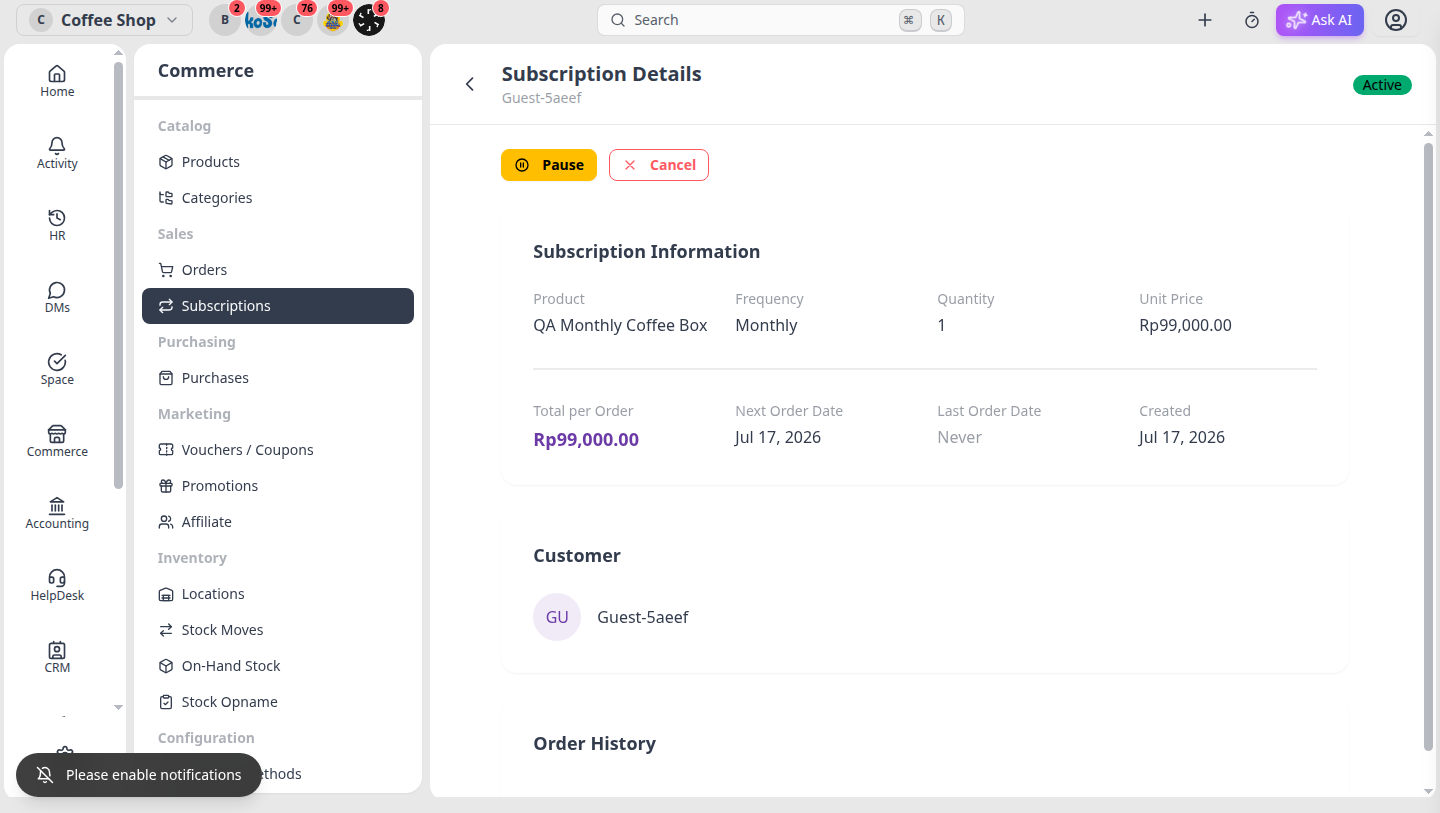
Open a subscription to see Pause / Cancel actions and order history. Amounts stay in your business currency.
From a CRM contact
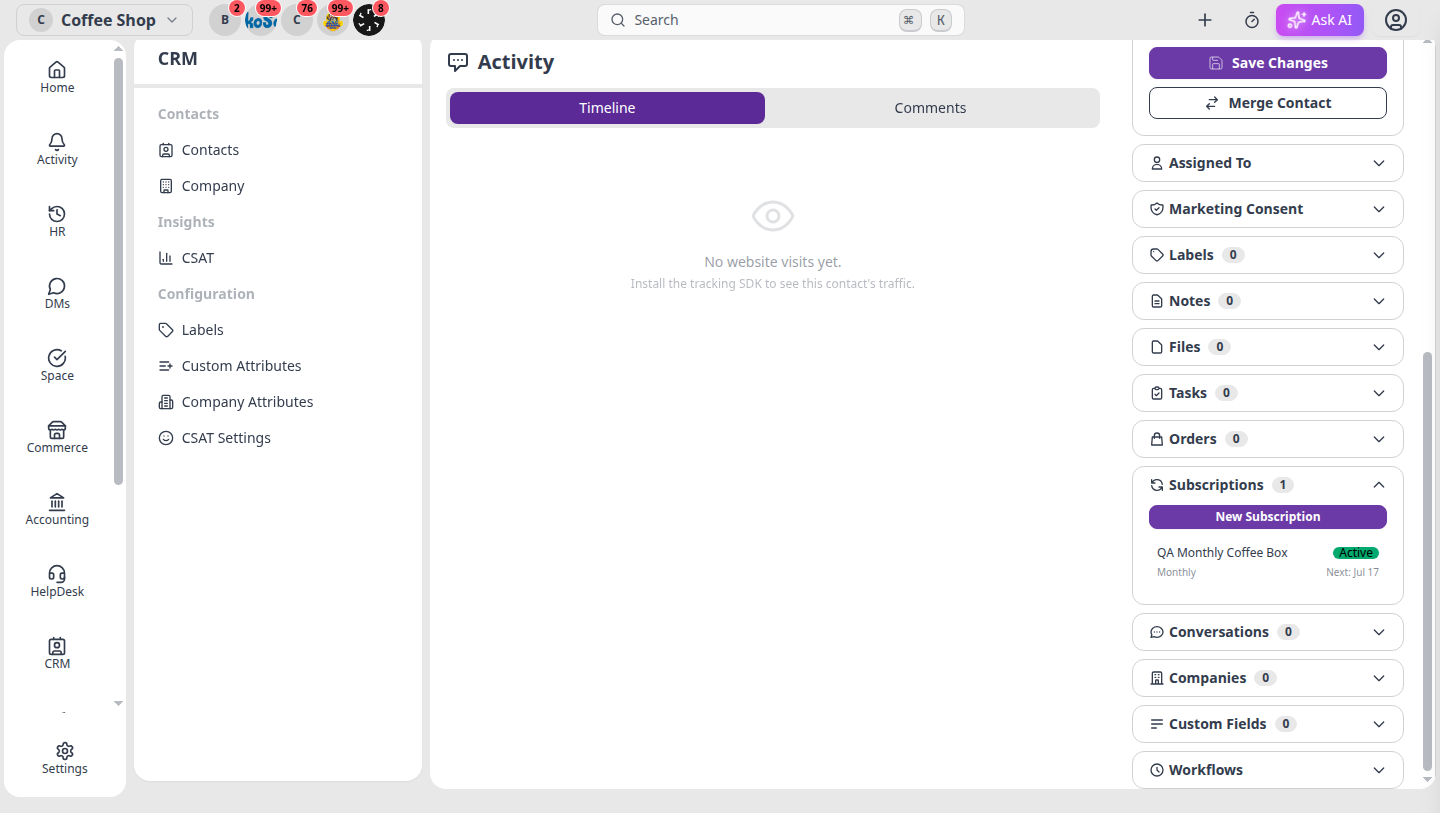
On a contact page, expand the Subscriptions accordion to see that customer’s plans, status, and next billing date — or click New Subscription without leaving CRM.
Need the setup guide? See Set up subscriptions for recurring billing.