.png)
A stock move records every change to your inventory — stock coming in, going out, or moving between warehouses. The Stock Moves page is where you receive new stock, transfer it between locations, ship deliveries to customers, and run stock counts, all with a full history of every movement.
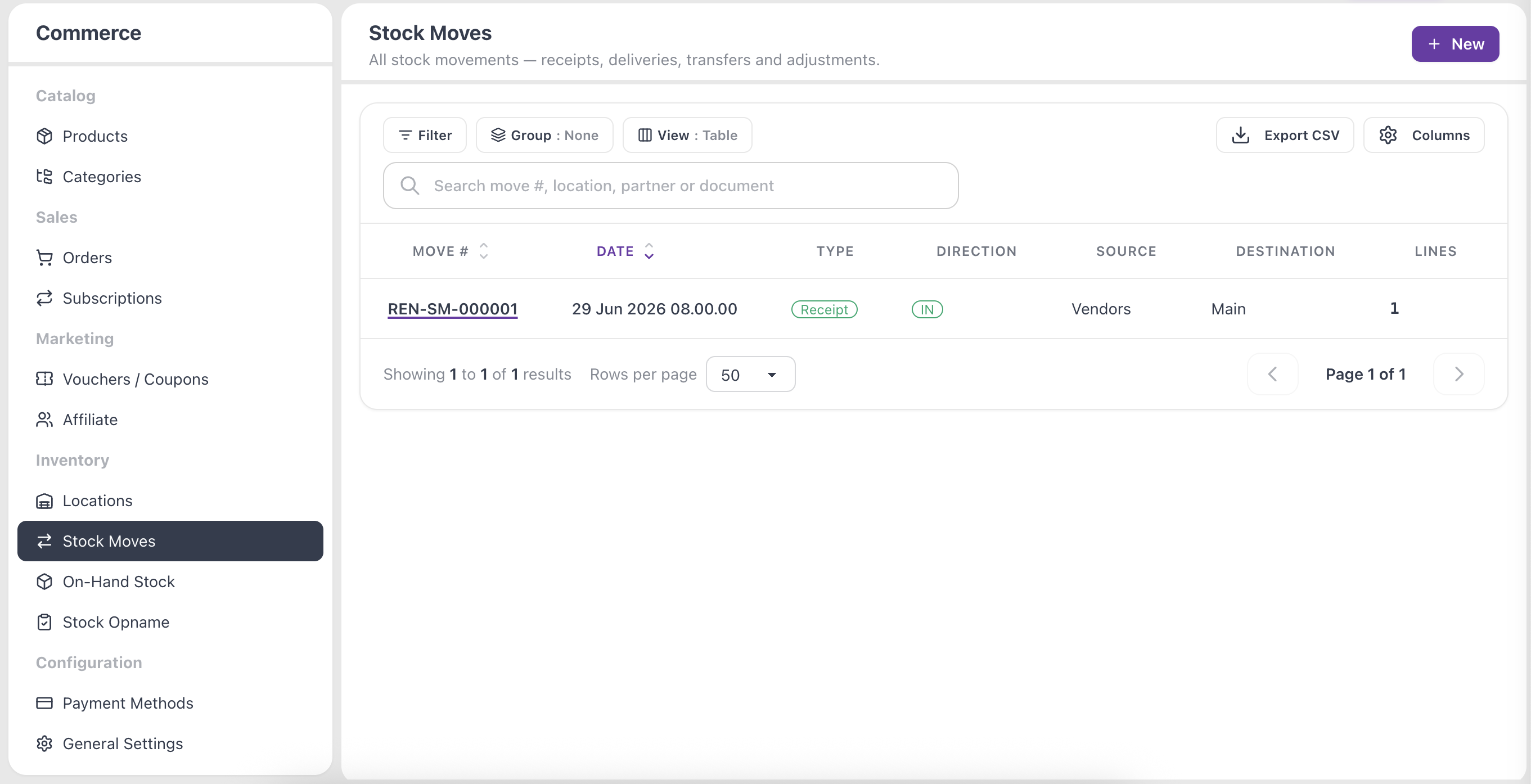
Move types
- Receipt — stock coming in from a supplier.
- Delivery — stock going out to a customer.
- Transfer — stock moving between your own warehouses.
- Adjustment — a correction from a physical stock count.
Create a stock move
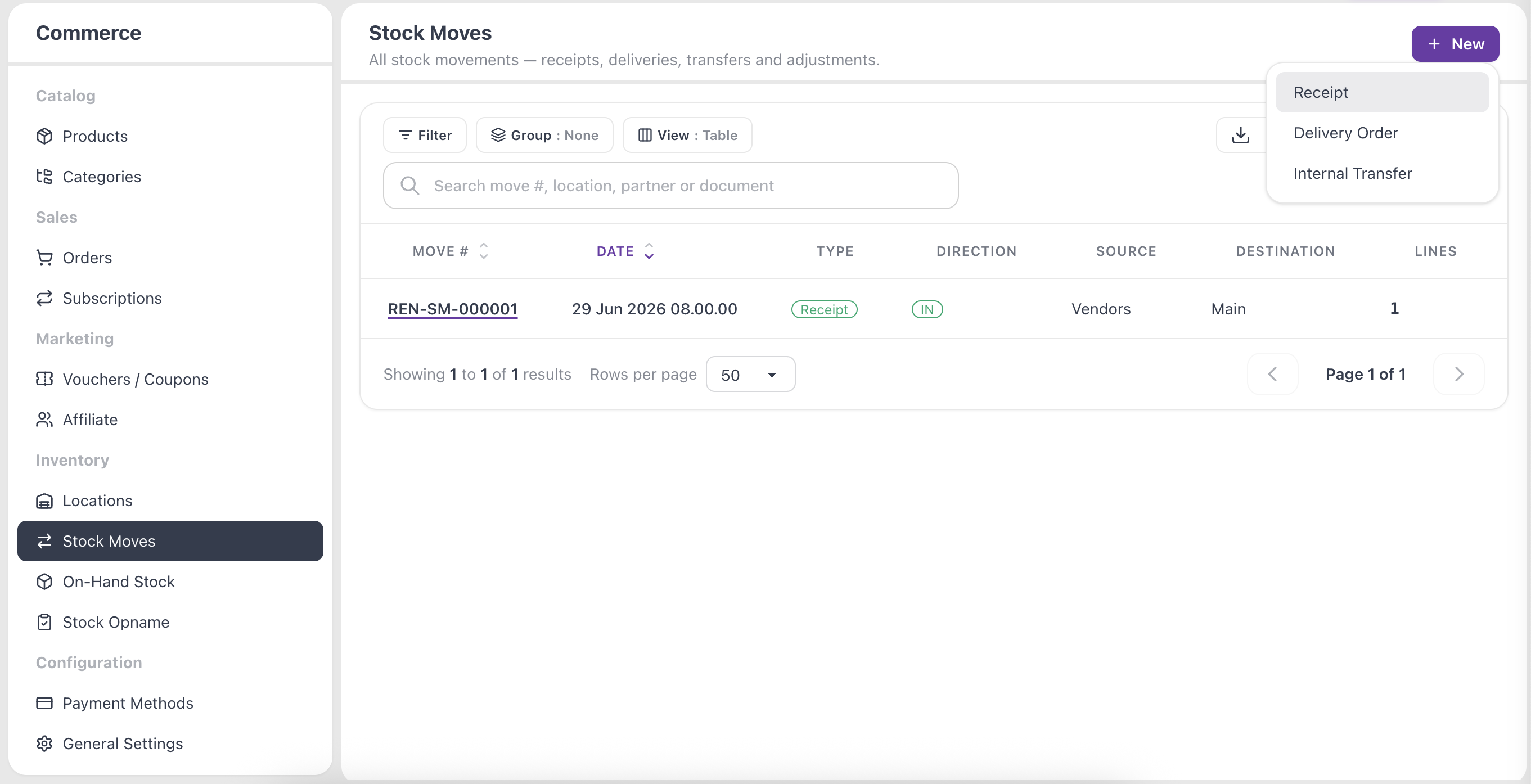
- Open the Stock Moves page.
- Click Receive Stock, Transfer Stock, or Stock Count, depending on what you need to do.
- Choose the Source Warehouse and Destination Warehouse. A receipt brings stock into a warehouse; a transfer moves it from one warehouse to another.
- Click Save Draft. The move opens as a Draft so you can keep editing before it affects your stock.
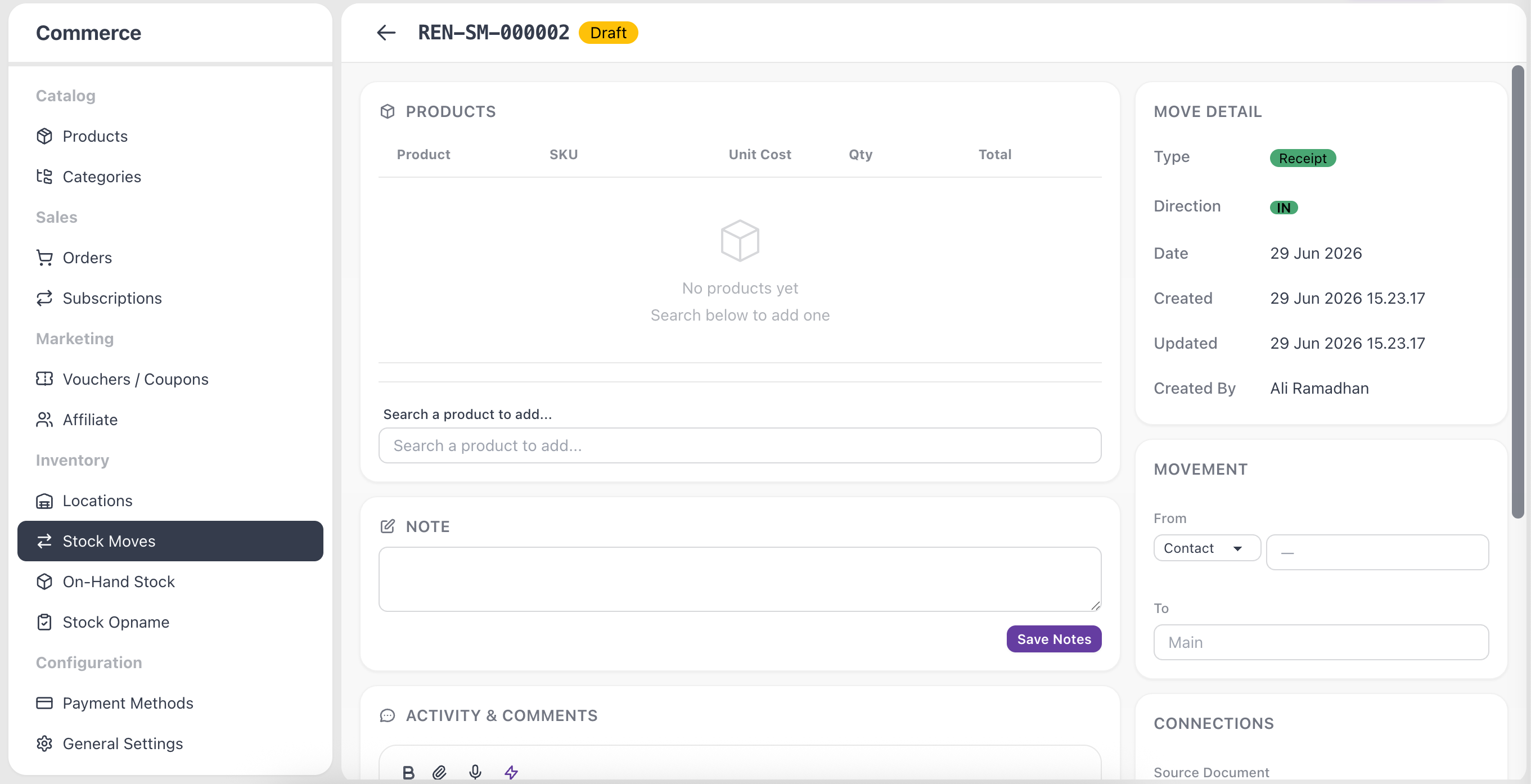
Add products
- In the Products section, use Search a product to add… to find an item.
- Set the Quantity for each line, and adjust the Unit Cost if needed.
- Repeat for every product that belongs on the move.
Link a partner and source document
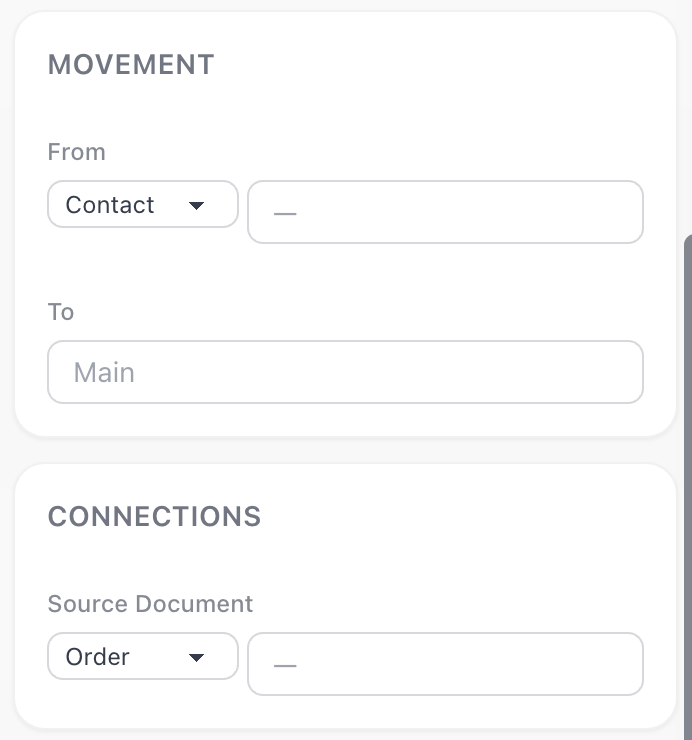
On the move's detail page, open the Connections panel to tie the move to the rest of your records.
- Pick a partner from your CRM — a Contact or a Company — to record the supplier or customer behind the move.
- Set the Source Document to link the move to its Order, Invoice, or Bill for a complete audit trail.
Add courier and shipment details
For a delivery, fill in the Shipment panel so you and your customer can track the parcel:
- Carrier and Tracking number
- Airway Bill and Reference
- Shipping Cost, Packages, and Weight (kg)
- Expected delivery date
Validate or cancel a move
While a move is a Draft you can still edit its From and To locations, its products, and its details. When everything is correct:
- Click Validate to confirm the move. Its status changes to Done and your stock levels update.
- To void a move instead, click Cancel Move. Its status becomes Cancelled and no stock changes are applied.
Tip: Manage your warehouses on the Locations page. Each partner can also have its own virtual location, so receipts and deliveries route through the right place automatically.