.png)
Some automation steps connect to outside services — sending email, generating text with AI, or calling another app. Those steps need a key or token to sign in. You store these once as credentials, then reuse them across as many workflows as you like, without ever pasting the key into a step.
Which steps need a credential?
Any action that talks to an external service needs one. Common examples include sending email, generating text or images with AI, and calling a third-party API. Actions that only work inside Renr — like creating a task — don't need a credential.
Add a credential
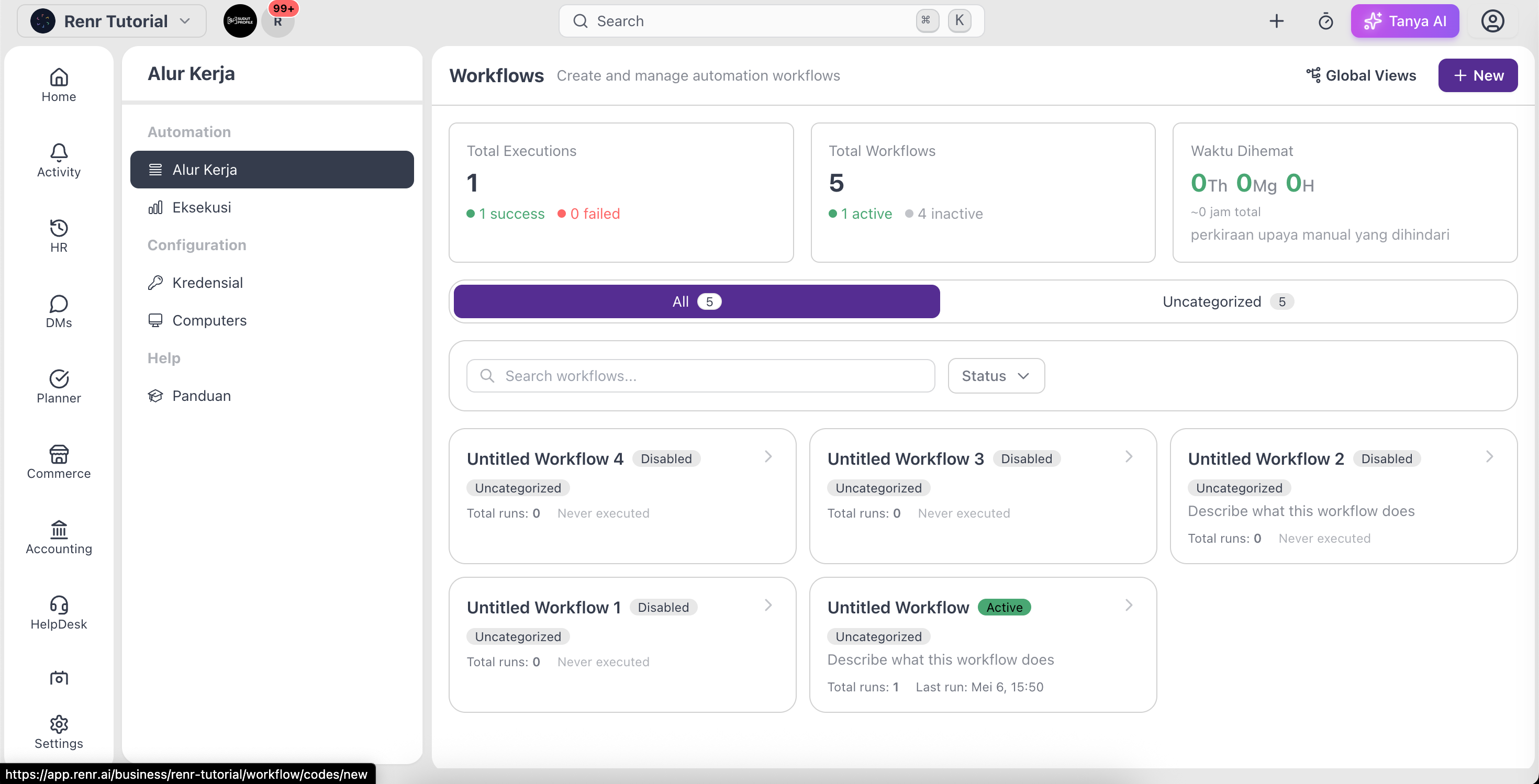
- Open Workflows, then go to Credentials.
- Click Add New Credential.
- Choose the type that matches the service you're connecting.
- Give it a short, memorable name — you'll use this name in your steps.
- Paste in the key or token from the service.
- Click Test to confirm the credential works, then save.
Use a credential in a step
Attach a saved credential to a step by putting its name in front of the action, separated by an @:
name@module.action— for example, a credential named mailer on an email step becomesmailer@smtp.send.
Renr looks up the stored key by that name when the step runs, so the secret never appears in your workflow.
Note: Stored keys are masked on the Credentials page — you can see that a credential exists, but not its full value. Click Delete on any credential to revoke it; steps that relied on it will stop working until you add a replacement.