.png)
When a customer asks "Are you open right now?" or "What time is it there?", your AI agent can only answer correctly if it knows your timezone. Omni Chat reads the time from your business timezone, so setting it accurately keeps the agent's time-based answers right.
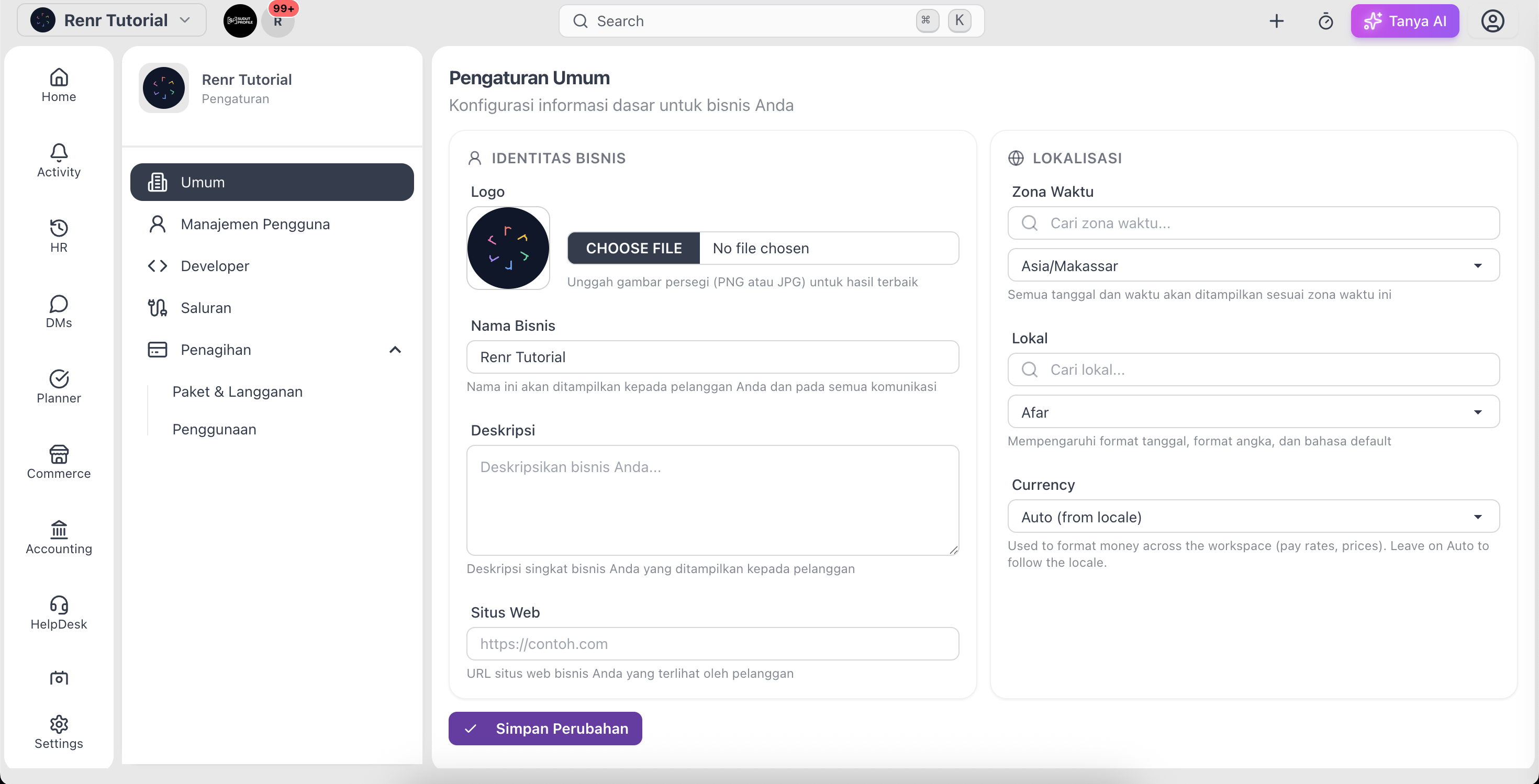
Set your business timezone
- Go to Settings → General Settings.
- Find the Time Zone field and search for your zone (for example, America/New_York or Asia/Jakarta).
- Select it, then click Save Changes.
How the AI uses it
Every time the agent answers a customer, it's given the current local time in your business timezone — including the day, the time, and whether it's morning, afternoon, evening, or night. That lets it respond naturally to questions about the current time, today's date, or whether you're likely to be available.
Note: If no timezone is set, the agent falls back to Asia/Jakarta. Set your real timezone so time-based answers aren't off by hours.
Add extra context in your instructions
The timezone gives the agent the current time, but it doesn't define your opening hours. If you want the AI to speak to when you're open, add it to the agent's Instructions in AI Agent Configuration — for example: "We're open Monday to Friday, 9 AM to 5 PM Eastern Time."
Tip: State your hours in plain language in the instructions. The agent combines that with the current time it's given to answer "are you open now?" sensibly.