.png)
Forgot your password? It happens to everyone. You can reset it yourself in just a few minutes — no need to contact support. This guide walks you through requesting a reset link, choosing a new password, and signing back in.
Before you start
- Access to the inbox of the email address you registered with — the reset link is sent there.
- RENR runs at app.renr.ai in any modern web browser.
Reset your password
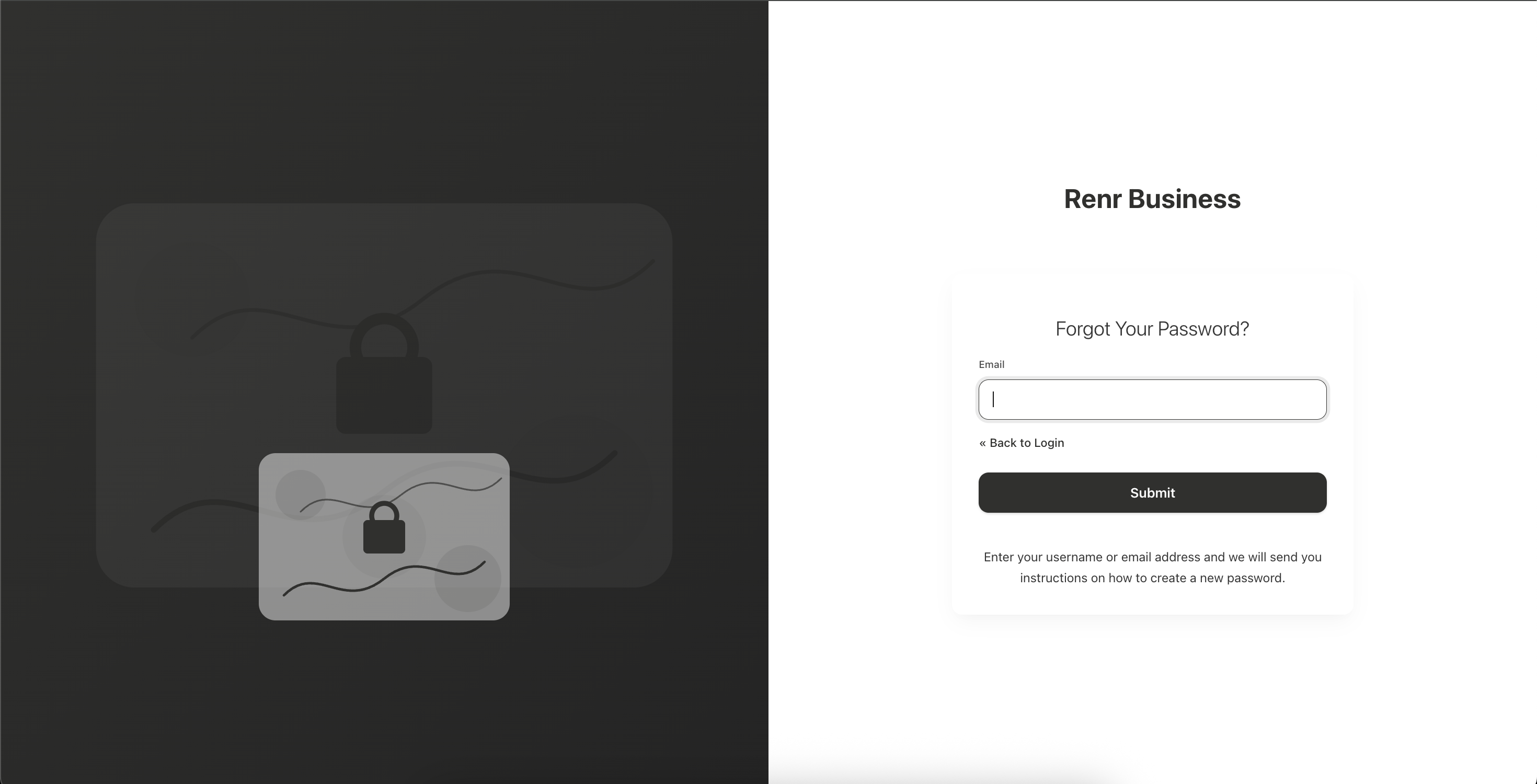
- Open app.renr.ai and wait for the sign-in screen to load.
- Below the login form, click the Forgot Password? link.
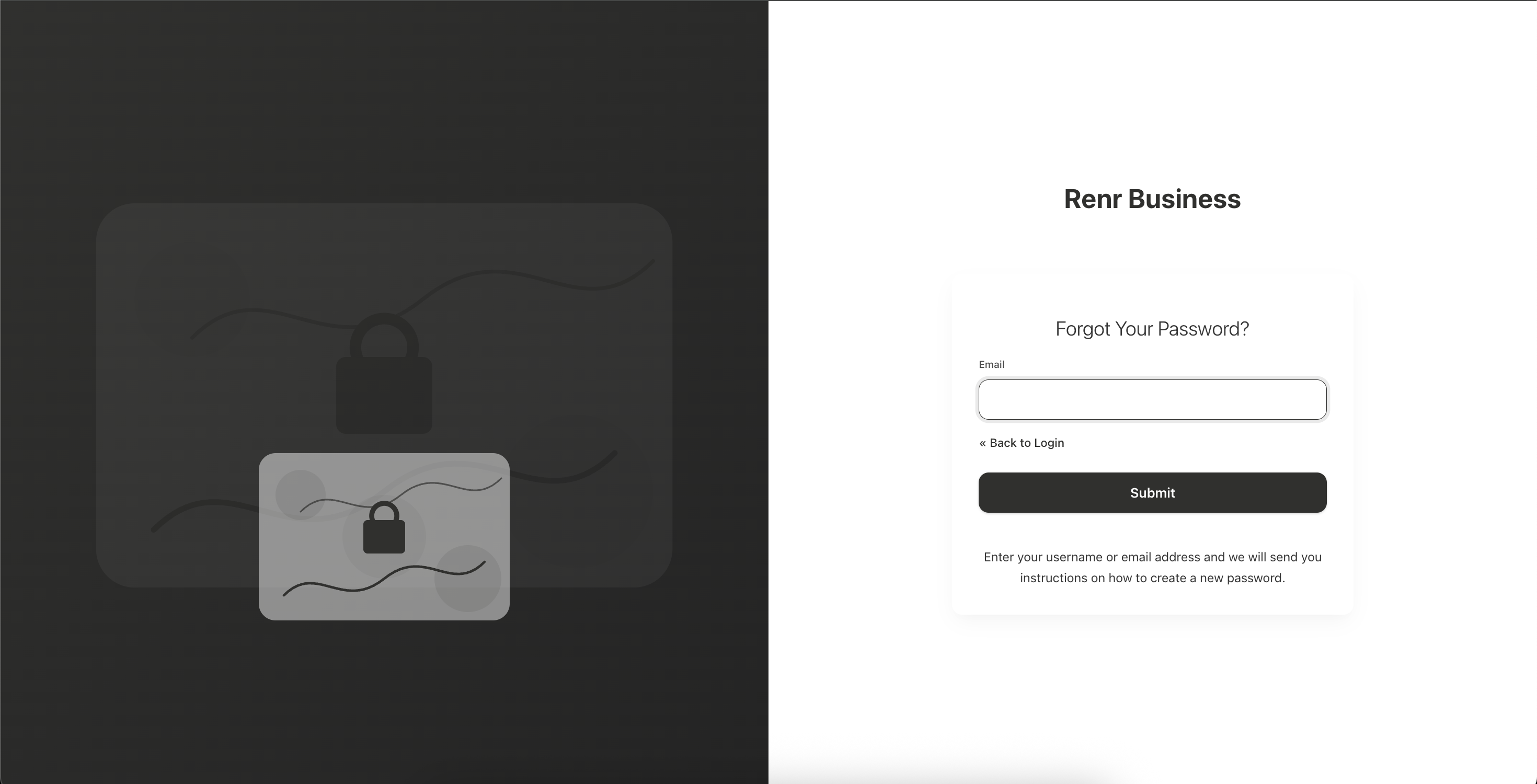
- Enter your registered email address, then click Submit.
- Check your inbox for the password reset email from RENR and open it.
- Click the reset link in the email to open the Update Password page.
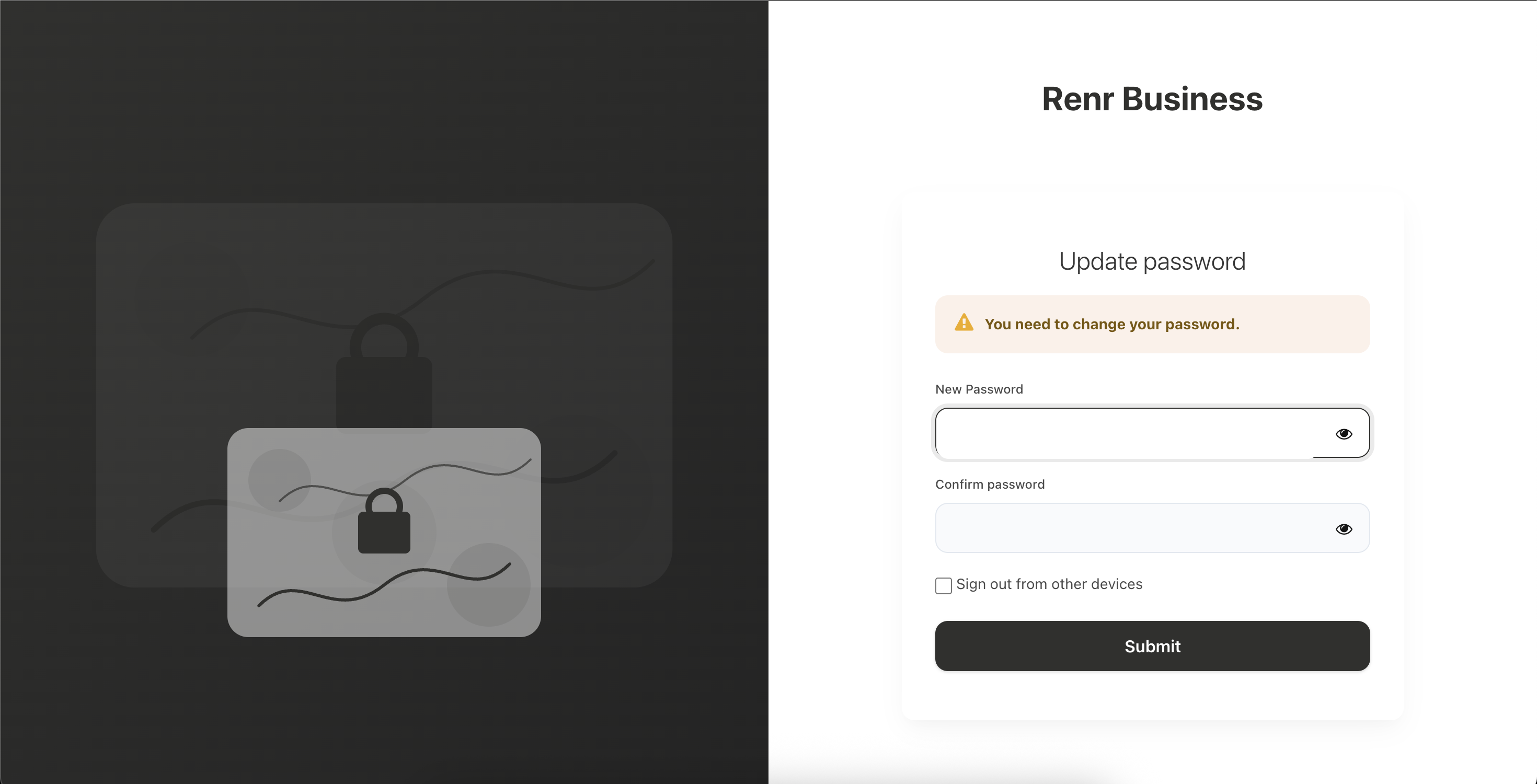
- Enter your New Password, then re-enter it in Confirm Password.
- Click Submit to save your new password.
Tip: Choose a strong, unique password — at least 8 characters mixing letters, numbers, and symbols. Avoid reusing a password from another site.
Note: The reset link is time-limited and can be used once. If it has expired, simply start again from the Forgot Password? link to request a new one.
Didn't get the email?
- Check your spam or junk folder before requesting a new link.
- Confirm you entered the same email address you registered with.
- Wait a few minutes — delivery can be delayed — then request the link again.
Signed up with Google or LinkedIn? Your account has no RENR password to reset. On the sign-in screen, click Google or LinkedIn to sign in instead.
Sign in with your new password
Return to app.renr.ai, enter your email and new password, and click Sign In. You are back in — head to your RENR home to pick up where you left off.