.png)
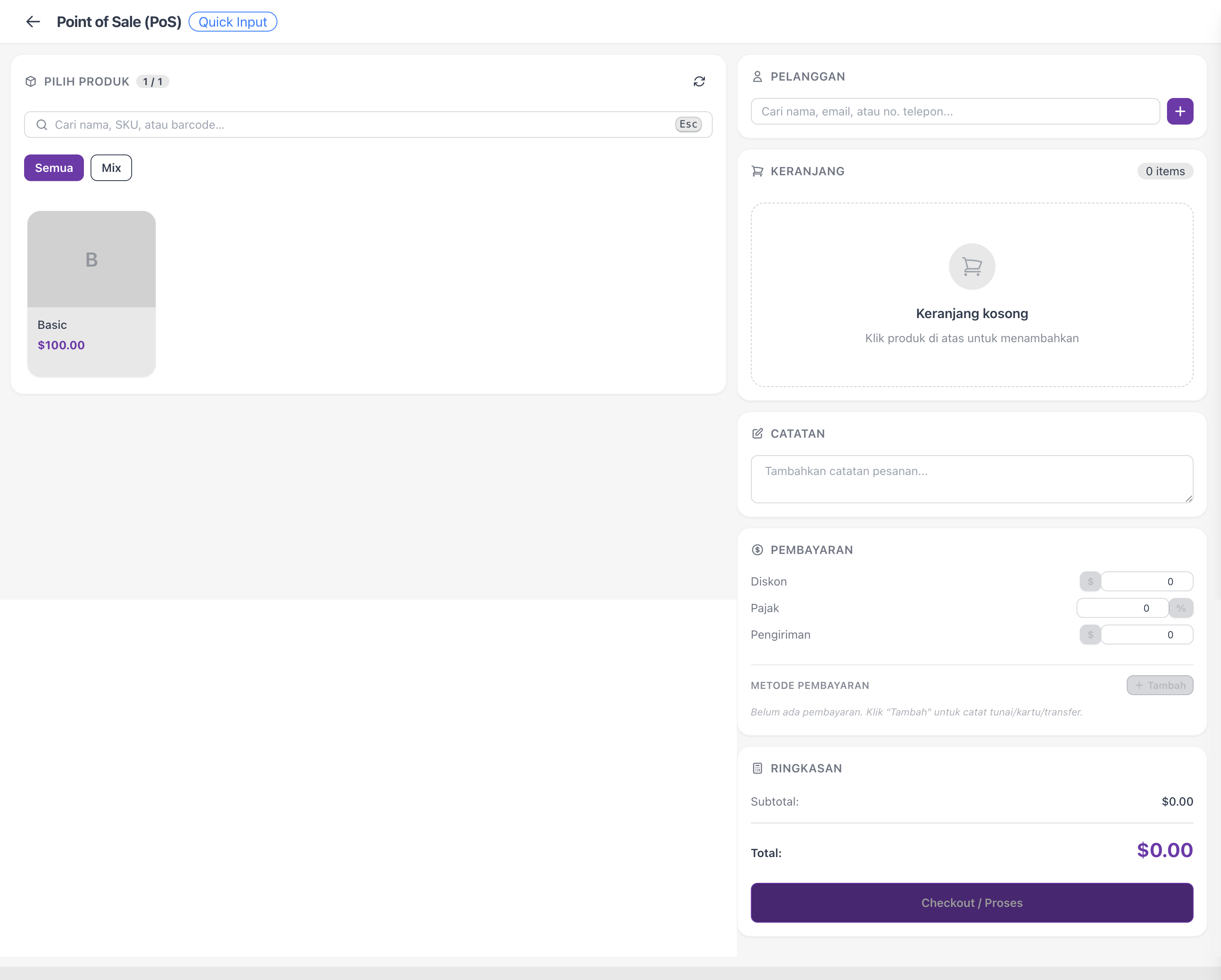
Point of Sale (PoS) is built for selling face to face. It puts your product catalog, a running cart, and payment on one fast screen — so you can ring up a sale in seconds without building an order field by field.
Open Point of Sale
Go to Orders in the Commerce section, then click PoS Mode. The PoS screen opens with your categories down the side and products ready to tap.
Build the cart
- Pick a category to narrow the product grid, or use search.
- Tap a product to add it to the cart. Tap again to increase the quantity, or adjust it in the cart.
- Remove anything added by mistake with the remove icon in the cart.
Add the customer
Search for an existing customer, or create one inline if they're new. Adding a customer keeps the sale on their history — handy for follow-ups and repeat business. You can also leave a walk-in sale without a named customer.
Take payment and complete the sale
- Choose the payment method the customer is using.
- Confirm the total.
- Complete the sale. The order is created and marked paid in one step.
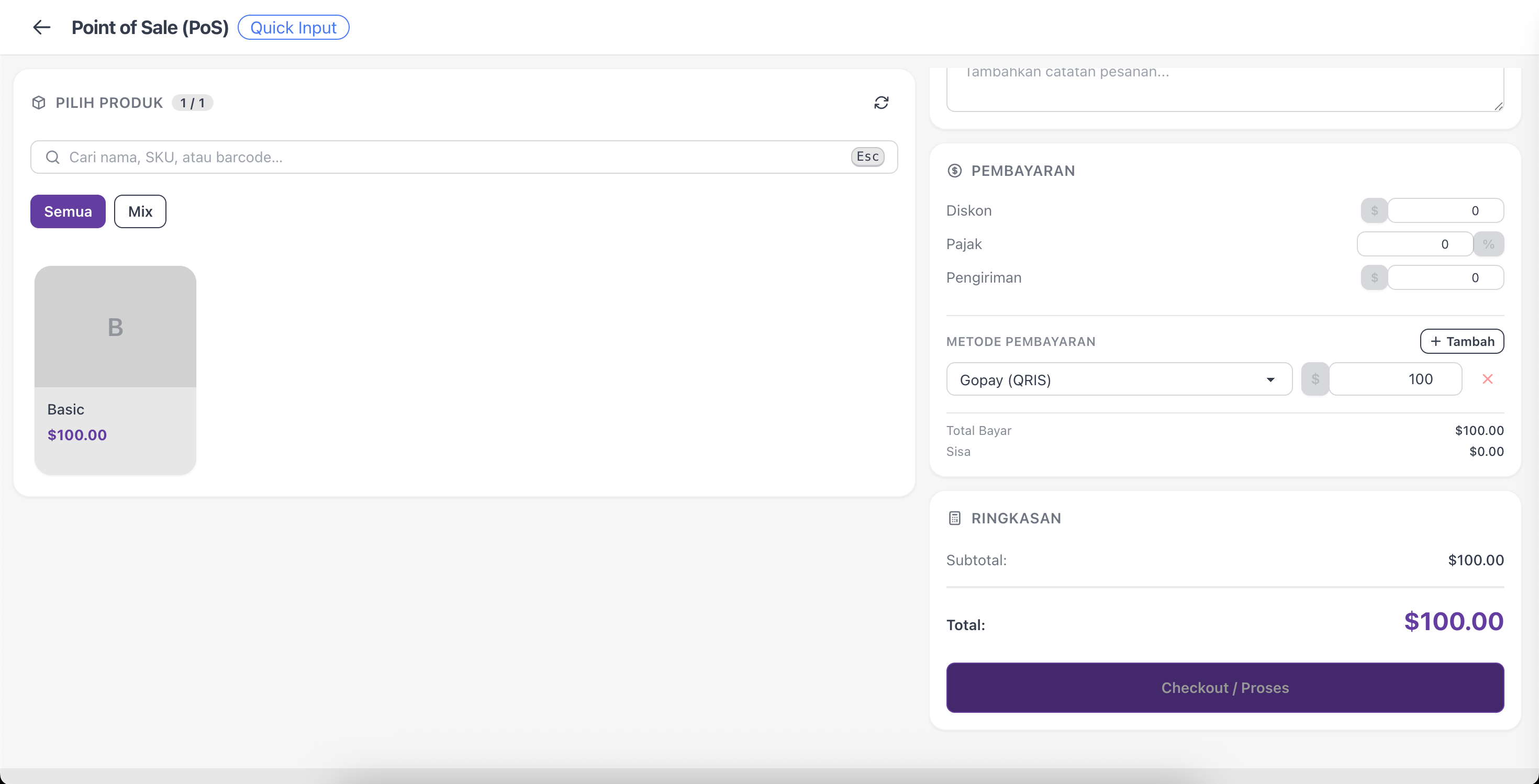
Notes: Set up a payment method first to take payments and complete sales.
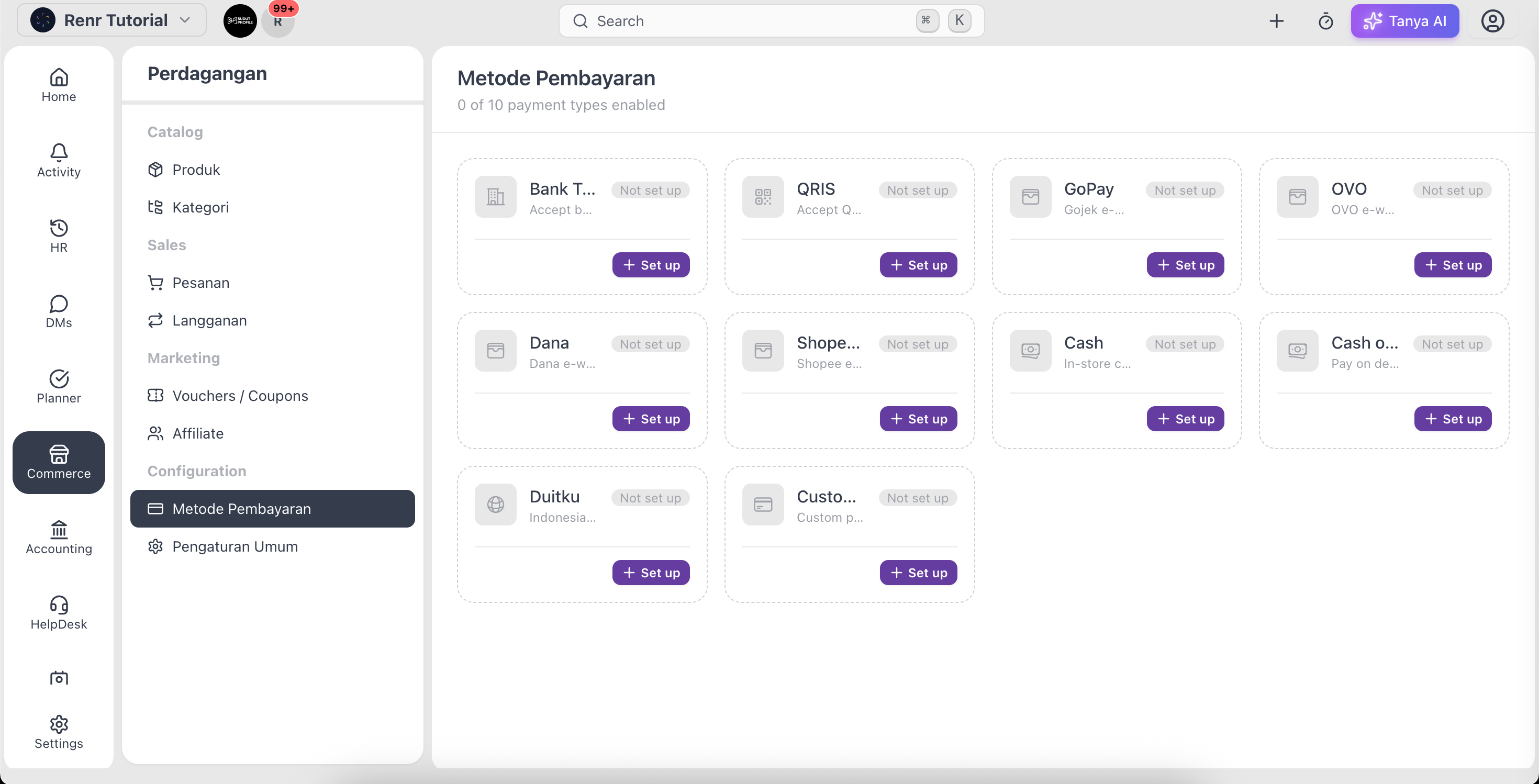
Tip: The payment options you see here come from your configured payment methods. To add or change them, see Set up your payment methods.