.png)
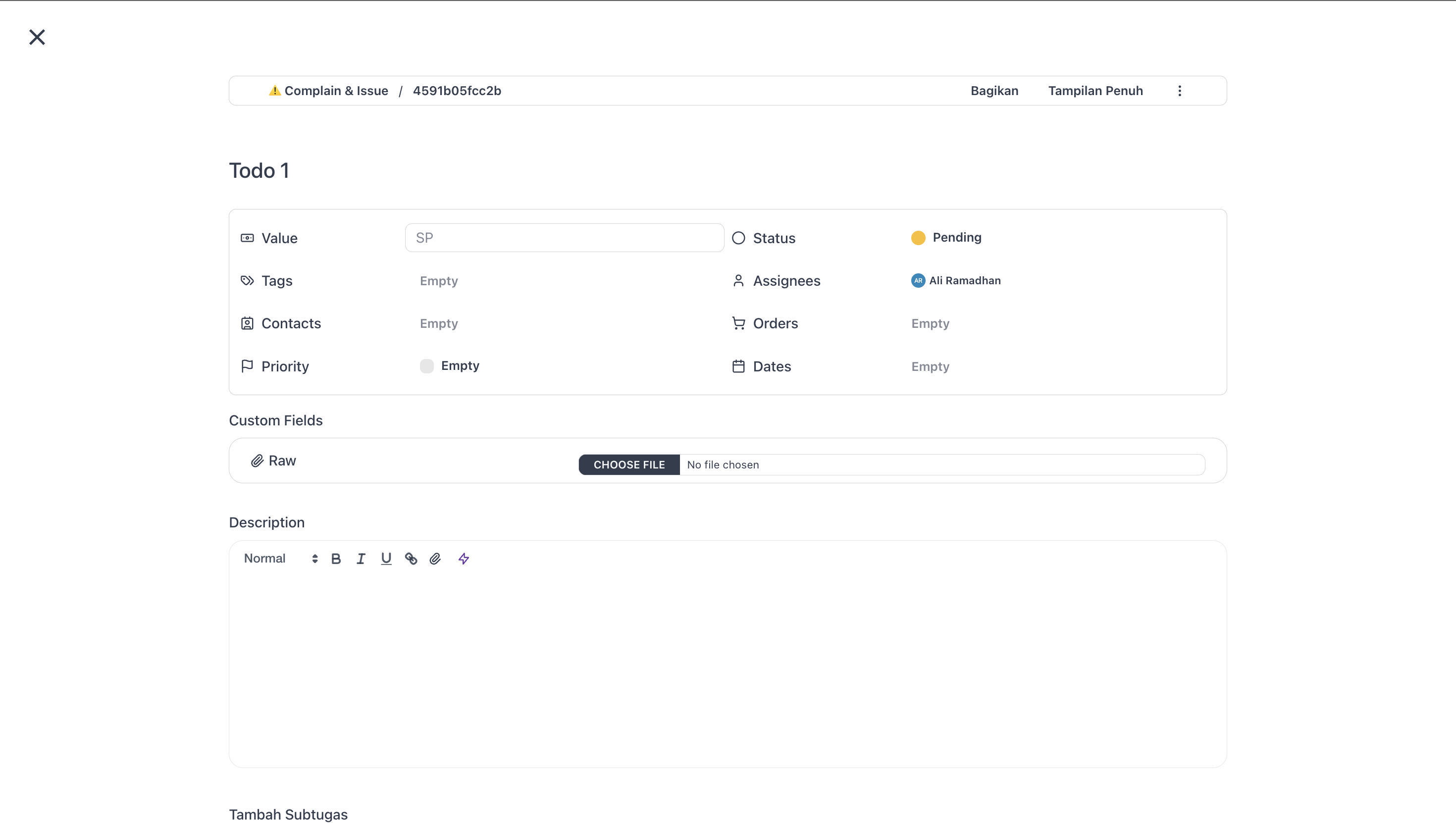
This guide introduces the Task — the unit of work your team plans, tracks, and finishes inside a Space. By the end you'll know what a Task is, what it can hold, and how each property works.
What you'll need
- A RENR account with access to at least one Space.
- A role that can create or view tasks (any role can create tasks in their Space).
Definition
A Task is a single piece of work that lives inside a Space — a sales follow-up, a marketing deliverable, a support fix, a planning step — each with its own title, status, priority, assignees, due date, and more. It's small enough to be owned by one or a few people, big enough to deserve its own row on a board or line on a calendar. Too big to track as one piece? Break it into subtasks.
A Task belongs to exactly one Space and appears across every view — Board, List, Calendar, and Table — reshaping itself for each lens. Edits propagate live to every teammate viewing it, with no refresh needed.
Properties of a task
Every Task ships with the same built-in properties, editable inline on its detail page.
Title
The headline — the one line that says what needs doing. Keep it short and specific: "Send Q2 invoice to Acme" beats "Invoice". It's the first thing on a board card, list row, calendar bar, or notification, and auto-saves about a second after you stop typing.
Description
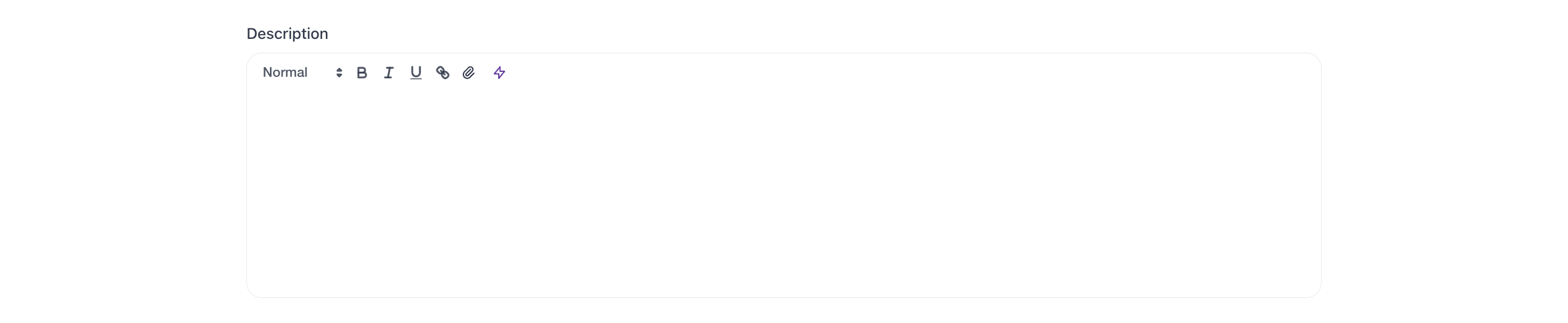
A rich-text editor for the long-form details — requirements, context, acceptance criteria, links, screenshots. Bold, italic, lists, code blocks, tables, and inline images all work. Two toolbar extras: the AI Assistant sparkle rewrites selected text, and the paperclip attaches a file (up to 50 MB) as an inline link — drag-drop works too.
Status
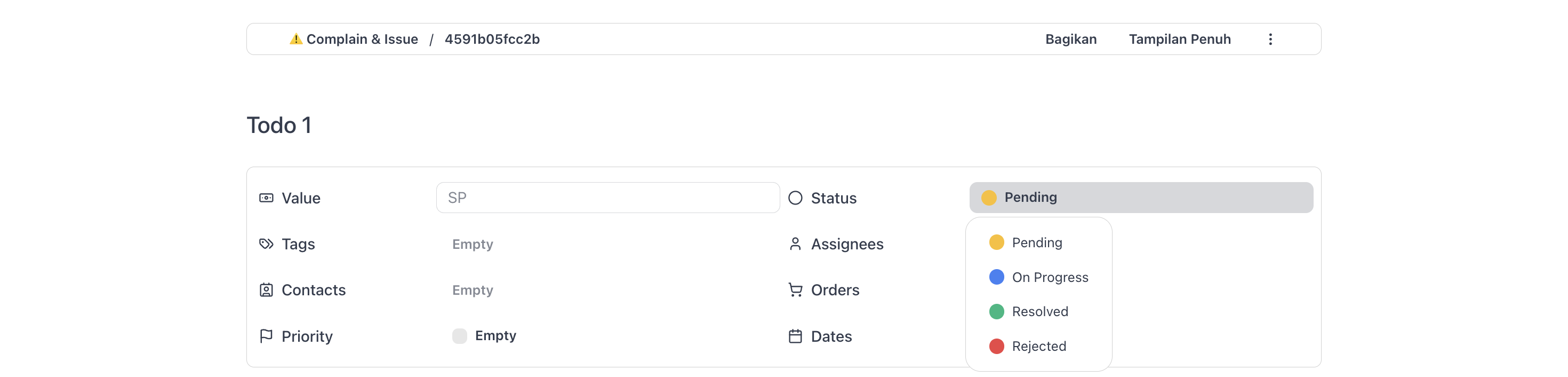
Where the Task sits in its lifecycle. Owners and admins can rename, recolour, reorder, or add statuses from Settings → Manage statuses, so they match how your team moves work — e.g. "Backlog → Sprint → Code Review → Shipped" or "Lead → Qualified → Negotiation → Won".
Priority
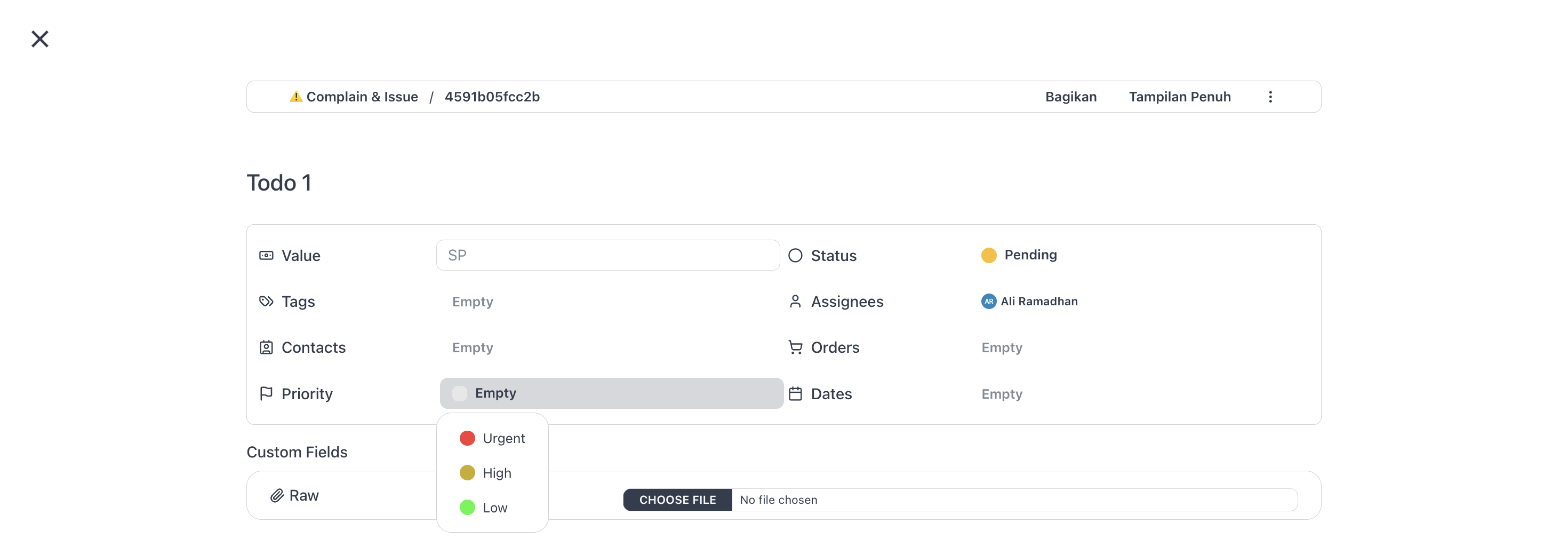
Tells the team what matters most. Defaults are Urgent, High, Normal, and Low, each colour-coded so you can scan a board at a glance. Like statuses, priorities are customisable per Space — P0/P1/P2, Today/This week/Later, whatever fits.
Assignees
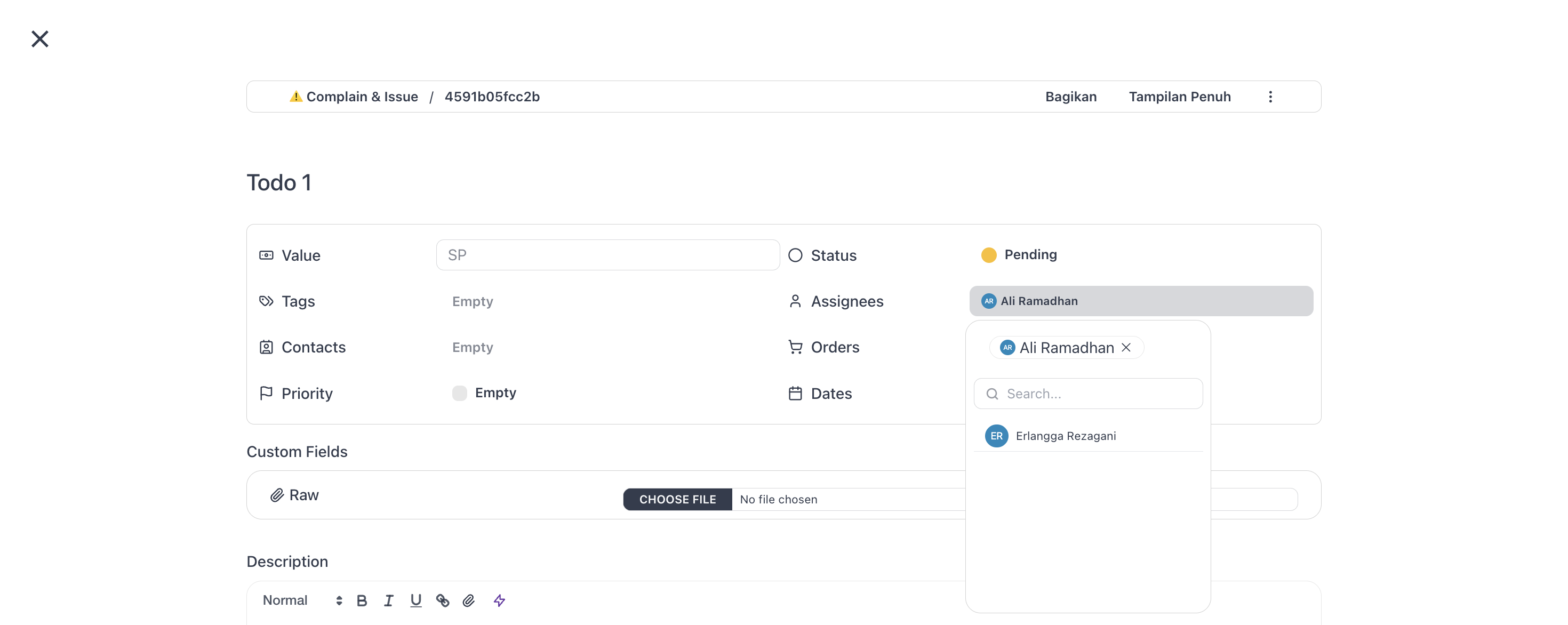
The teammates responsible — one or many. A Task you're assigned to appears in your My Tasks automatically, wherever it lives. With the Member role the Assignees field is hidden in Quick Create and read-only on the Detail page: your tasks auto-assign to you, and only Owners, Admins, or Managers can reassign.
Tags
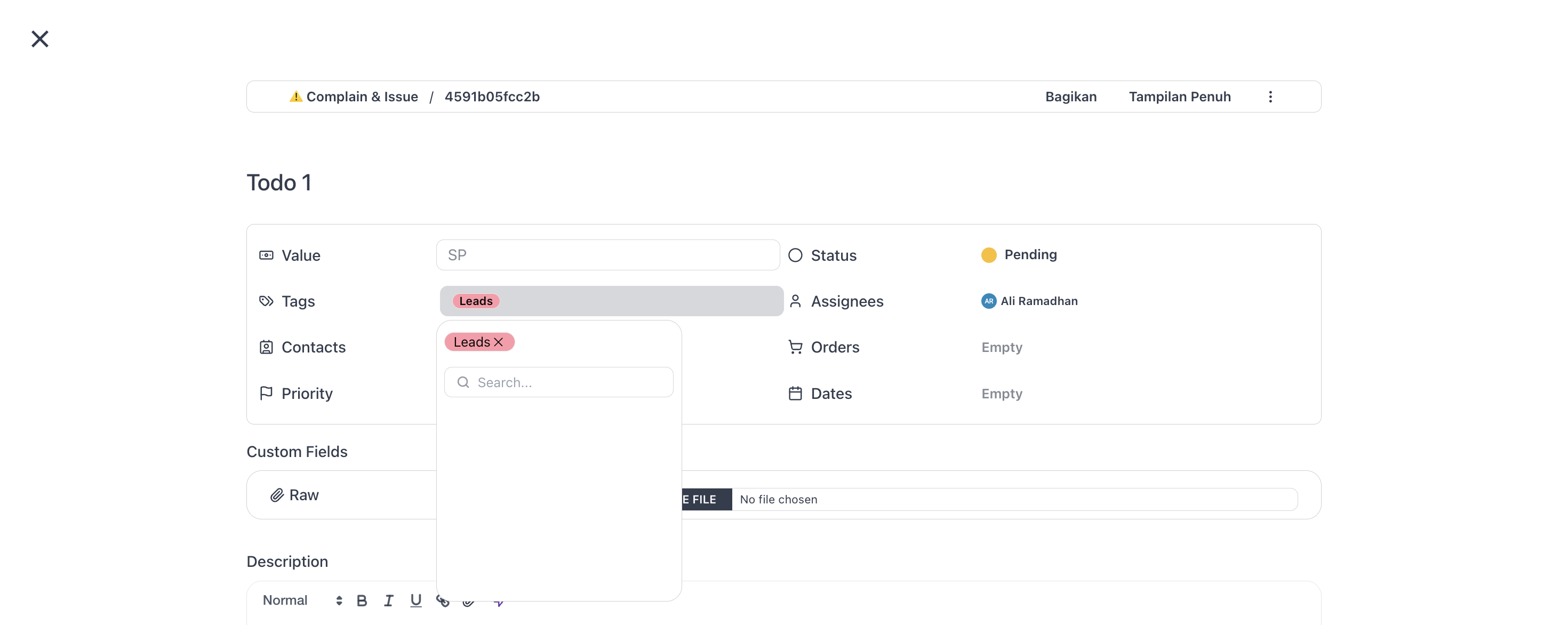
Flexible labels — multiple per Task, any combination — for cross-cutting categorization that isn't status or priority: campaigns, departments, themes, customer segments. Tags are Space-scoped; search existing ones or add a new tag on the fly from the dropdown.
Start Date and Due Date
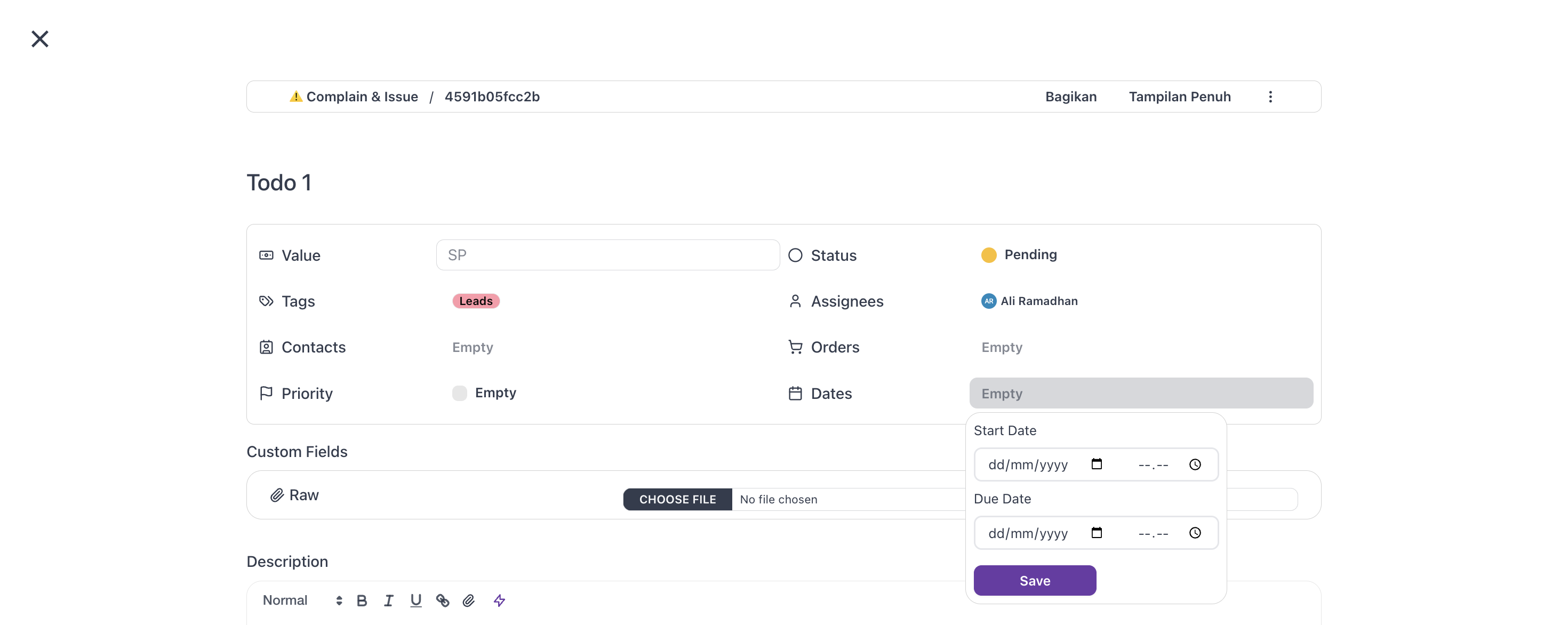
Two date fields describe when the Task happens: the due date is when it must be done, the start date when work begins. Set one or both — both gives a duration shown as a bar on the Calendar. Tasks past their due date show as Overdue in the Space Dashboard and everyone's My Tasks. Set at least a due date so a Task doesn't get lost.
Value

A monetary amount for tasks representing revenue, cost, or budget — deals, invoices, line items, milestone payments. It uses your workspace currency prefix and supports decimals, and you can sum values across a list to track pipeline, billing, or project cost.
Contacts and Orders

Two cross-module fields connect a Task to the rest of Omni. Contacts links to CRM contacts — the customer, lead, or partner the work is for; Orders links to commerce orders — the sale it delivers against. Both are searchable multi-select: contacts show as avatars, orders as numbers with a status pill. Click to jump to the contact or order.
Custom fields

A Space's owner can define custom fields that appear on every Task there — client, stage, estimated hours, approval status, anything the built-ins don't cover. Types include text, number, date, dropdown, checkbox, currency, email, phone, URL, file, image, colour, person/contact picker, location, and more. Each Space has its own set.
Subtasks

When a Task is too big to be atomic, break it into subtasks — child tasks inside the parent, each with its own title, status, priority, assignees, and dates.
Links

Connect a Task to another it depends on, blocks, duplicates, or relates to. Seven types: Blocks / Is Blocked By, Clones / Is Cloned By, Duplicates / Is Duplicated By, and Relates To. Linked tasks appear in the Linked Items section grouped by relationship; click any to open it.
Activity history
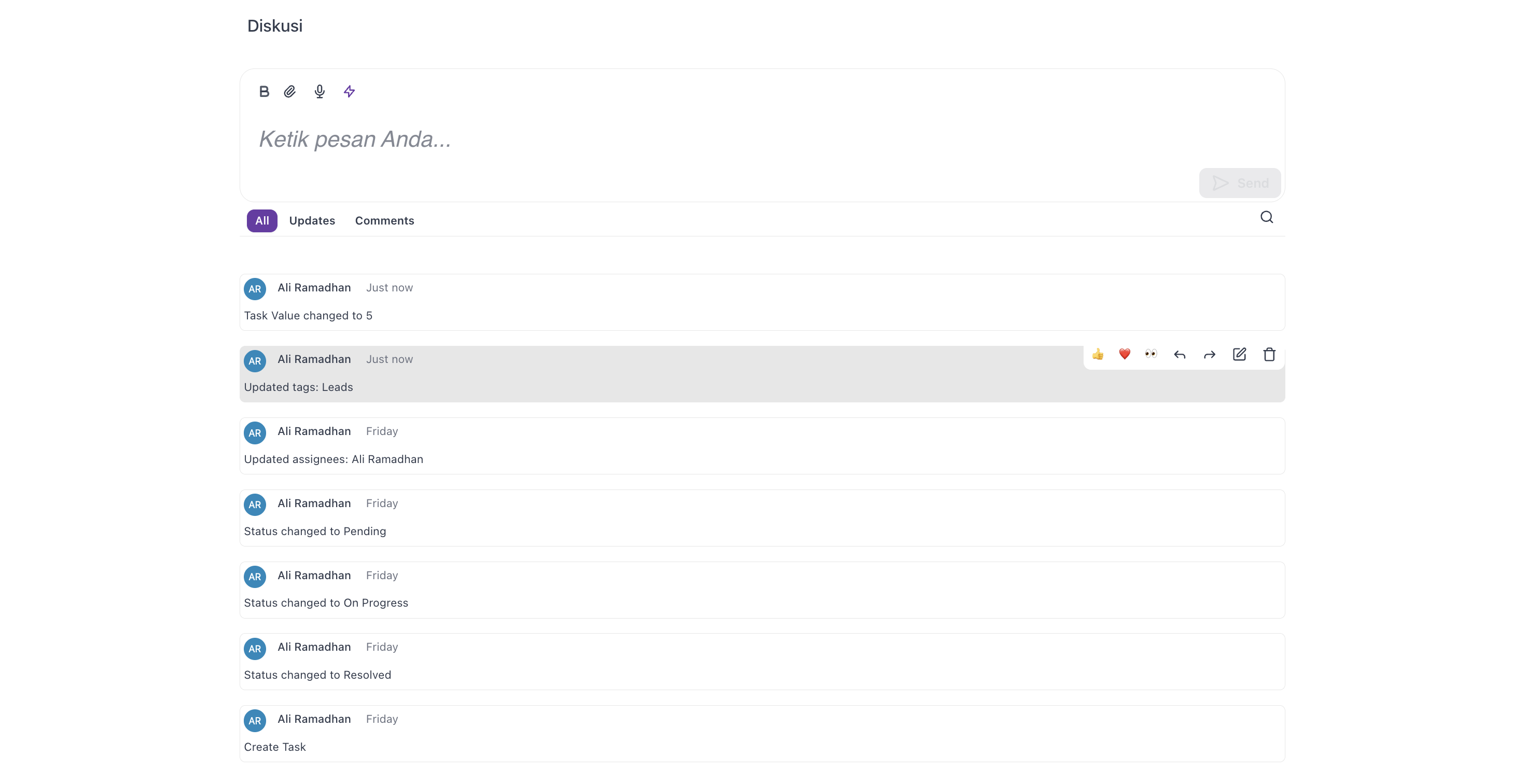
The bottom of every Task is a chatbox-style activity history. Every meaningful change — title edits, status changes, assignees, attachments, dates — is recorded, and you can post comments in the same feed to discuss or hand off. It's real-time (no refresh) and persists for the life of the Task — the single place to answer "who changed this, and when?"
Conclusion
A Task is the smallest unit of work — but not small in what it holds. Title, Description, Status, Priority, Assignees, Tags, dates, Value, CRM and Commerce links, Custom fields, Subtasks, dependency Links, attachments, and a real-time Activity history all live together inside one Task.