.png)
An order records a sale from start to finish — the products, the customer, the payment, and where it is in fulfilment. This guide shows you how to create an order, add items and a customer, submit it, and move it through each status.
Open Orders
Click Orders in the Commerce section of the left sidebar. You'll see every order with its order number, customer, total, and status, plus search and filters for status, payment status, coupon, and date.
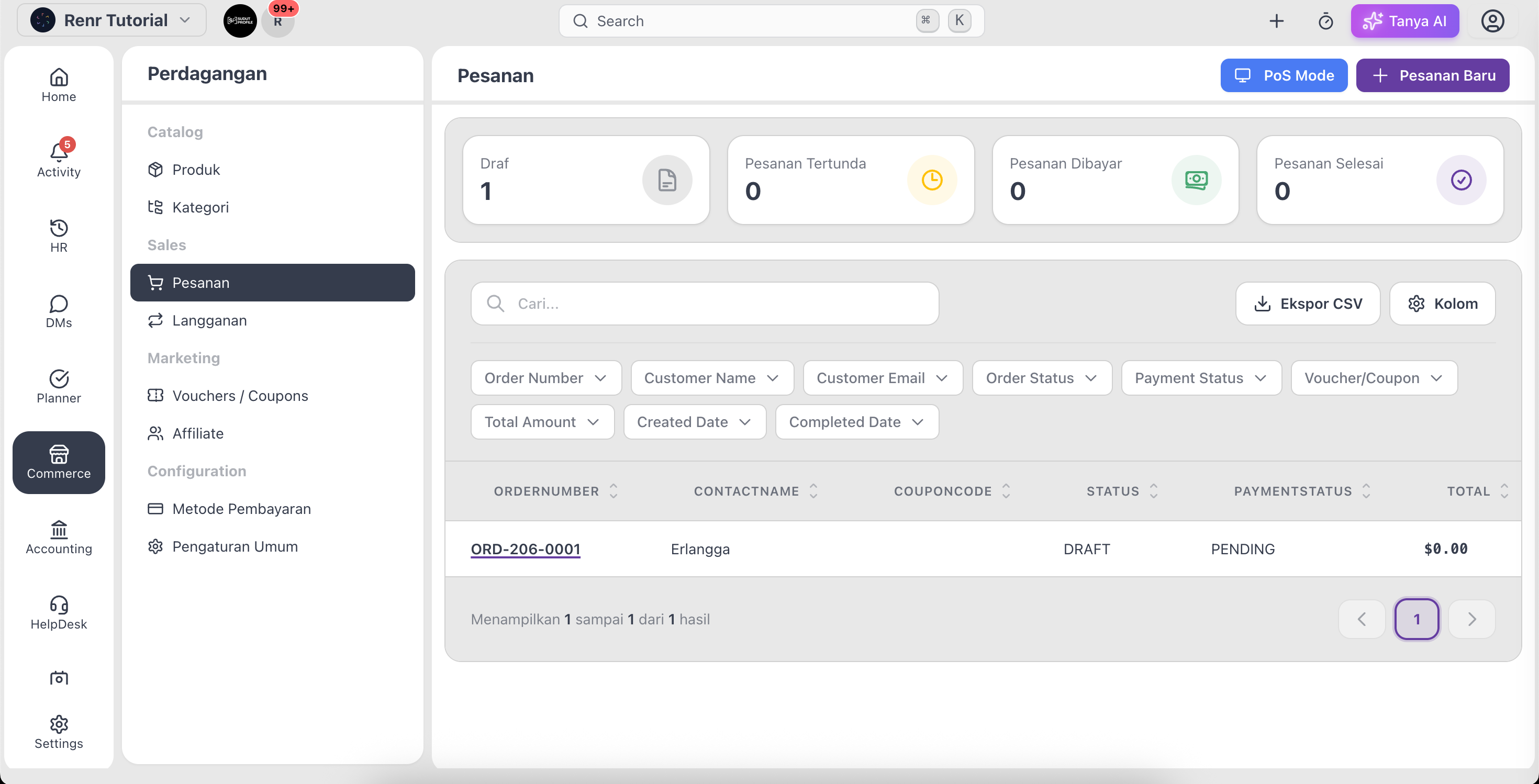
Create an order
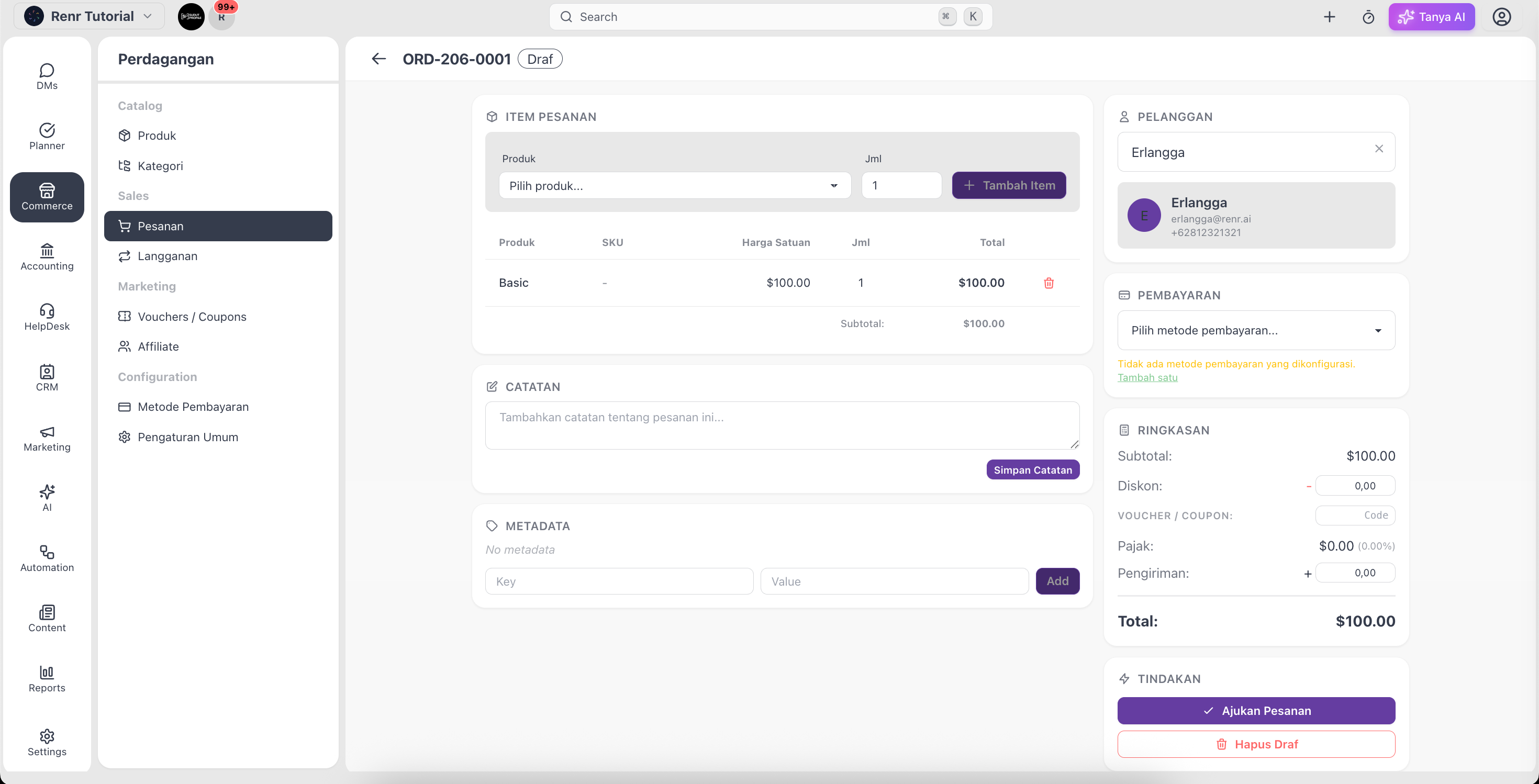
- Click New Order. A Draft order is created and its detail page opens.
- Click Add Item, search for a product, and set the quantity. Adjust the price or add a note if you need to. Repeat for each item.
- Click Update Customer to attach an existing contact, or create a new one inline.
- Add any order notes, and apply a discount with Apply Coupon if you have a code.
Submit the order
While an order is a Draft it's still being built and isn't counted as a sale. Once the items and customer are right, click Submit to move it to Pending — ready for payment and fulfilment.
Move the order through its statuses
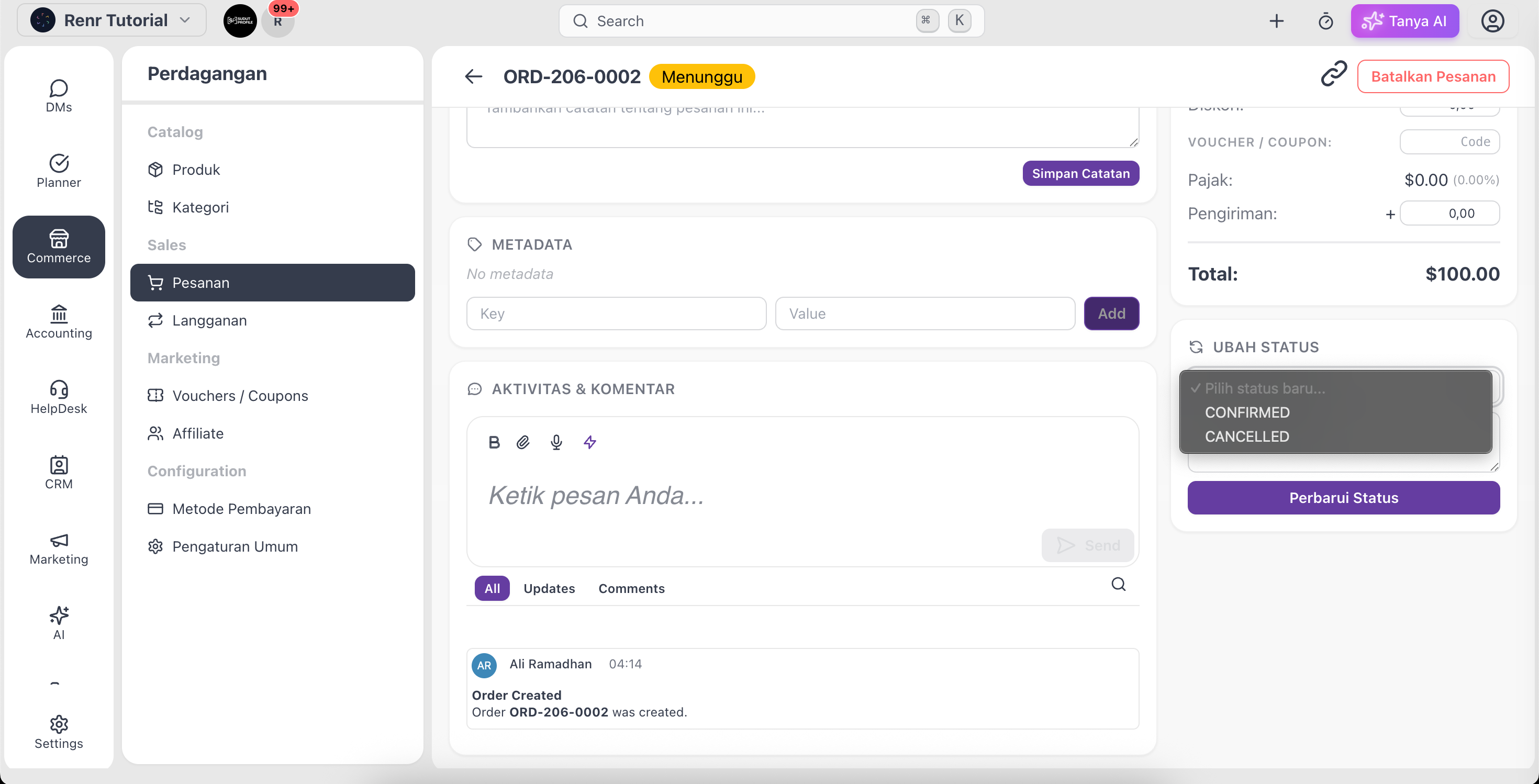
Use the status dropdown to keep the order up to date as you fulfil it — for example Pending → Confirmed → Processing → Shipped → Delivered. If a sale falls through, set it to Cancelled and add a reason.
Tip: To take payment, see Record a payment on an order. To send the customer a link to pay online, see Share a checkout link.