.png)
Before you can send a broadcast or message customers on a channel, that channel must be connected to your business. This article shows you how to connect a channel — such as WhatsApp, Email, or Live Chat — from your business settings.
Before you begin
You'll need owner or channel management permission to manage channels. Have the account details for the channel ready — for example, the phone you'll use to scan the WhatsApp QR code, your WhatsApp Business API access, or your email sending details.
Connect a channel
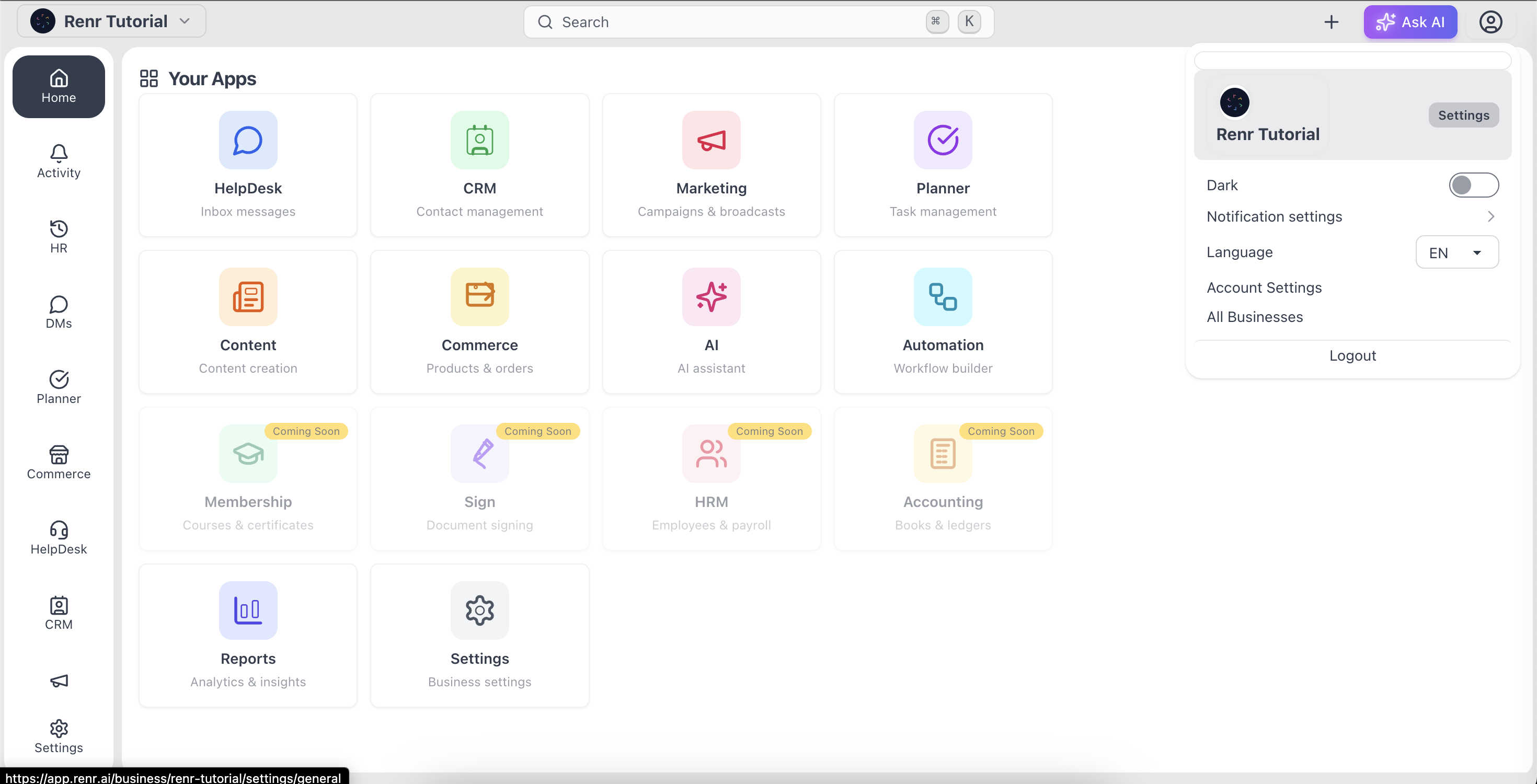
- In the top-right corner, click your profile avatar to open the menu, then click Settings.
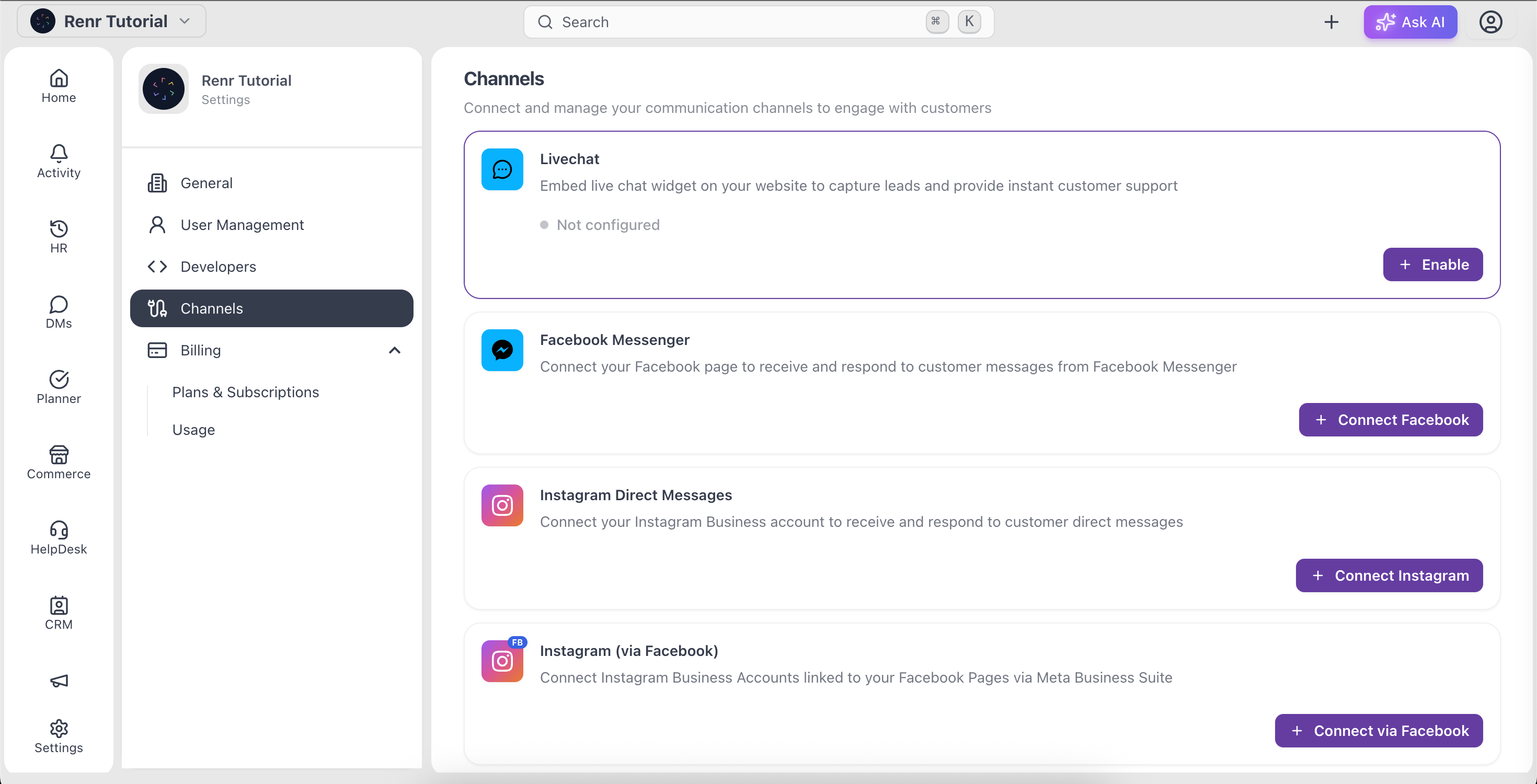
- In the settings sidebar, click Channels.
- Find the channel you want to connect and click its button — Connect WhatsApp, Connect WhatsApp API, Connect Email, or Enable for Live Chat. Other channels — Facebook Messenger, Instagram, Telegram, Discord, and Custom API — appear on the same page.
- Follow the on-screen prompts for that channel to finish connecting.
- Once connected, the channel appears in your Channels list and is ready to use for broadcasts and conversations.
Tip: For detailed, channel-specific setup steps, see Omni Chat Management.