.png)
Keeping a strong, up-to-date password is one of the easiest ways to protect your Renr account. You can change your password at any time from your account settings. Renr signs you in through a secure sign-in provider, so when you update your password the change applies everywhere you use Renr. This article shows you how.
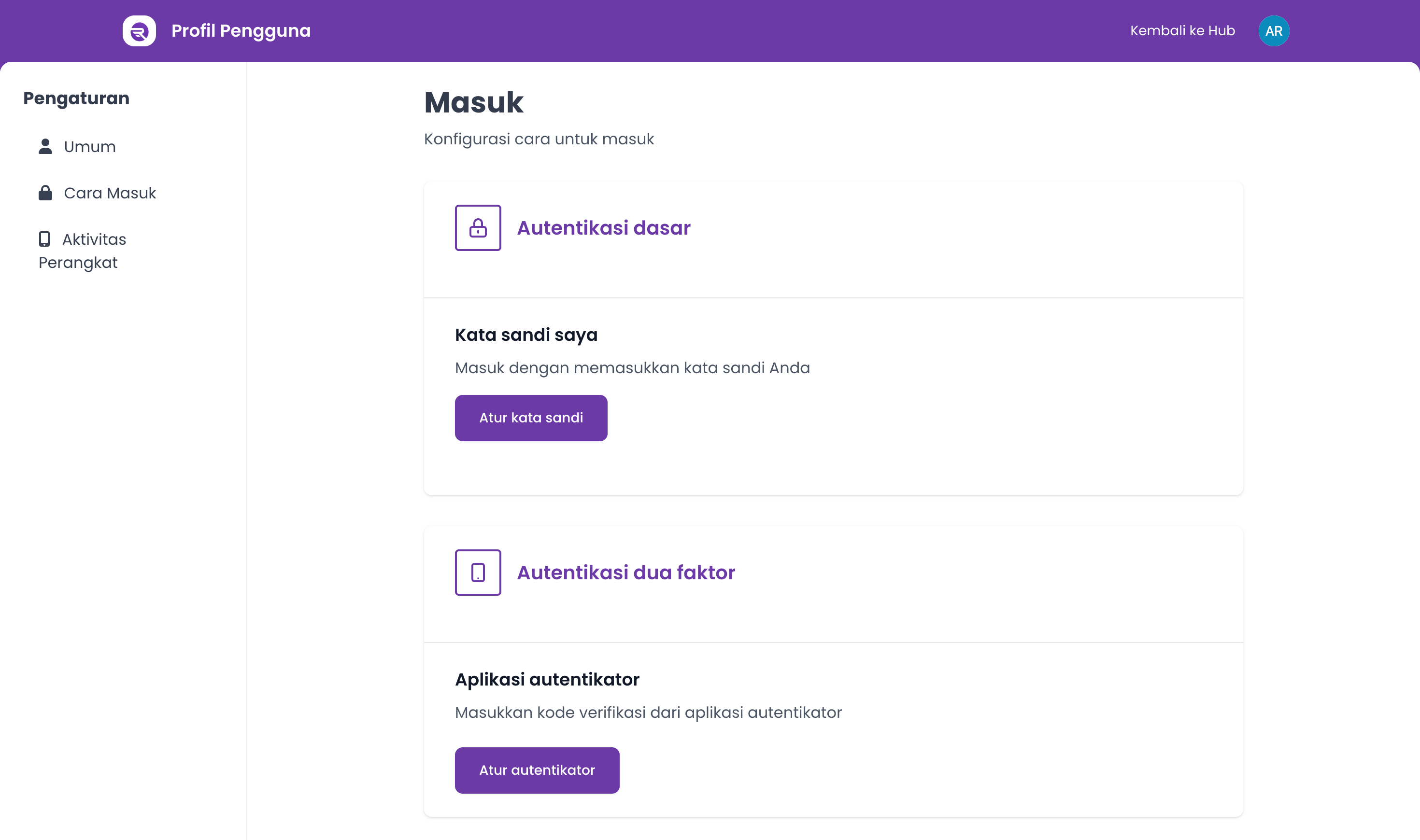
Change your password
- In the top-right corner, click your profile avatar to open the account menu.
- Click Account Settings.
- In the left sidebar, click Signing In.
- Under Basic authentication, find the My password section and click Setup password.
- You will be taken to Renr's secure sign-in provider. Enter your new password, confirm it, then submit.
- Once saved, you are returned to the Signing In page. Your new password takes effect immediately.
Note: Because Renr uses a single secure sign-in provider, your new password applies to every business you access with this account. You may be asked to sign in again with your new password.
Tip: Use a password that is long and unique to Renr, and avoid reusing it on other sites. For extra protection, you can also set up Two factor authentication from the same Signing In page.