.png)
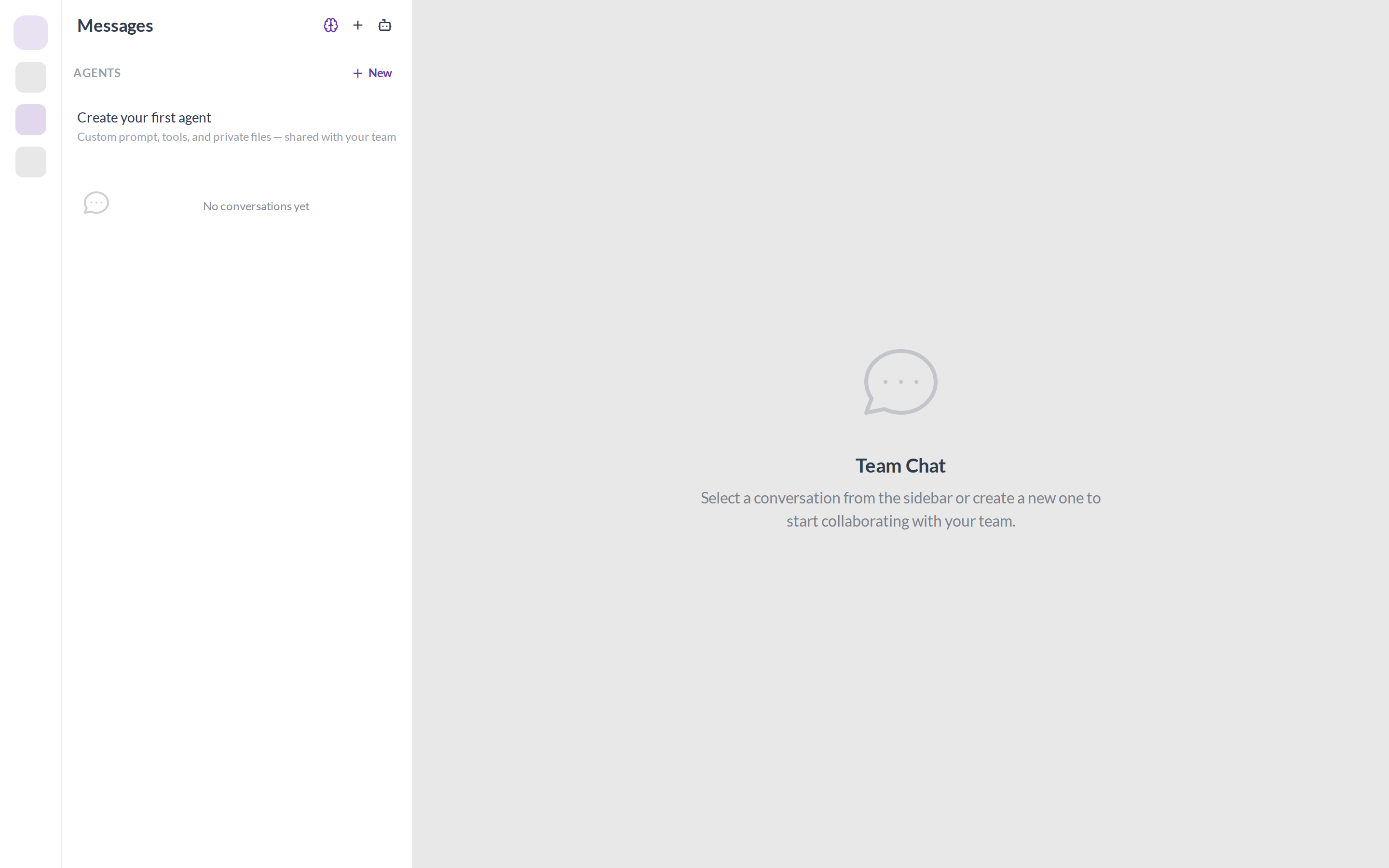
In Team Chat, you can create shared Agents that sit next to your DMs. Each agent has its own instructions, optional Omni tools, and a private file folder — then anyone on the team can open a personal chat with it.
What changed?
- Agents live in the Messages sidebar — under an Agents section with a one-click + New button.
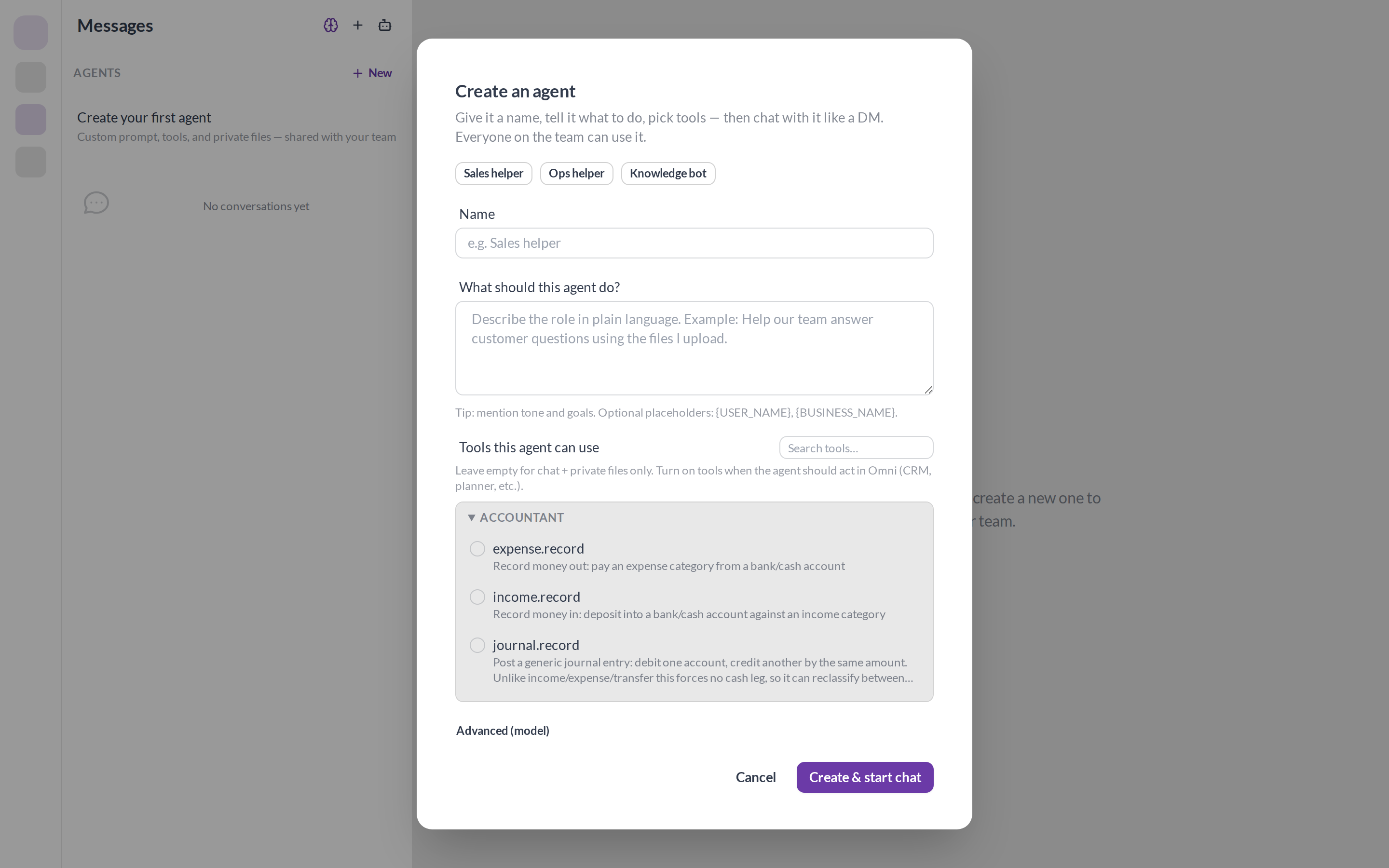
- Create in under a minute — name the agent, describe what it should do (or tap a preset like Sales / Ops / Knowledge), optionally turn on tools, then Create & start chat.
- Shared definition, private chats — the agent is available to everyone; each person keeps their own conversation history.
- Tools + private files — enable workflow actions (CRM, planner, commerce, …) and upload knowledge into the agent’s own folder tree.
How to create an agent
- Open Team Chat / Messages.
- In the Agents section, click + New (or Create your first agent if the list is empty).
- Pick a preset or write a short role description in plain language.
- (Optional) Search and tick tools the agent may use. Leave tools empty if you only need chat + files.
- Click Create & start chat — you land in a DM-style thread immediately.
What you will see
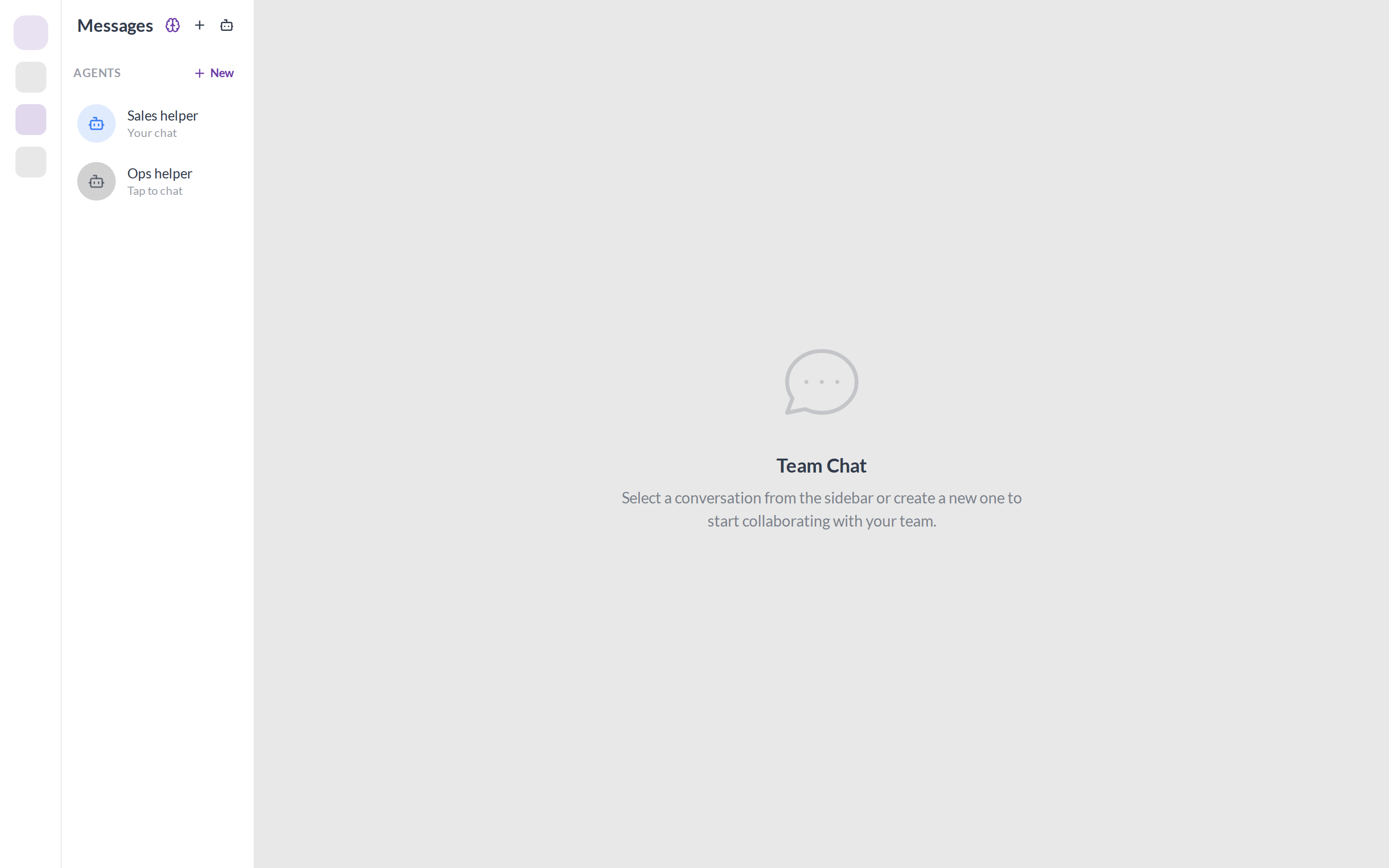
- Agents appear above Direct Messages, separate from classic RAI.
- Agents you have not opened yet show Tap to chat — one click opens your private thread.
- While chatting, the agent can use the tools you enabled and read/write its private files.
Tip: Start simple — create a Knowledge bot with no tools, drop a few notes into its files, then add CRM or planner tools later when you need actions.
Who can create? Business owners (and users with workflow admin). Everyone on the team can chat with enabled agents.