.png)
Your AI agent is the assistant that helps answer customers inside Omni Chat. Configure it once — its name, model, and instructions — so its replies sound like your business before you switch it on.
Open the agent settings
Go to Settings → AI → Agent (AI Module Application). You'll see your agents and a master Automatic AI Responses toggle.
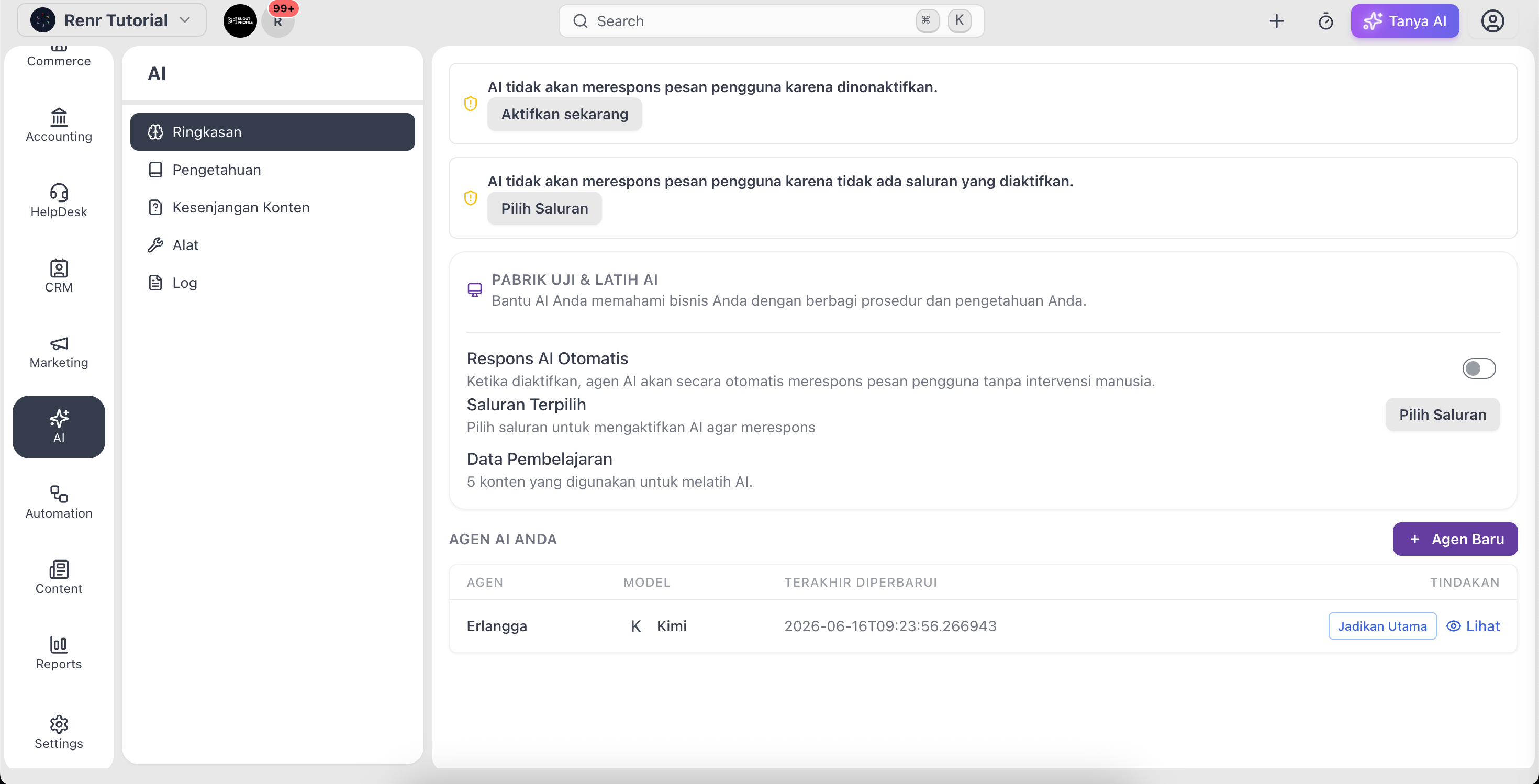
Configure your agent
- Open an agent to reach its configuration screen.
- Set the Agent Name.
- Choose an AI Model from the dropdown on detail page.
- Write your Instructions on detail page— describe the agent's role, tone, and what it should (and shouldn't) do. Use a persona template — Soft, Business, or Fun — as a quick starting point on de.
- Click Save Configuration.
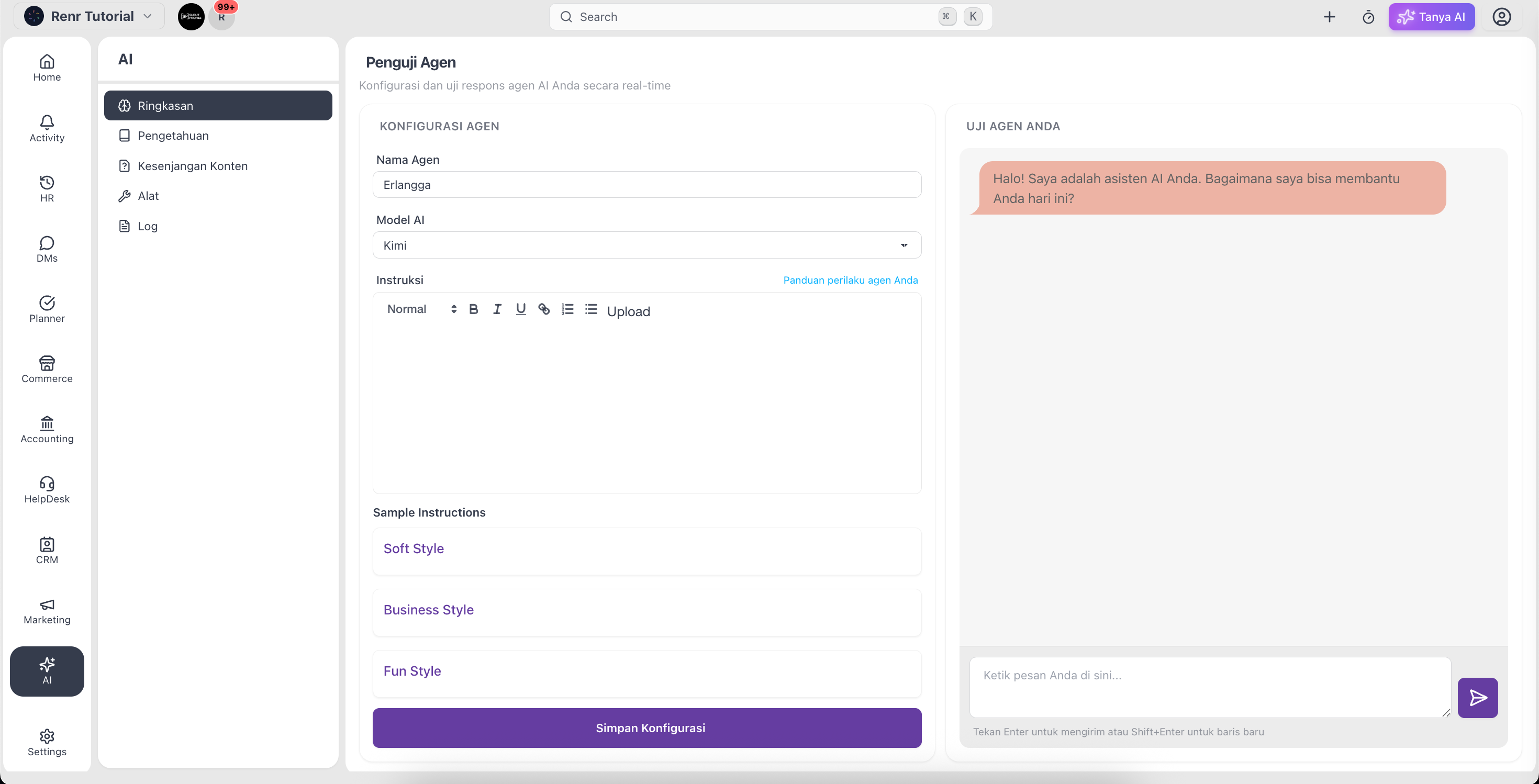
Test before you go live
Use the Test Your Agent panel beside the form to send sample questions and check the answers. Adjust your instructions and save again until the replies feel right.
Turn on automatic replies
When you're happy, switch on Automatic AI Responses so the agent replies to customers without waiting for a team member. You can still pause AI on any single conversation from the AI On / AI Off control in the inbox.
Tip: Give your agent good source material in the AI Knowledge Center — the better its knowledge, the fewer questions it gets wrong.
Note: Clear, specific instructions beat long ones. Tell the agent who it represents, the tone to use, and when to hand off to a human.