.png)
Omni Chat brings every customer conversation into one place. Messages from Live Chat, WhatsApp Business, Facebook Messenger, and Instagram all land in a single shared inbox, so your team can reply from one screen instead of juggling apps.
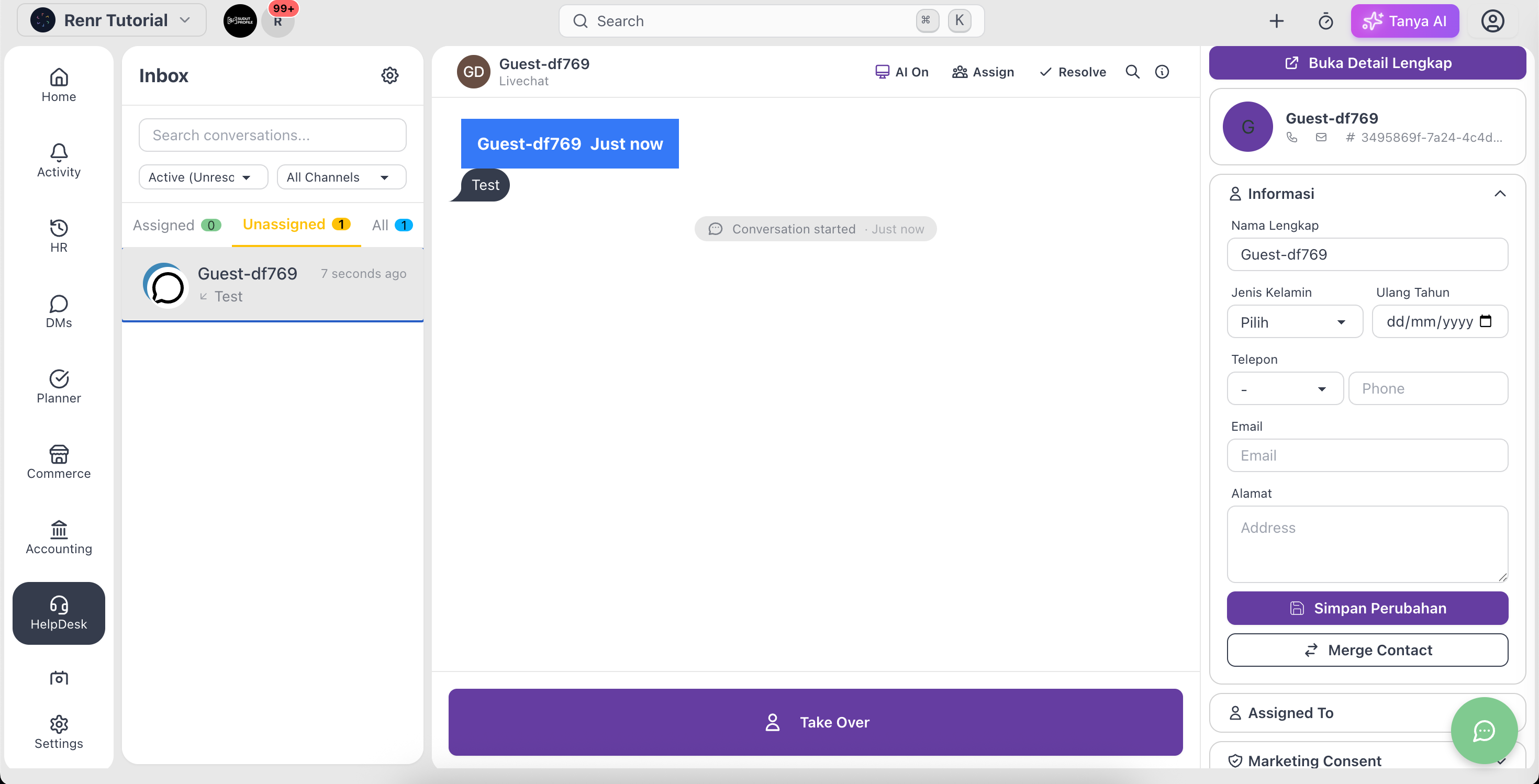
Open your inbox
From the left navigation, open Omni Chat to land on your Inbox. Conversations are grouped so the ones that need you are easy to spot.
Find the right conversation
Use the tabs and filters at the top of the list to focus:
- Assigned — conversations assigned to you.
- Unassigned — conversations waiting for someone to pick them up.
- All — everything across your team.
Narrow further with the status filter (Active (Unresolved), Unread, Resolved, or All), pick a single channel from the channel filter, or type in the Search conversations… box.
Reply to a customer
- Click a conversation to open it.
- Type your reply in the message box at the bottom and send it.
- When you're done, click Resolve to close the conversation. Reopen it any time by clicking Resolved again.
Assign and collaborate
Click Assign to hand a conversation to a teammate. Open the details sidebar (the settings icon) to see the contact, their labels, and the assignment, or click View in CRM to jump to the full contact record.
Let AI help
Each conversation has an AI On / AI Off switch. With AI on, your configured agent can reply automatically; turn it off to take over manually, or click Trigger AI to ask for a single AI-drafted response on demand.
Tip: Set up your assistant first in AI Agent Configuration so AI replies match your brand voice.
The WhatsApp 24-hour window
WhatsApp Business only lets you send free-form replies for 24 hours after a customer's last message. Inside Omni Chat you'll see a countdown on WhatsApp conversations; once it expires you'll need an approved template message to reach the customer again.
Note: This window applies to WhatsApp API and Coexistence channels — it's a WhatsApp rule, not a Renr limit.