.png)
Welcome! This guide introduces you to the space — your team's dedicated workspace inside Planner. By the end, you'll know what a Space is, what's inside one, and how every piece works together so your team can plan, talk, meet, and ship from a single place.
What you'll need
- A RENR account with access to at least one Space.
- An invitation from a Space Owner or Admin if you don't have one yet.
Definition
A space is a dedicated workspace where your team plans, communicates, and gets work done together. Think of a space as a single room that holds everything your team needs for one project, one client, or one operation: the tasks, the conversations, the meetings, the files, and the dashboards that show how things are going.
You can belong to as many Spaces as you need. Some teams create one space per-project, others create one per client account, one per department, or one per repeating operation. There is no single right answer spaces are flexible enough to match how your team actually works.
Feature in space
Every space ships with the same set of built-in features. You access each through the tabs at the top of the Space.
- Dashboard
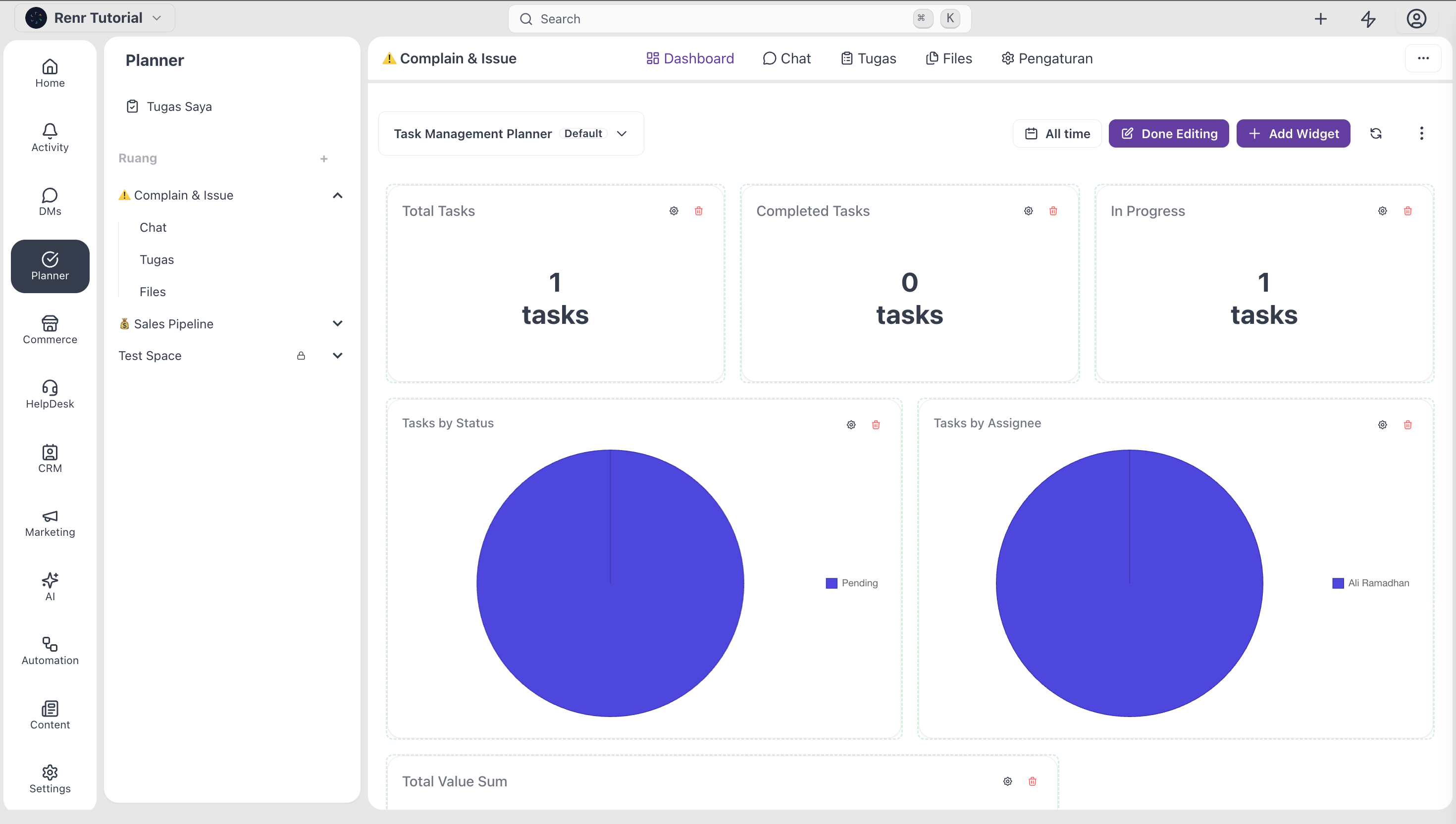
The dashboard is your tab view of the space. It shows widgets and charts summarising what's going on: how many tasks are open, which are overdue, who's busy, and what's been completed recently.
Use the Dashboard for weekly reviews, status meetings, or whenever you need a quick health check on the space without diving into individual tasks. Owners and admins can configure which widgets appear, and what data each one shows.
- Chat
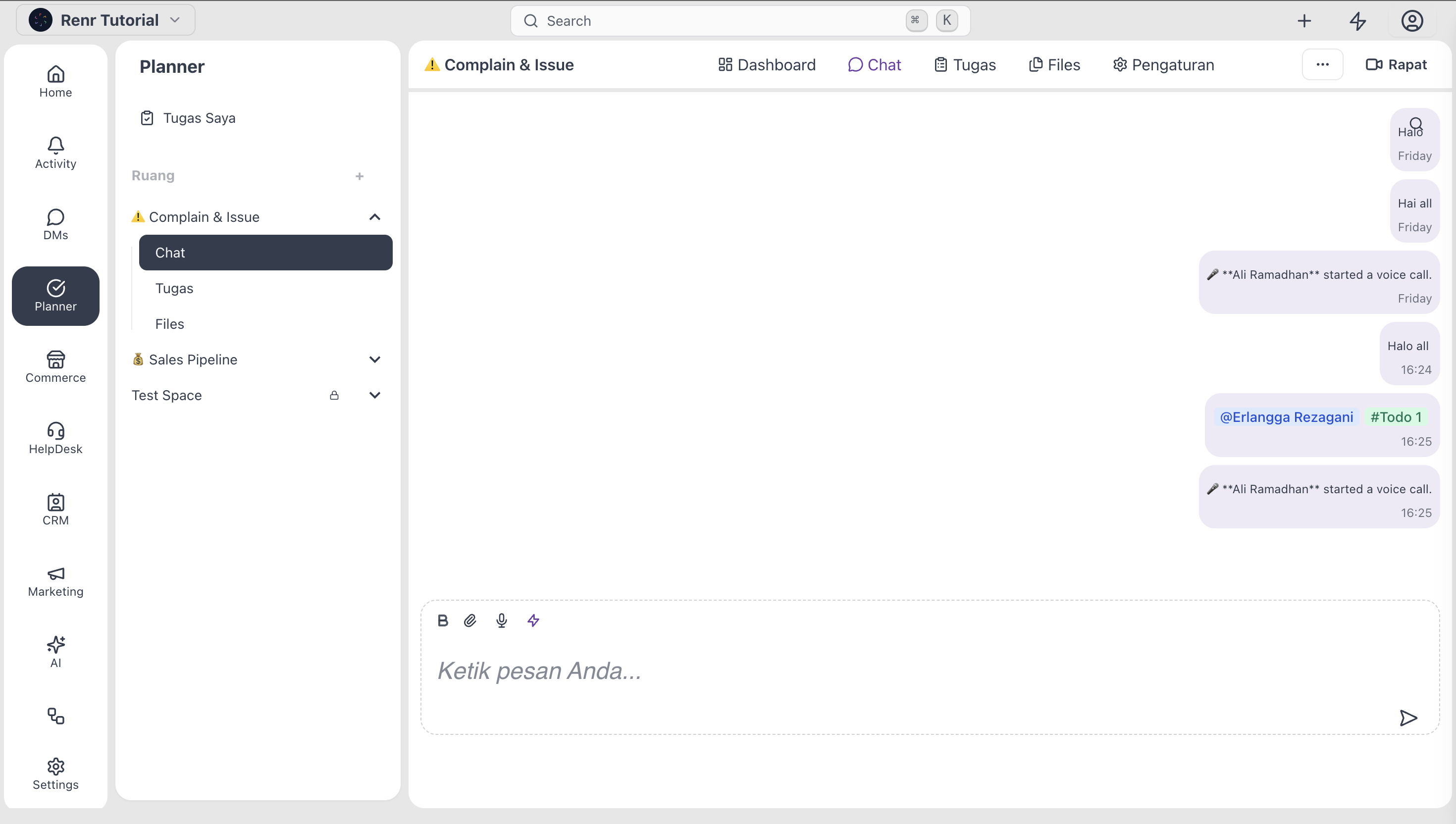
Every space comes with its own Chat room. This is where your team talks about what's happening in the space—quick questions, decisions, and links shared in passing.
- Meeting
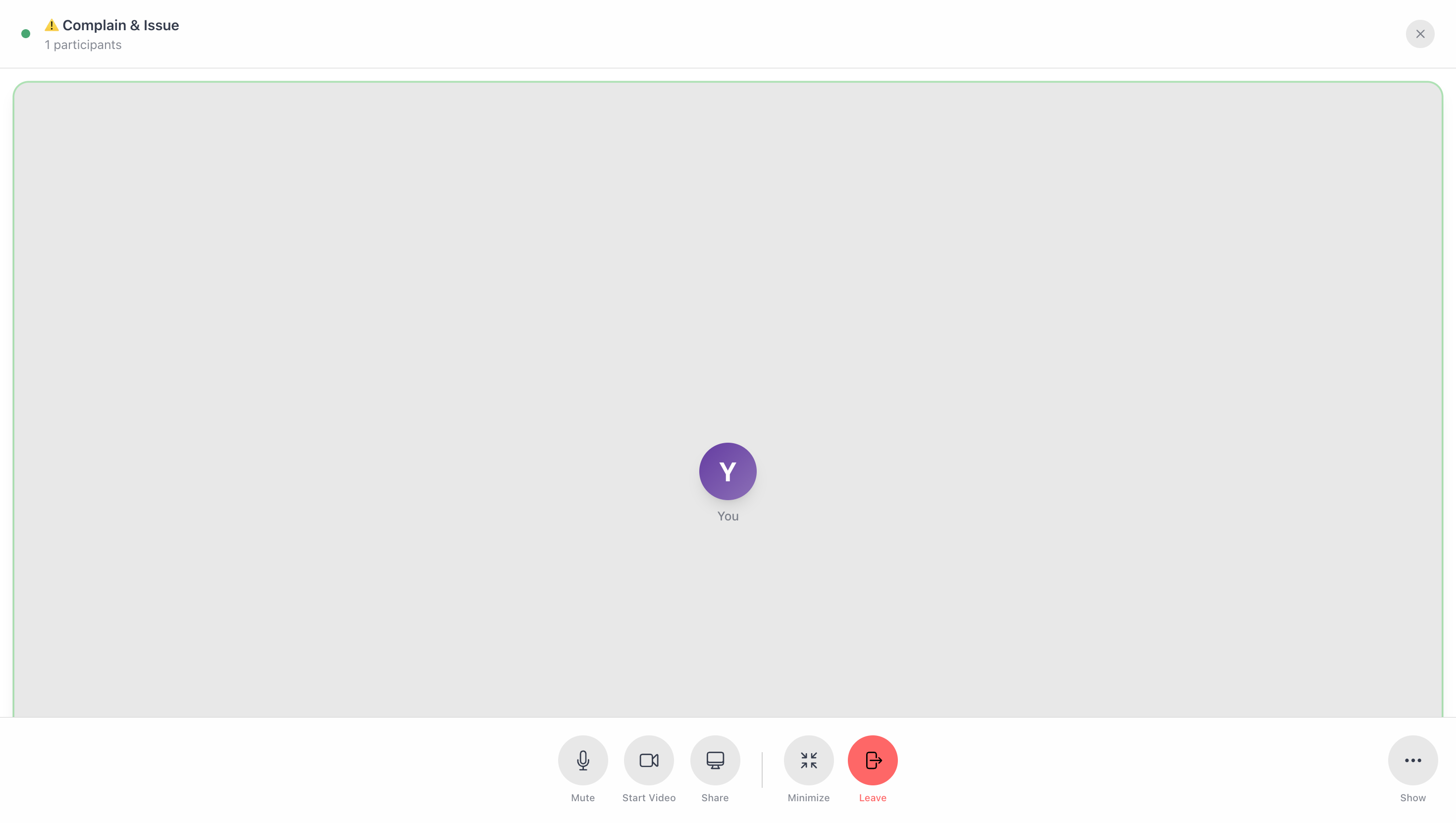
When chat isn't enough, start a meeting directly inside the space. Meeting launches a video call that any space member can join — no separate scheduling tool, no copying a link from another app.
The meeting belongs to the space, so its context is already there: the tasks under discussion, the files referenced, the recent chat history. Use Meeting for stand-ups, planning sessions, project reviews, or any time you need to talk face-to-face about what the Space is working on.
- Task
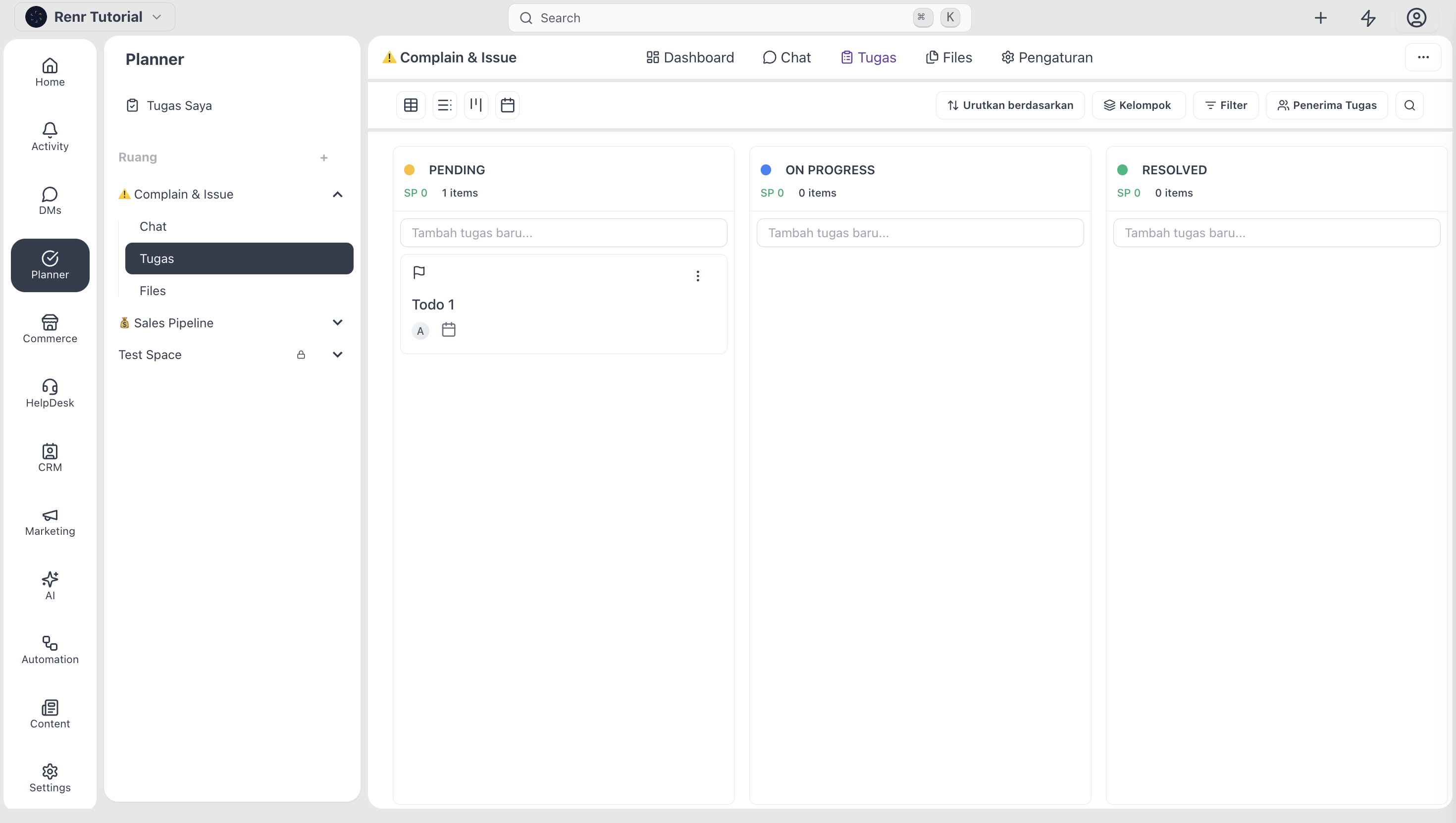
Task is the main of the space. It's where the work itself lives — every job, request, or item that someone on the team needs to deliver.
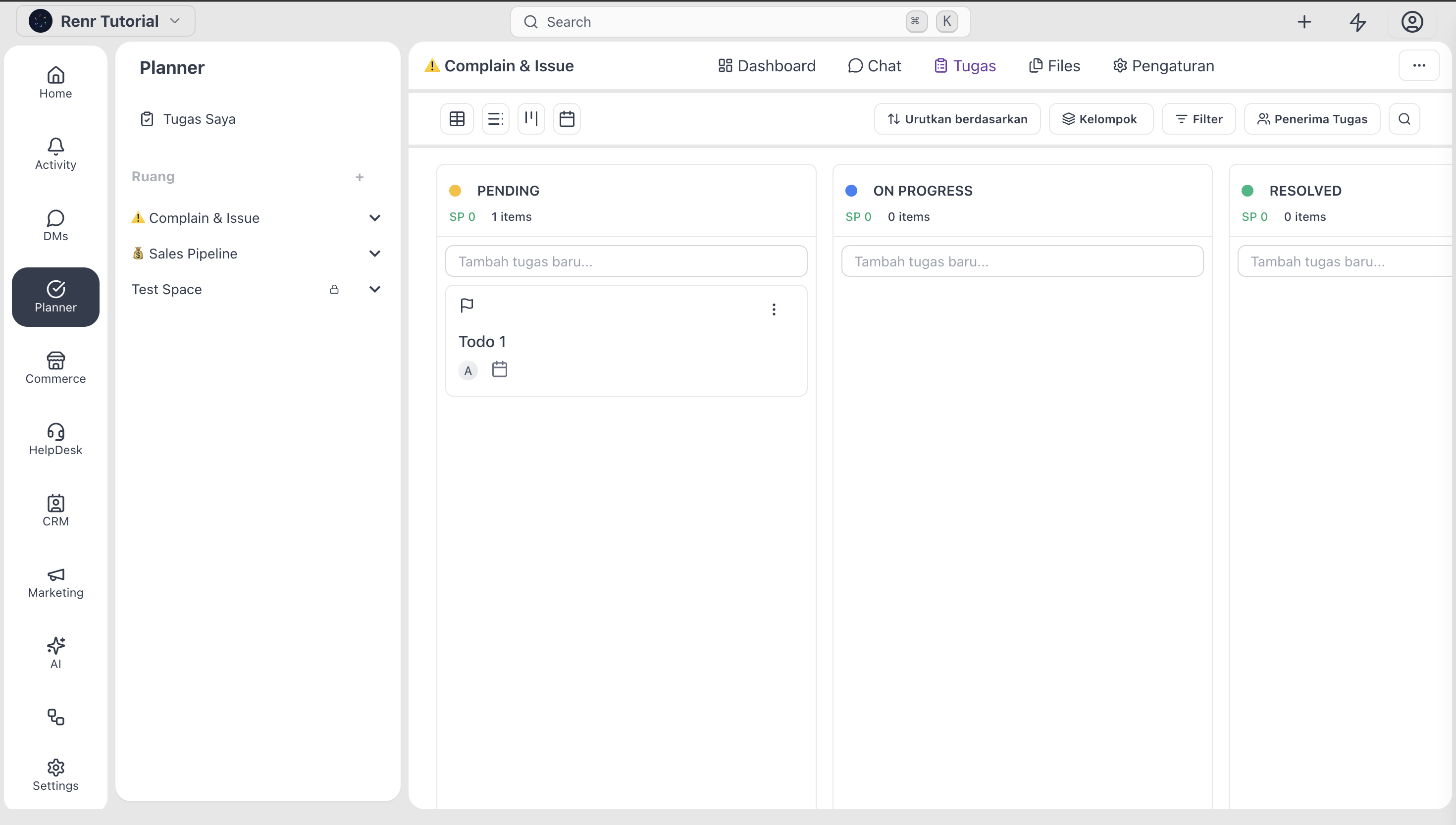
Inside the Task tab you can switch between for views to look at the same tasks differently:
- Board for drag-and-drop status tracking.
- List for sorting, filtering, and bulk actions.
- Tables for sorting, filtering, and bulk actions.
- Calendar for deadlines and scheduling.
We cover tasks in depth in a later article. For now, know that this is where your team's work shows up—and that the same set of tasks can be shaped into whichever view the moment calls for.
Files
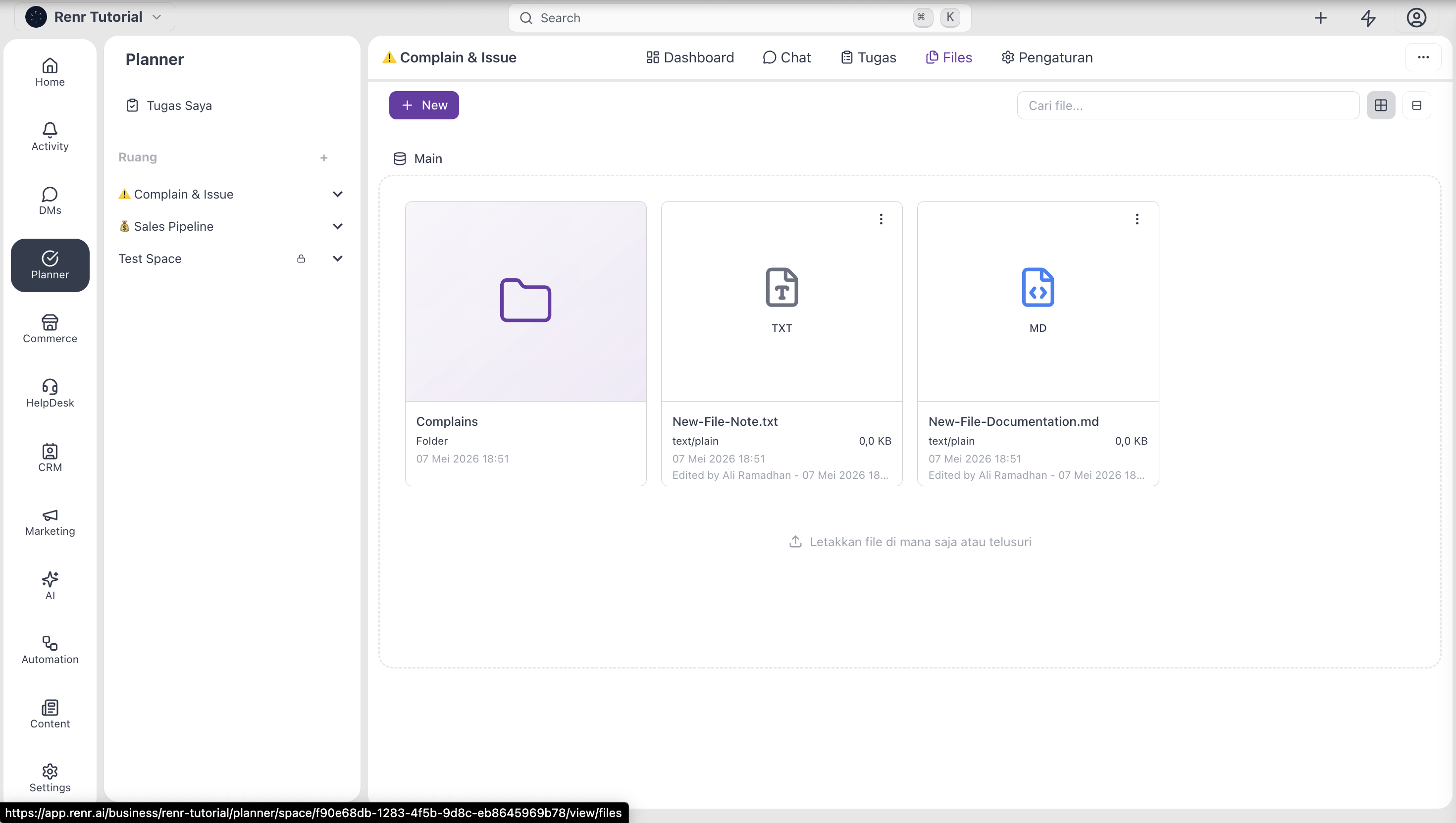
The files tab is the space's shared file area. Upload documents, images, briefs, contracts, or any other file your team needs in one place. Files are organized into folders, just like a regular file system, and every Space member can access them.
Use Files for assets that the whole team needs — brand guides, briefs, contracts, reference material — rather than attaching the same file to dozens of individual tasks. When a file does belong to a single task, attach it to the task itself instead.
- Settings
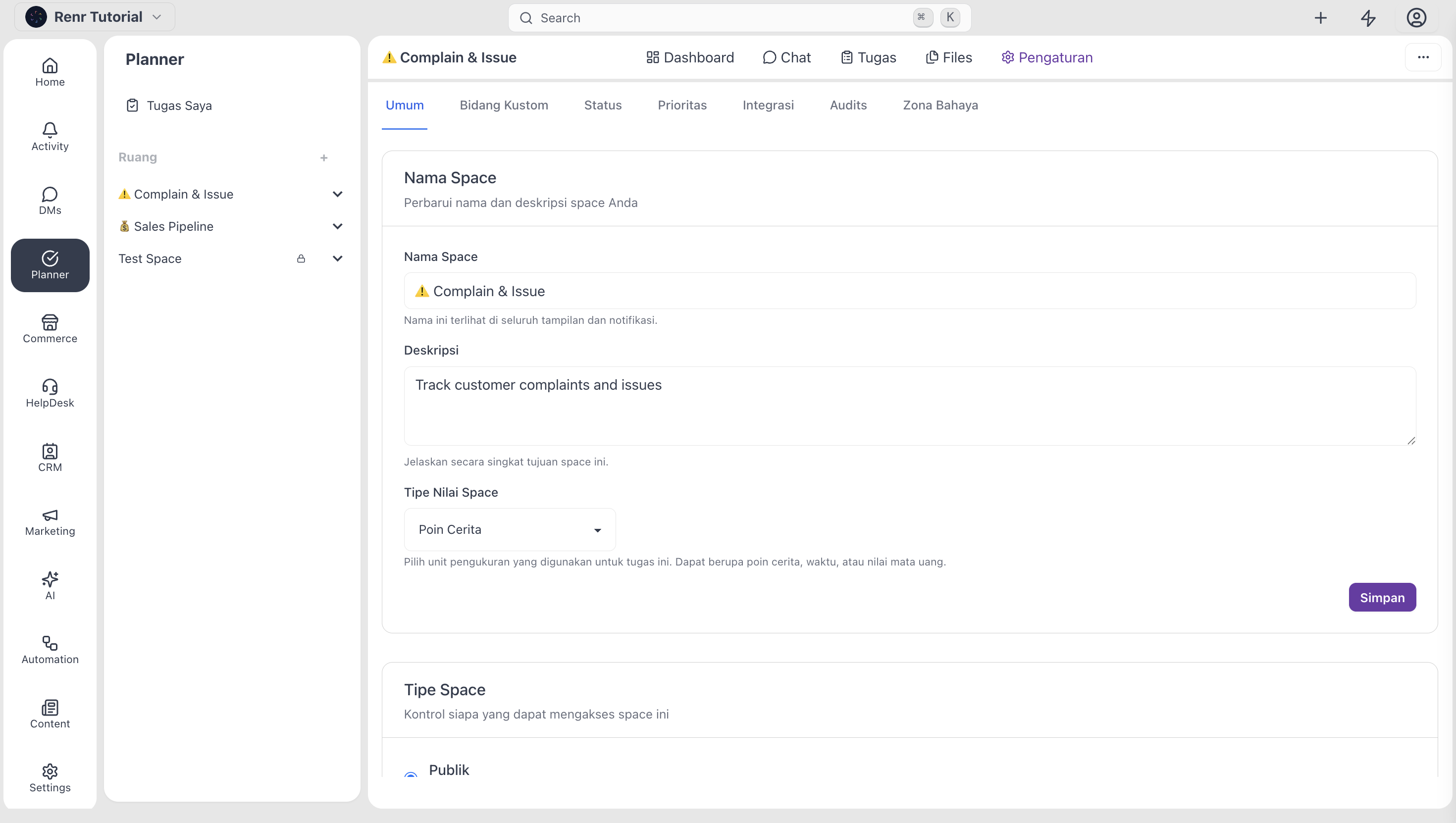
The settings tab is where the Space's owner or admin configures how the Space behaves: name, colour, default view, member list, role assignments, task visibility rules, custom fields, and integrations.
Most members never need to open Settings — but it's worth knowing where the controls live so you can ask the right person to make a change when something needs adjusting.
- Role member
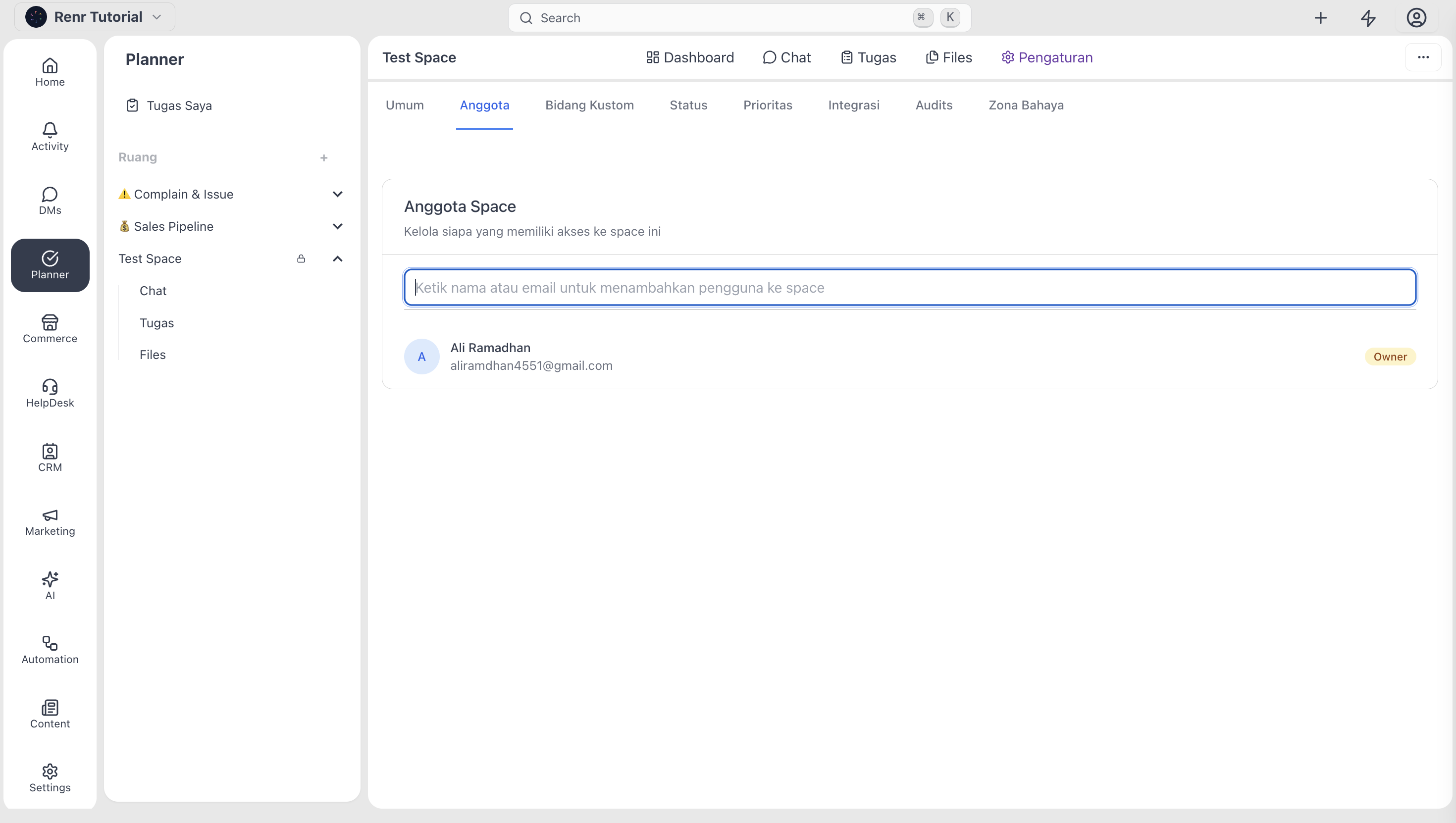
Every person inside a space has exactly one role, and what they can see and do depends on it:
- Owner—created the space, has full control. There is one Owner per Space.
- Admin — full control like the Owner, but a Space can have multiple Admins. Use this for senior team members who help you run the space.
- Manager — supervises one or more members. Sees their own tasks and the tasks of the members they manage. Cannot change Space-wide settings.
- Member — does the work. Sees their own tasks and, when the Space allows it, other members' tasks too.
Roles are set when someone is invited to the Space and can be changed later from Settings. If you can't see a task you expected to see, your role may be the reason—ask your space Owner or Admin to check.
Conclusion
A space is more than a folder for tasks. It's a self-contained workspace that brings together planning, conversation, real-time meetings, files, and reporting around a single team or project. Every feature inside a space is designed to keep the context together, so no one on your team has to dig across tools to find what they need.