.png)
A Company in your CRM groups the contacts who belong to the same organization, so you can see everyone you work with at one business in a single place. This guide shows you how to create a company, keep its details current, and link the right contacts to it.
Before you start
- You need a role with access to CRM.
- To link contacts, it helps to already have those contacts in your CRM.
Create a company
- From the CRM menu, open Company.
- Click New Company.
- Fill in the details: Company Name and Domain are required; Team Size is optional.
- Click Save.
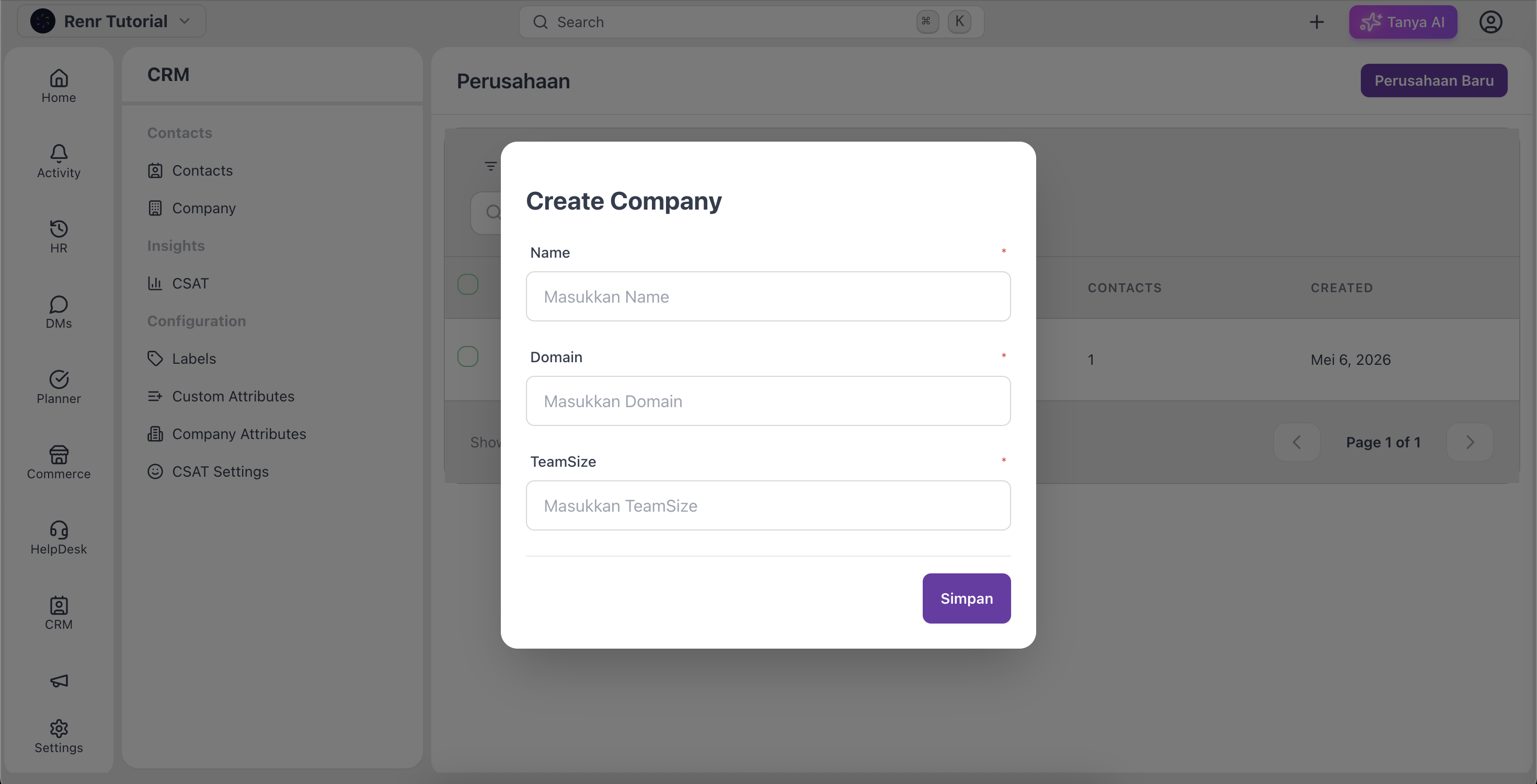
Tip: Use the search and filters above the list to find a company fast once you have many of them. The list shows each company's Name, Domain, Team Size, linked Contacts count, and Created date.
View and edit company details
- Click a company in the list to open its profile.
- In the Company Information card, click Edit.
- Update what you need — beyond name, domain, and team size you can add a description, address, phone number, website/maps link, and social profiles.
- Click Save.
The profile also shows an Activity tab and a Timeline with who created the company and when it was last updated.
Link contacts to a company
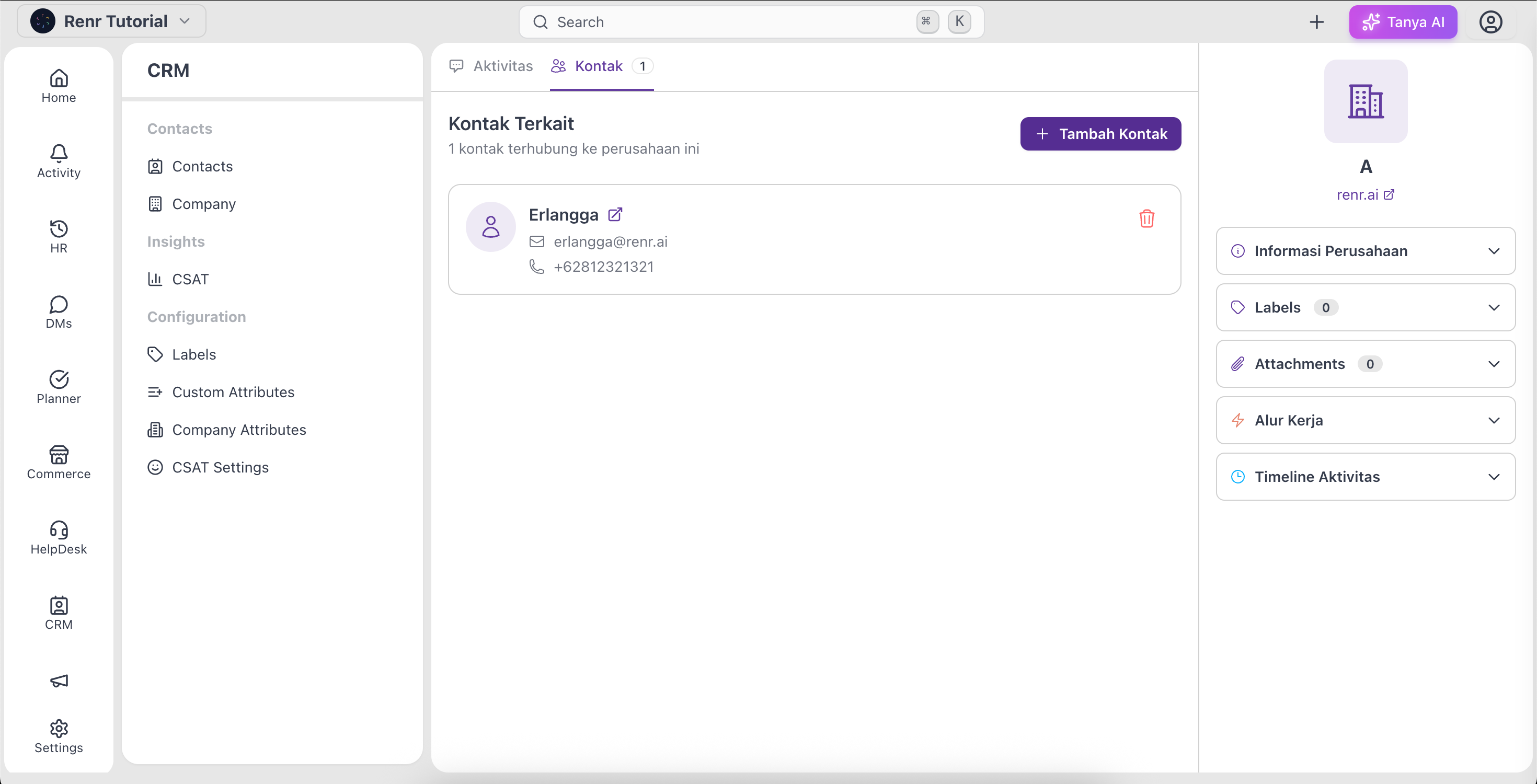
- Open the company, then go to the Contacts tab.
- Click Add Contacts.
- Search by name, email, or phone, then select the contacts you want to link.
Remove a contact or delete a company
To unlink a contact, open the company's Contacts tab and click the trash icon next to that contact, then confirm. This only removes the link — the contact itself stays in your CRM.
To delete companies, select one or more in the list and click Delete.
⚠ Warning: Deleting a company is permanent. The company and its details are removed and cannot be restored.