.png)
Recording payments keeps every order's payment status accurate, so you always know what's been settled and what's still outstanding. This guide shows you how to record a payment, handle split payments across more than one method, and read the payment status.
Open the order
From Orders, click the order you want to take payment on. The detail page has a payments section showing what's been paid and what remains.
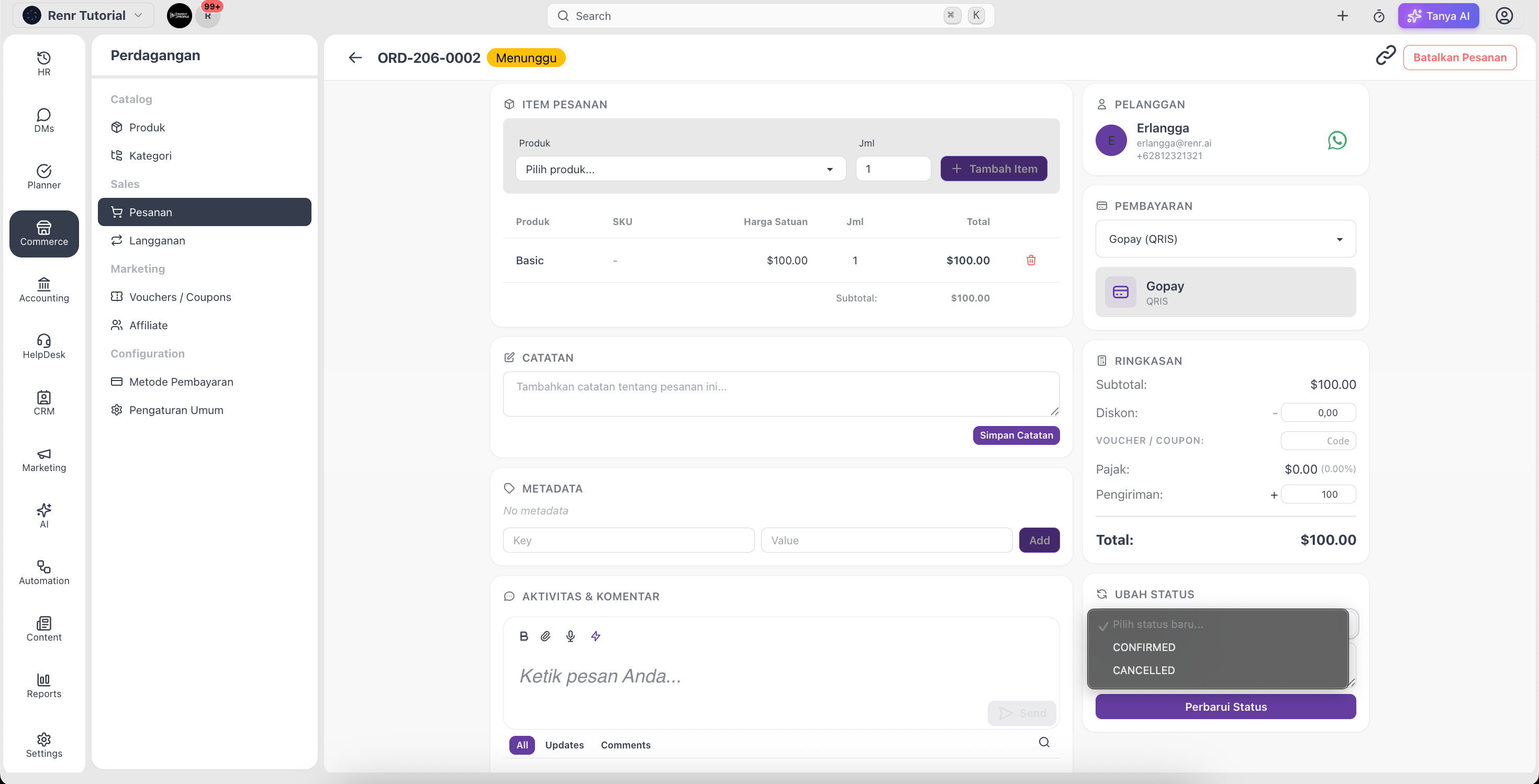
Record a payment
- Click Record Payment.
- Choose the payment method the customer used.
- Enter the amount received.
- Save the payment. The order's payment status updates automatically.
Understand the payment status
- Unpaid — no payment recorded yet.
- Pending — a partial payment has been recorded; a balance remains.
- Paid — the full total has been received.
Tip: Once an order is fully Paid, you can share a professional invoice with the customer — see Send an invoice to your customer.