.png)
In Omni Chat your AI agent can answer customers for you — but you're always in control. From any conversation you can switch the AI on or off, pause it while you step in, or ask it for a single reply on demand.
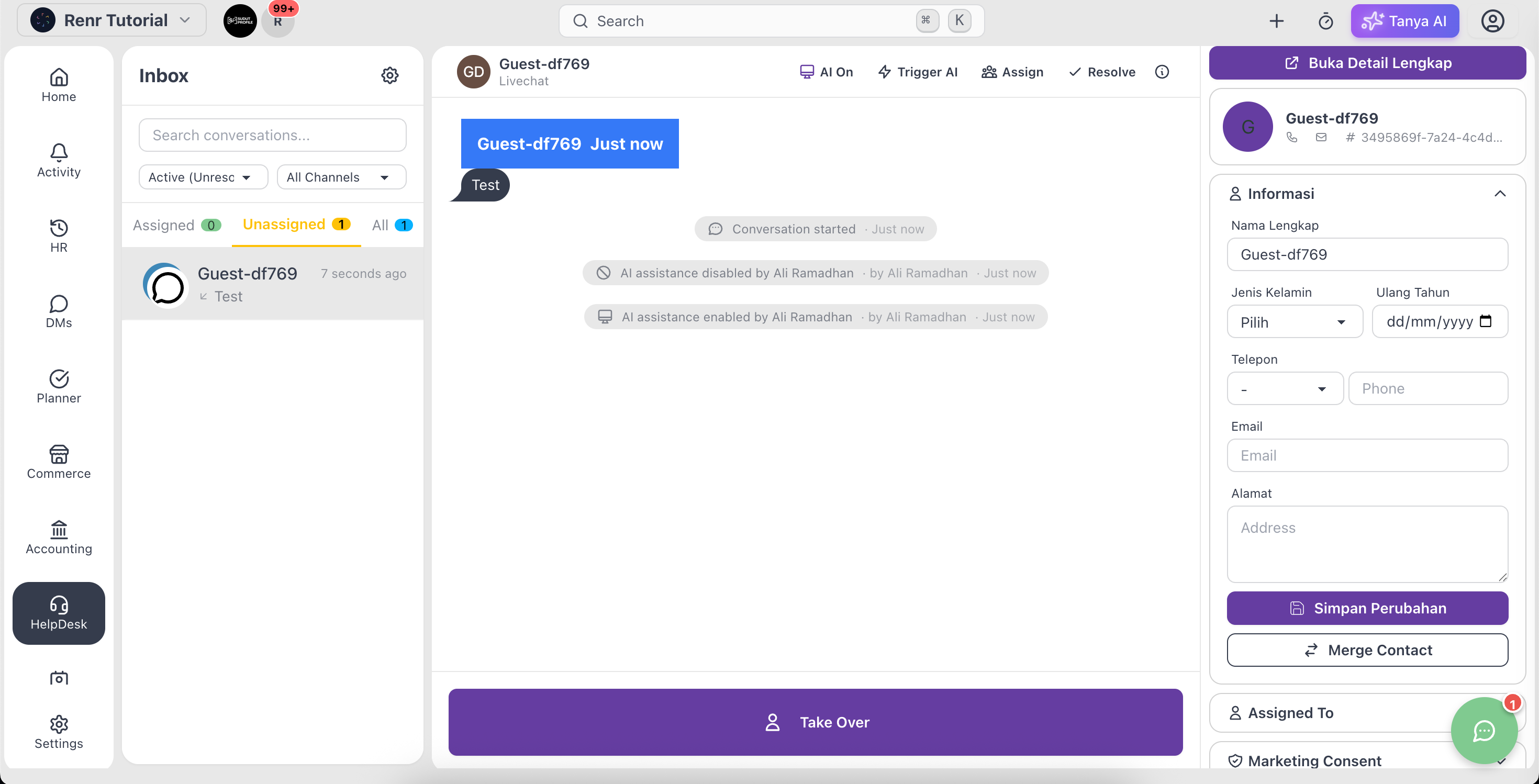
Turn AI on or off for a conversation
Open a conversation and look at the AI button in the header. Click it to switch the agent on or off for that customer:
- AI On — the agent replies to this customer automatically.
- AI Off — the agent stays quiet and you handle the conversation yourself.
Step in and let AI pause
When you send a message yourself, the AI can step back automatically so it doesn't reply over you. The button then shows Paused with a live countdown (for example, Paused 09:45). While it's paused you're in full control; when the countdown ends the agent resumes.
Note: The pause length is a business setting. An administrator can set it under Settings → AI Conversations → owner-reply pause (off, 10 minutes, or 60 minutes).
Ask AI for a single reply
Need just one AI-drafted answer without leaving the agent on? Click Trigger AI. The agent responds to the customer's latest message once, then waits — handy when AI is off or paused but you'd still like its help on a specific question.
Tip: How the AI sounds and what it knows comes from AI Agent Configuration. Set up its instructions and knowledge there first so its replies match your brand.